
So what do you do after users get a Copilot license? The first thing is user adoption! Wouldn’t it be neat if the first steps were automated? I have created a Logic App that looks for newly licensed users of a security group, then sends an information email and add them to a team in Teams. This automation routine could be technically used for many other adoption paths also, like onboarding.
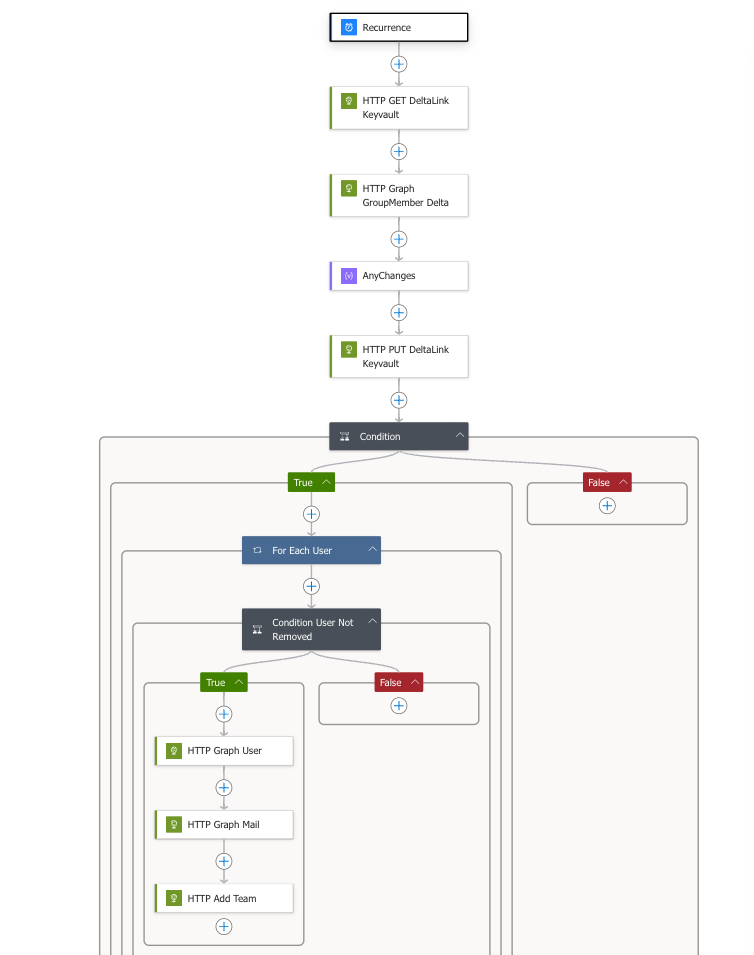
Here you have an image of what the Logic App looks like. At the bottom of the blog you will find the Logic Apps code, so no need to manually configure everything. This is all setup securely with managed identity, so no certificate or secret to remember updating. It would also be recomended to scope the email permissions, which I haven’t done in this blogpost.
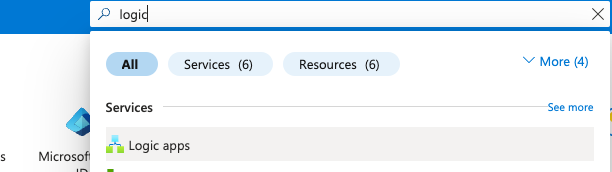
First, go to the Azure portal and search for Logic Apps.
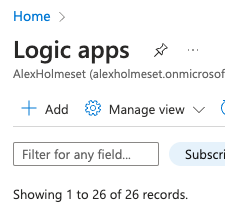
Click Add.
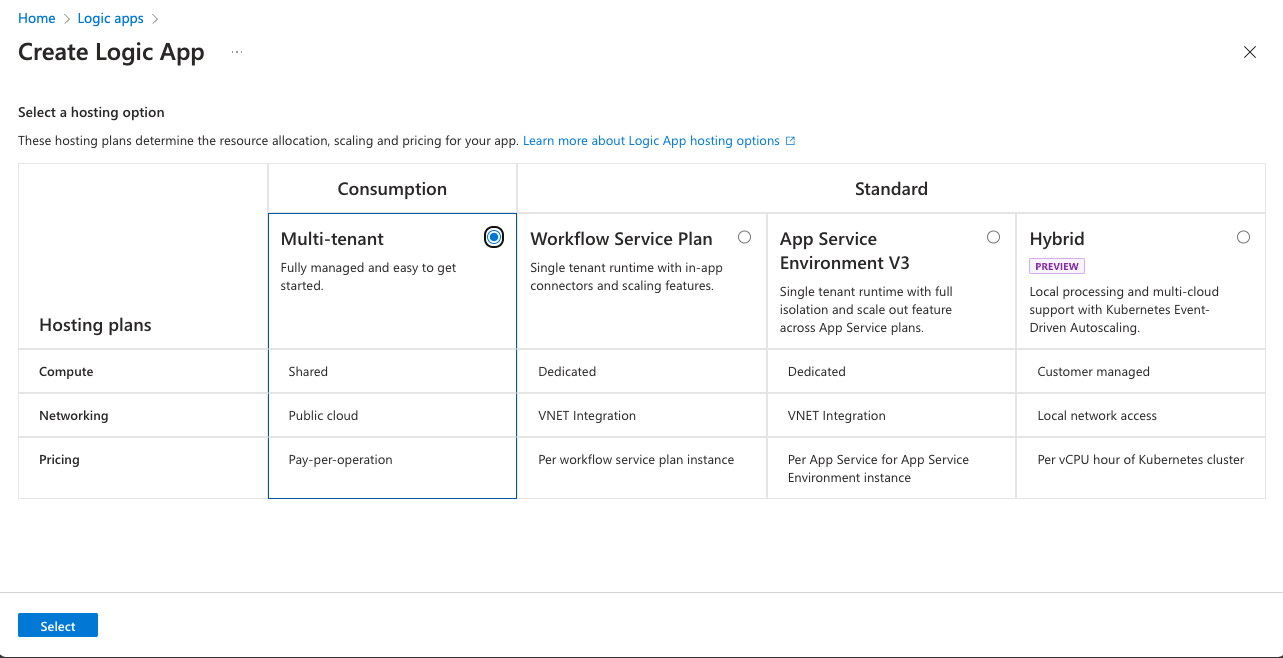
Select the plan of your choice, but consumption should be plenty.
Enter the details and click Review+create.
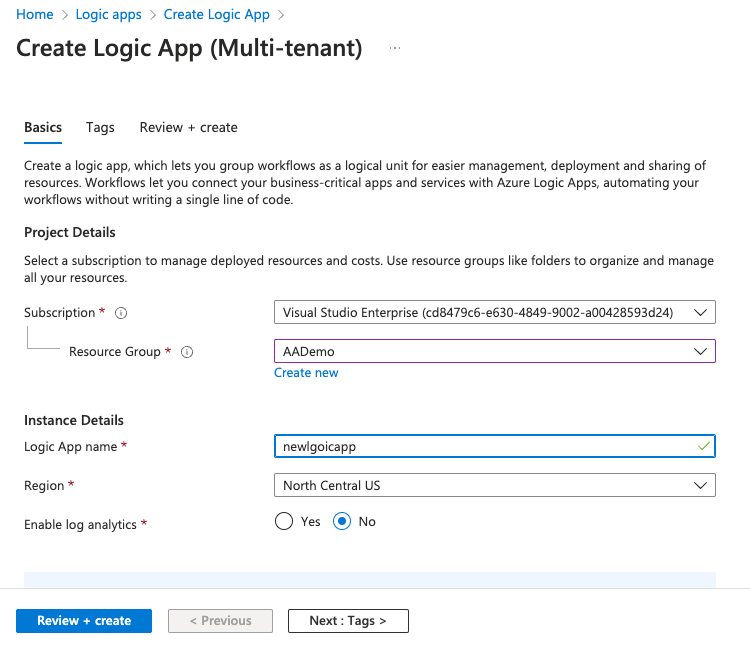
Click Create.
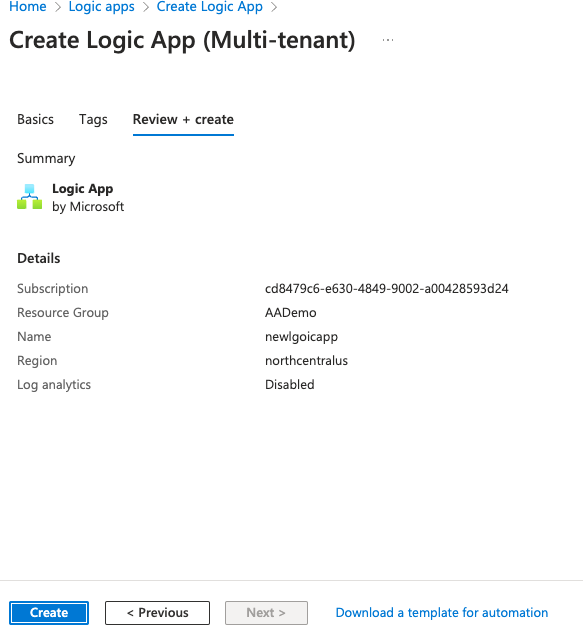
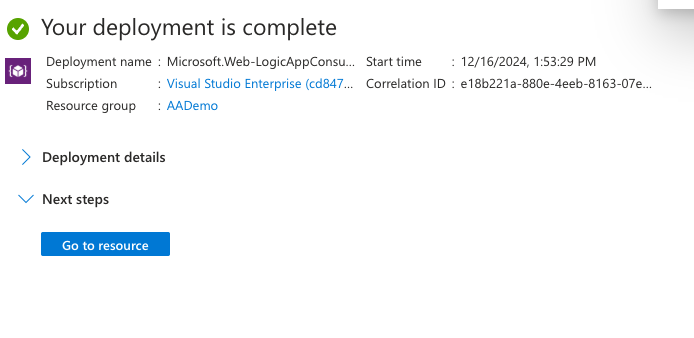
Click Go to resource.
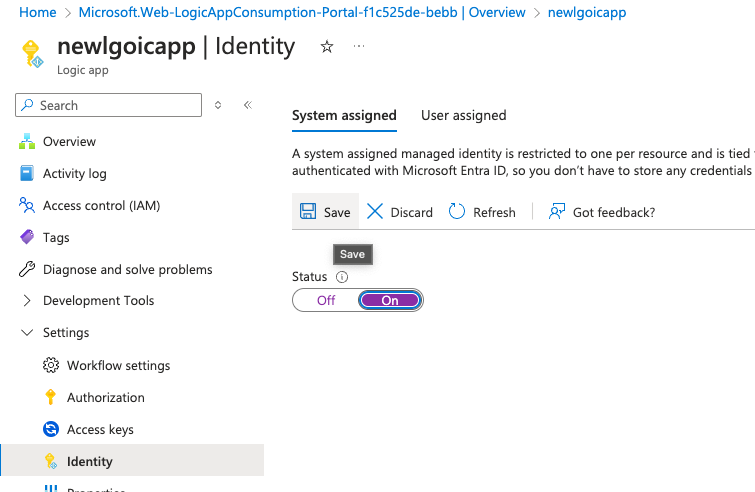
Go to the Identity menu, set System assigned to On and click Save.
Go back to the Overview of ht e Logic App and click Edit.
Click Edit.
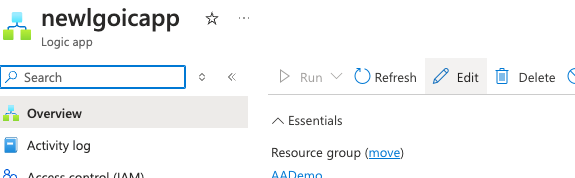
Click Code view.
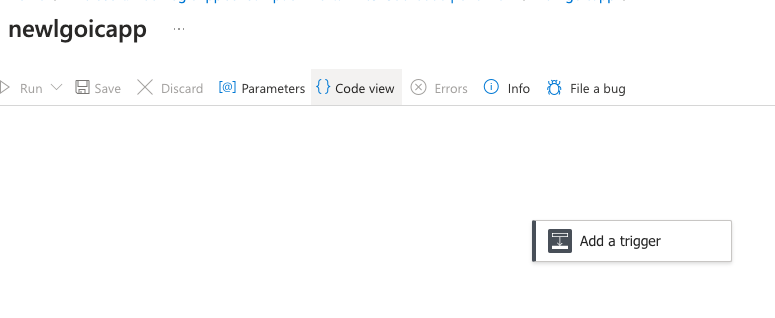
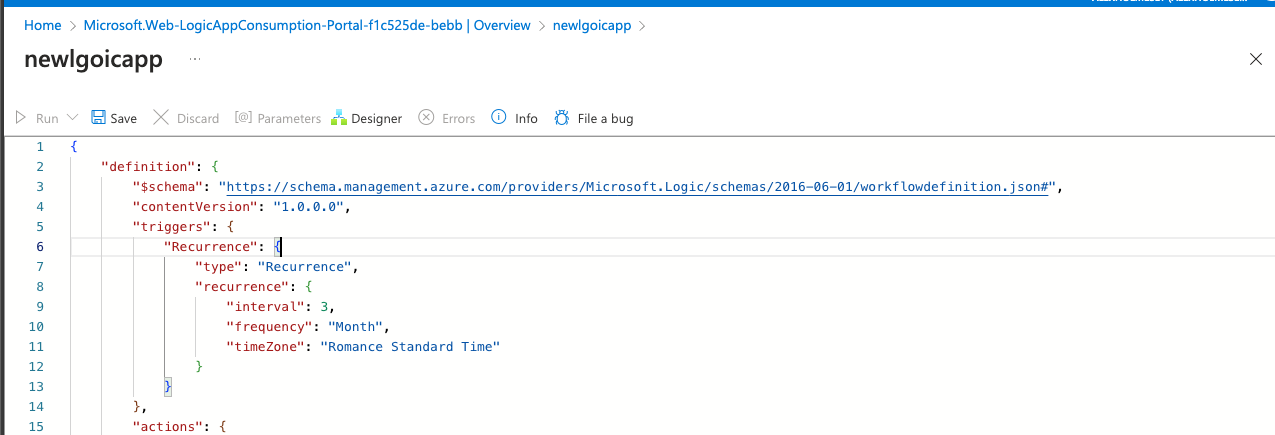
Copy and paste the Logic Apps code from the bottom of the blog and click save.
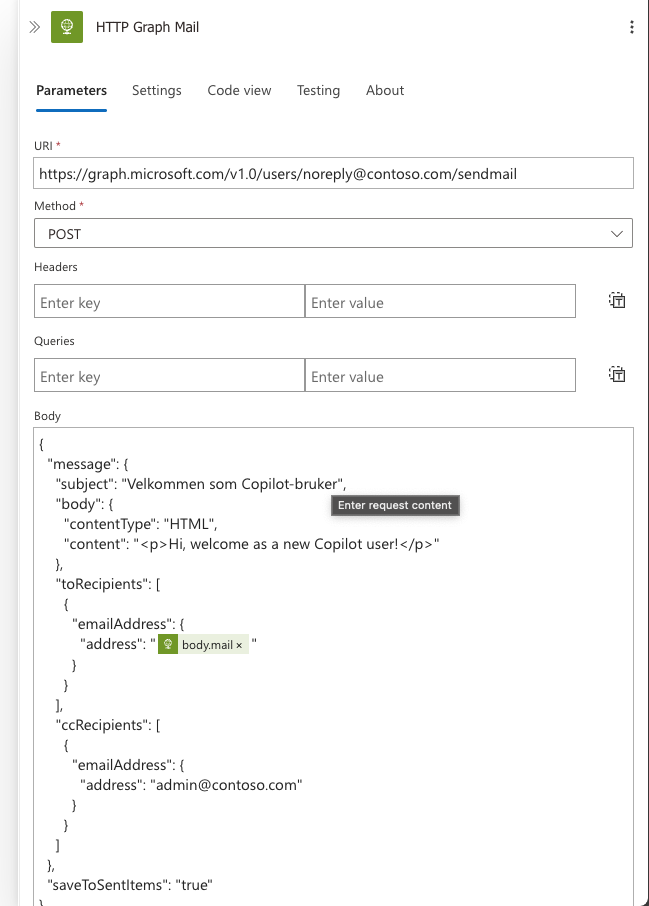
Change the URI of the HTTP Graph Mail action to use the mailbox you want to send from.
Run this PowerShell script to assign the correct Graph API permissions to the Logic App
| #Requires -Modules Microsoft.Graph | |
| # Install the module. (You need admin on the machine.) | |
| # Install-Module Microsoft.Graph | |
| # Set Static Variables | |
| $TenantID="Enter your Tenant ID" | |
| $LogicAppDisplayname = "NewCopilotUserEmail" | |
| # Define dynamic variables | |
| $ServicePrincipalFilter = "displayName eq '$($LogicAppDisplayname)'" | |
| $GraphAPIAppName = "Microsoft Graph" | |
| $ApiServicePrincipalFilter = "displayName eq '$($GraphAPIAppName)'" | |
| # Scopes needed for the managed identity (Add other scopes if needed) | |
| $Scopes = @( | |
| "GroupMember.Read.All","User.Read.All","Mail.Send" | |
| ) | |
| # Connect to MG Graph - scopes must be consented the first time you run this. | |
| # Connect with Global Administrator | |
| Connect-MgGraph -Scopes "Application.Read.All","AppRoleAssignment.ReadWrite.All" -TenantId $TenantID -UseDeviceAuthentication | |
| # Get the service principal for your managed identity. | |
| $ServicePrincipal = Get-MgServicePrincipal -Filter $ServicePrincipalFilter | |
| # Get the service principal for Microsoft Graph. | |
| # Result should be AppId 00000003-0000-0000-c000-000000000000 | |
| $ApiServicePrincipal = Get-MgServicePrincipal -Filter "$ApiServicePrincipalFilter" | |
| # Apply permissions | |
| Foreach ($Scope in $Scopes) { | |
| Write-Host "`nGetting App Role '$Scope'" | |
| $AppRole = $ApiServicePrincipal.AppRoles | Where-Object {$_.Value -eq $Scope -and $_.AllowedMemberTypes -contains "Application"} | |
| if ($null -eq $AppRole) { Write-Error "Could not find the specified App Role on the Api Service Principal"; continue; } | |
| if ($AppRole -is [array]) { Write-Error "Multiple App Roles found that match the request"; continue; } | |
| Write-Host "Found App Role, Id '$($AppRole.Id)'" | |
| $ExistingRoleAssignment = Get-MgServicePrincipalAppRoleAssignment -ServicePrincipalId $ServicePrincipal.Id | Where-Object { $_.AppRoleId -eq $AppRole.Id } | |
| if ($null -eq $existingRoleAssignment) { | |
| New-MgServicePrincipalAppRoleAssignment -ServicePrincipalId $ServicePrincipal.Id -PrincipalId $ServicePrincipal.Id -ResourceId $ApiServicePrincipal.Id -AppRoleId $AppRole.Id | |
| } else { | |
| Write-Host "App Role has already been assigned, skipping" | |
| } | |
| } |
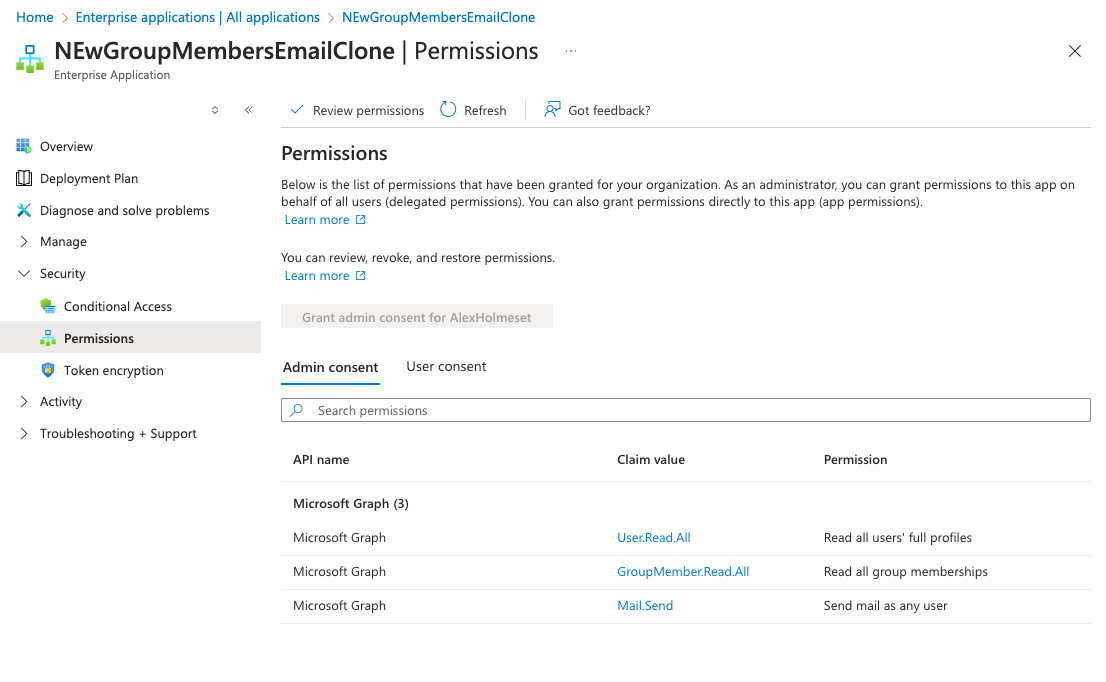
If you search for the Logic App in the Enterprise Applications menu, you can check if the permissions were successfully assigned.
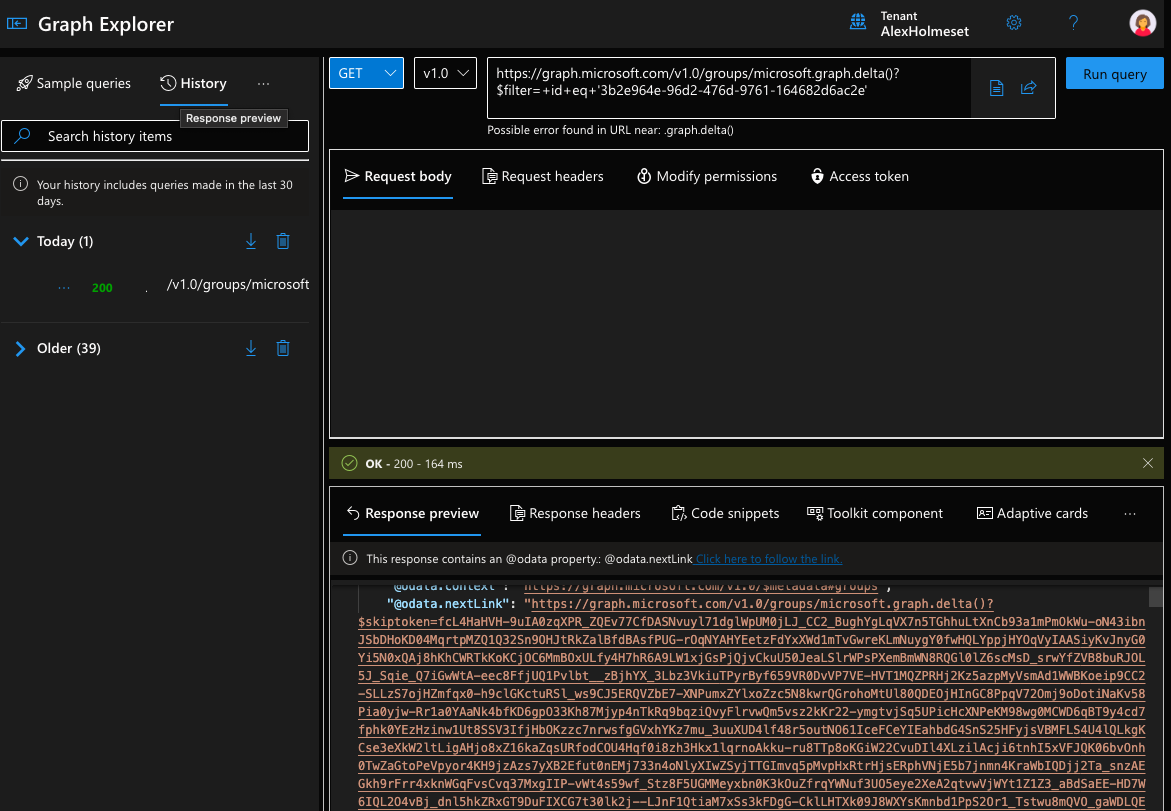
Next we need the first next link for the delta query of the license security group.
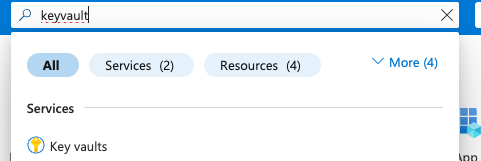
Search for Key vault.
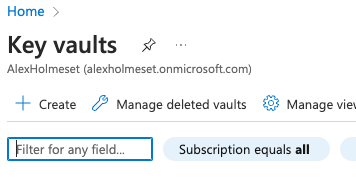
Click Create.
Enter the details and click Review+create.
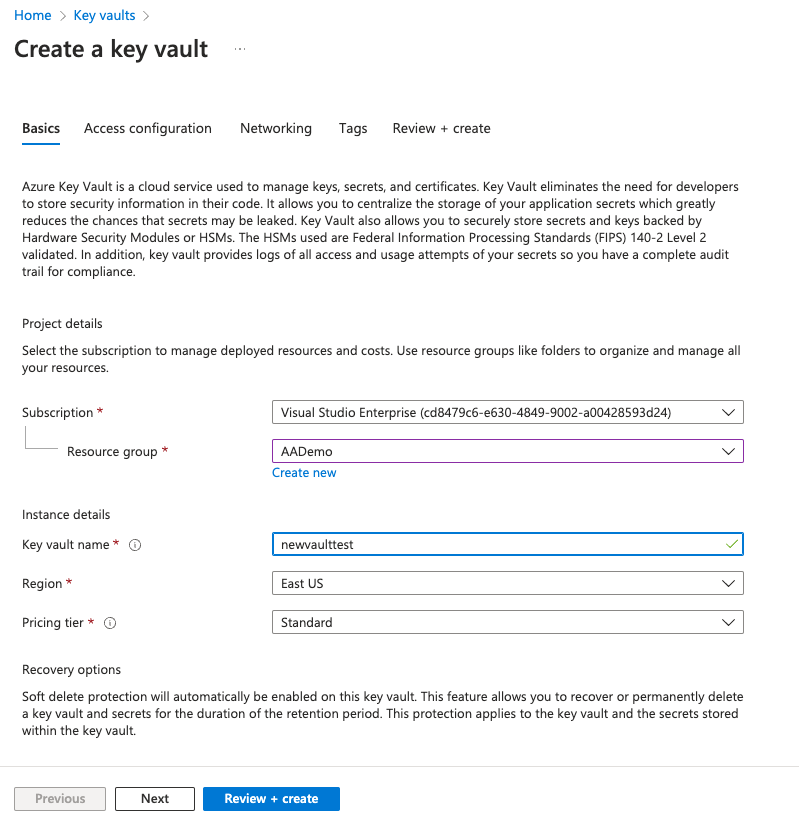
Click Create.
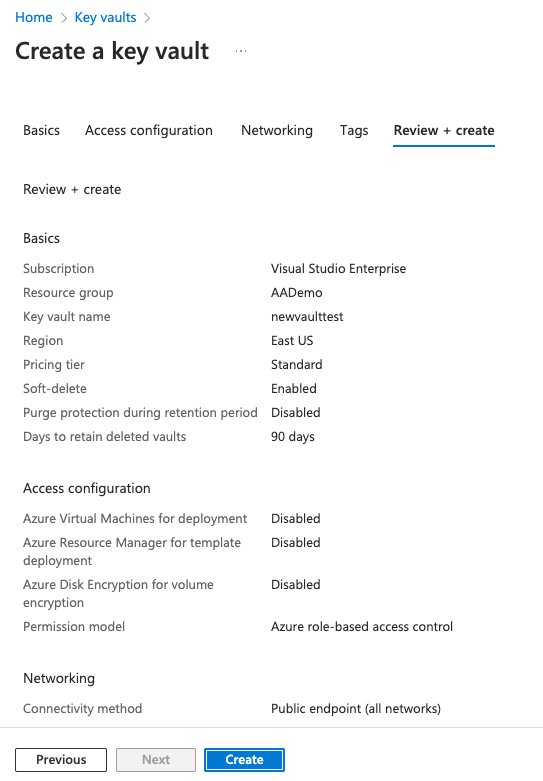
Click Go to resource.
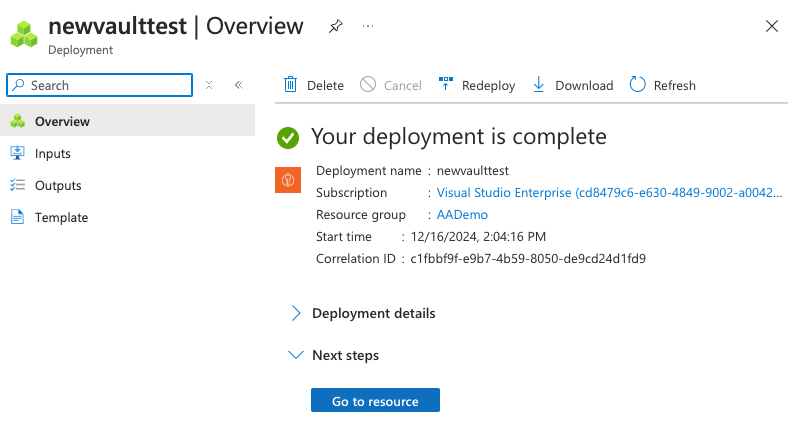
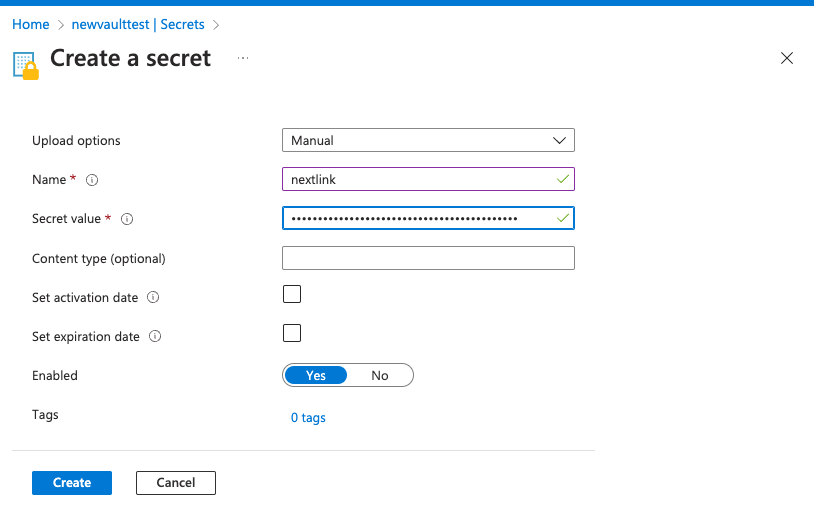
Go to Secret and click Generate/Import. If you get an error message when trying to save the secret, add yourself as Key Vault Secrets Officer.
Give the secret a name and add the next link as the secret value. Click Create.
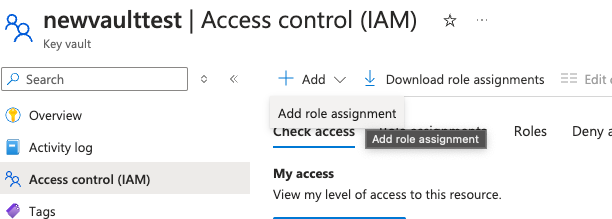
Go to Access control, and click Add role assignment.
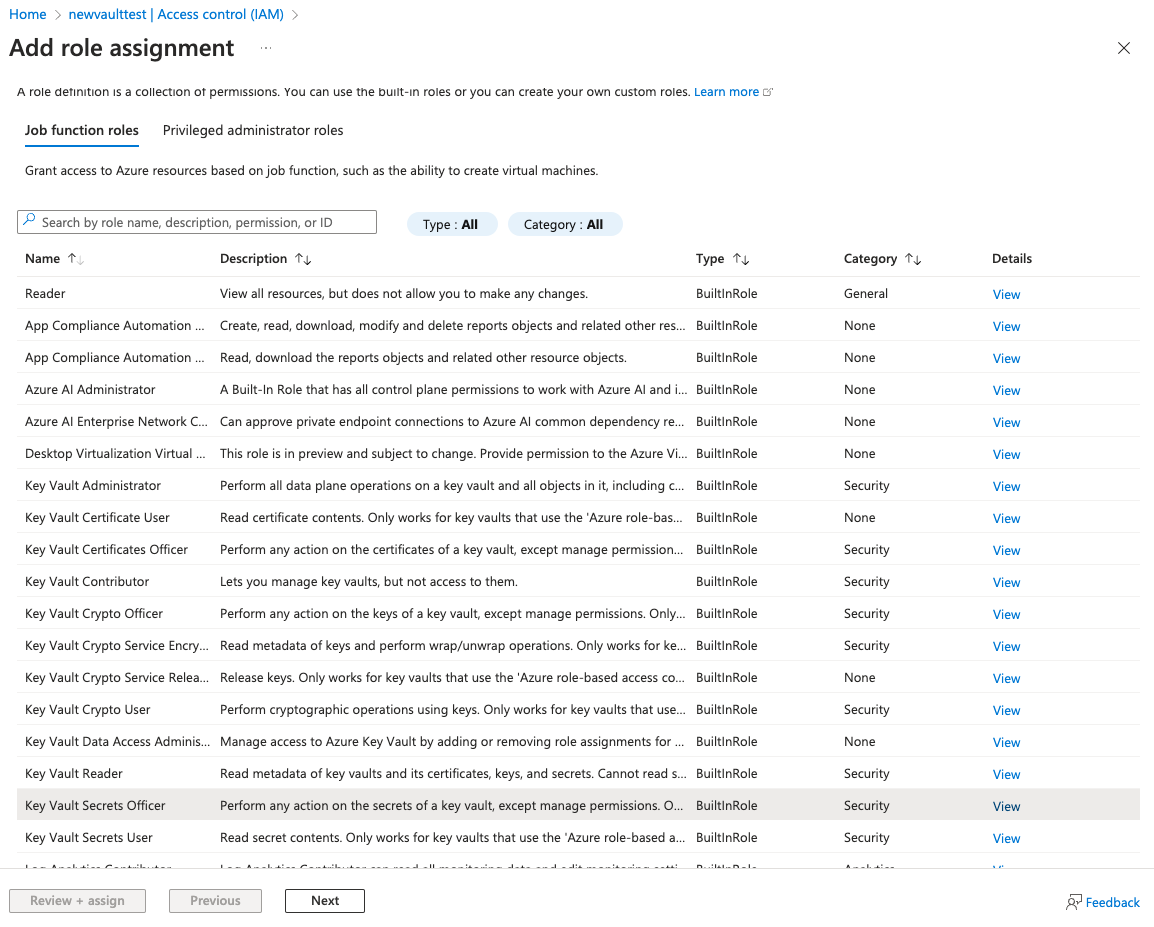
Select Key Vault Secrets Officer and click next.
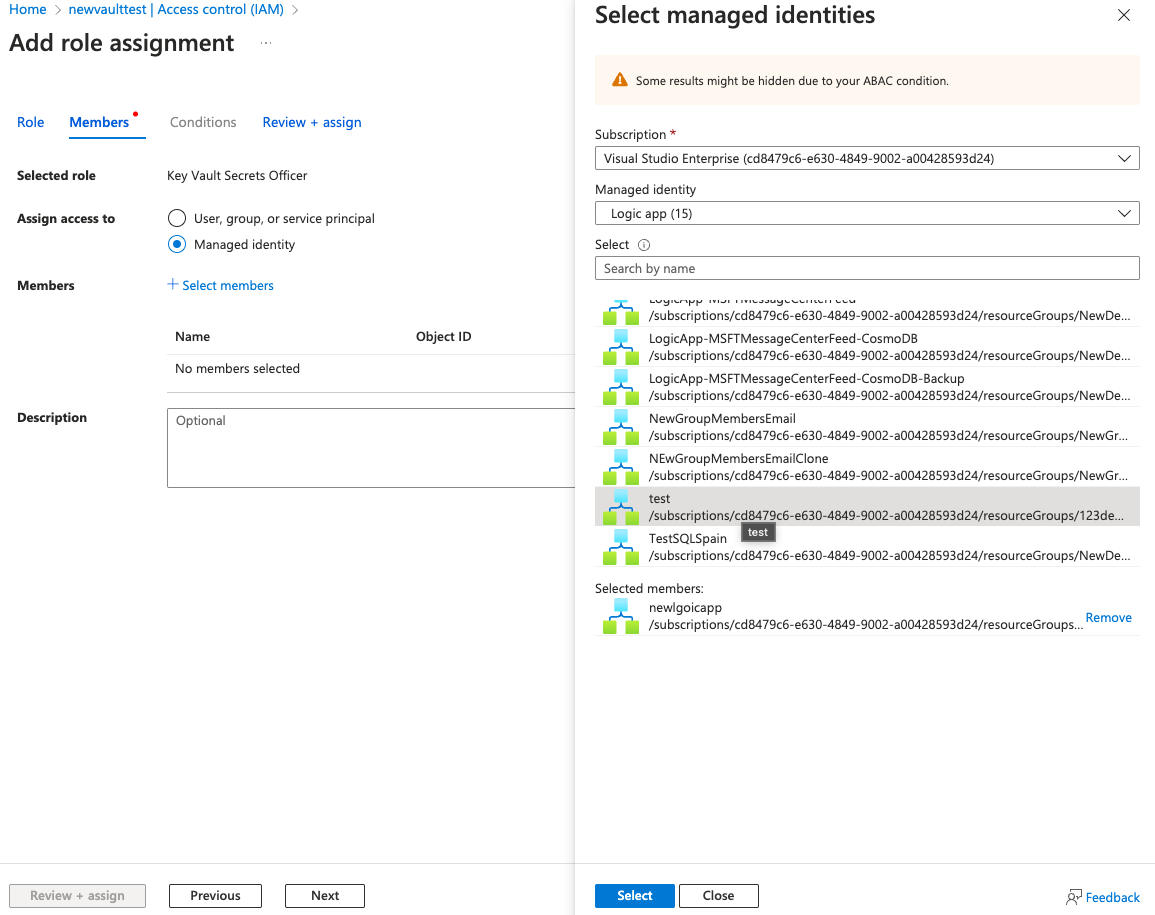
Select managed identity and choose the Logic App we created. Click Select.
Click Review + assign twice.
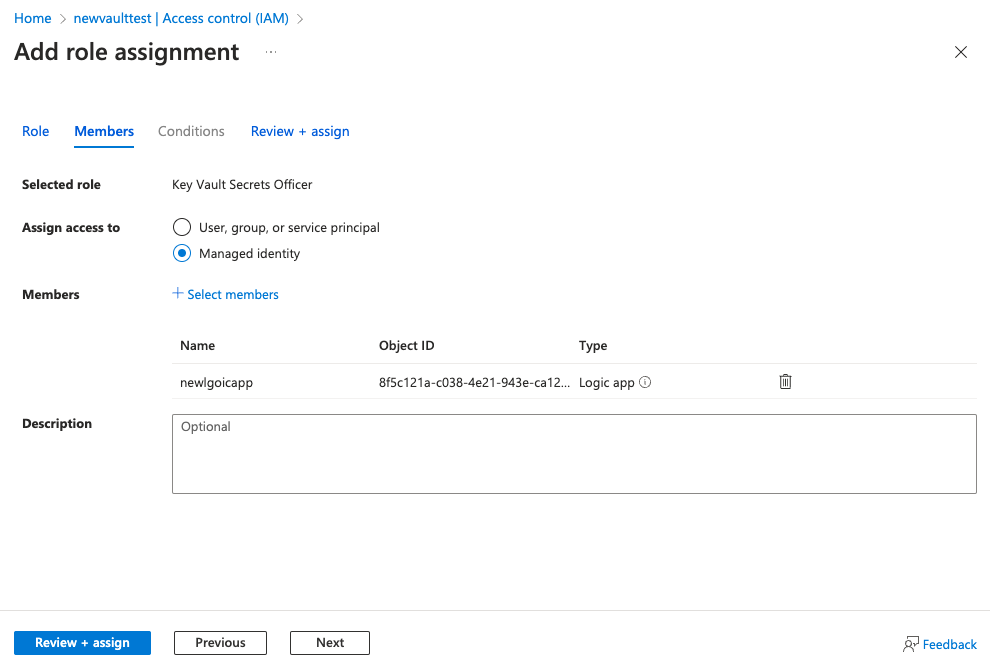
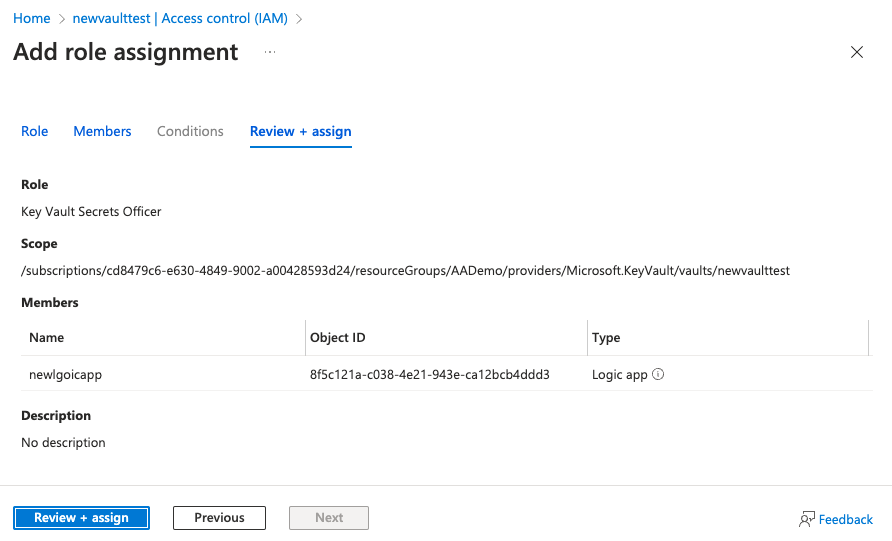
Go back to the Logic App and edit the uri of the Deltalink HTTP actions to contain the name and link to your vault/secret.
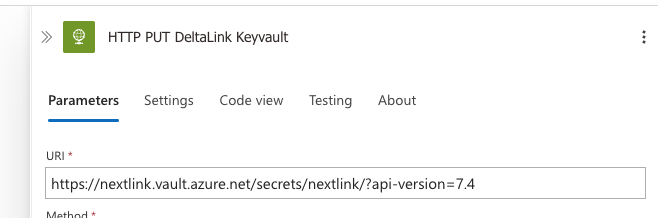
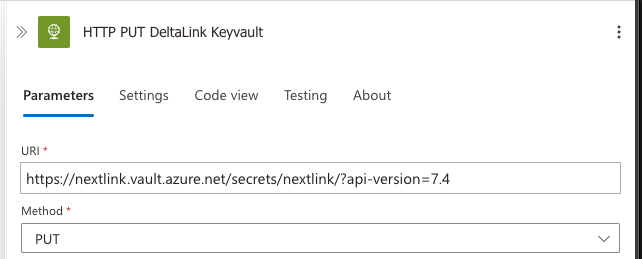
Thats it! Now you have a fully automated information package solution.
| { | |
| "definition": { | |
| "$schema": "https://schema.management.azure.com/providers/Microsoft.Logic/schemas/2016-06-01/workflowdefinition.json#", | |
| "contentVersion": "1.0.0.0", | |
| "triggers": { | |
| "Recurrence": { | |
| "type": "Recurrence", | |
| "recurrence": { | |
| "interval": 3, | |
| "frequency": "Month", | |
| "timeZone": "Romance Standard Time" | |
| } | |
| } | |
| }, | |
| "actions": { | |
| "HTTP_GET_DeltaLink_Keyvault": { | |
| "type": "Http", | |
| "inputs": { | |
| "uri": "https://nextlink.vault.azure.net/secrets/nextlink/?api-version=7.4", | |
| "method": "GET", | |
| "authentication": { | |
| "type": "ManagedServiceIdentity", | |
| "audience": "https://vault.azure.net" | |
| } | |
| }, | |
| "runAfter": {}, | |
| "runtimeConfiguration": { | |
| "contentTransfer": { | |
| "transferMode": "Chunked" | |
| } | |
| } | |
| }, | |
| "HTTP_Graph_GroupMember_Delta": { | |
| "type": "Http", | |
| "inputs": { | |
| "uri": "@outputs('HTTP_GET_DeltaLink_Keyvault')['body']['value']", | |
| "method": "GET", | |
| "authentication": { | |
| "type": "ManagedServiceIdentity", | |
| "audience": "https://graph.microsoft.com" | |
| } | |
| }, | |
| "runAfter": { | |
| "HTTP_GET_DeltaLink_Keyvault": [ | |
| "Succeeded" | |
| ] | |
| }, | |
| "runtimeConfiguration": { | |
| "contentTransfer": { | |
| "transferMode": "Chunked" | |
| } | |
| } | |
| }, | |
| "HTTP_PUT_DeltaLink_Keyvault": { | |
| "type": "Http", | |
| "inputs": { | |
| "uri": "https://nextlink.vault.azure.net/secrets/nextlink/?api-version=7.4", | |
| "method": "PUT", | |
| "body": { | |
| "value": "@{outputs('HTTP_Graph_GroupMember_Delta')['body']['@odata.deltaLink']}" | |
| }, | |
| "authentication": { | |
| "type": "ManagedServiceIdentity", | |
| "audience": "https://vault.azure.net" | |
| } | |
| }, | |
| "runAfter": { | |
| "AnyChanges": [ | |
| "Succeeded" | |
| ] | |
| }, | |
| "runtimeConfiguration": { | |
| "contentTransfer": { | |
| "transferMode": "Chunked" | |
| } | |
| } | |
| }, | |
| "AnyChanges": { | |
| "type": "Compose", | |
| "inputs": "@{outputs('HTTP_Graph_GroupMember_Delta')['body']['value']}1", | |
| "runAfter": { | |
| "HTTP_Graph_GroupMember_Delta": [ | |
| "Succeeded" | |
| ] | |
| } | |
| }, | |
| "Condition": { | |
| "type": "If", | |
| "expression": { | |
| "and": [ | |
| { | |
| "not": { | |
| "equals": [ | |
| "@outputs('AnyChanges')", | |
| "[]1" | |
| ] | |
| } | |
| } | |
| ] | |
| }, | |
| "actions": { | |
| "For_Each_User": { | |
| "type": "Foreach", | |
| "foreach": "@outputs('HTTP_Graph_GroupMember_Delta')['body']['value'][0]['members@delta']", | |
| "actions": { | |
| "Condition_User_Not_Removed": { | |
| "type": "If", | |
| "expression": { | |
| "equals": [ | |
| "@contains(item(), '@removed')", | |
| false | |
| ] | |
| }, | |
| "actions": { | |
| "HTTP_Graph_User": { | |
| "type": "Http", | |
| "inputs": { | |
| "uri": "https://graph.microsoft.com/v1.0/users/@{items('For_Each_User')['id']}", | |
| "method": "GET", | |
| "authentication": { | |
| "type": "ManagedServiceIdentity", | |
| "audience": "https://graph.microsoft.com" | |
| } | |
| }, | |
| "runtimeConfiguration": { | |
| "contentTransfer": { | |
| "transferMode": "Chunked" | |
| } | |
| } | |
| }, | |
| "HTTP_Graph_Mail": { | |
| "type": "Http", | |
| "inputs": { | |
| "uri": "https://graph.microsoft.com/v1.0/users/[email protected]/sendmail", | |
| "method": "POST", | |
| "body": { | |
| "message": { | |
| "subject": "Velkommen som Copilot-bruker", | |
| "body": { | |
| "contentType": "HTML", | |
| "content": "<p>Hi, welcome as a new Copilot user!</p>" | |
| }, | |
| "toRecipients": [ | |
| { | |
| "emailAddress": { | |
| "address": "@{outputs('HTTP_Graph_User')['body']['mail']}" | |
| } | |
| } | |
| ], | |
| "ccRecipients": [ | |
| { | |
| "emailAddress": { | |
| "address": "[email protected]" | |
| } | |
| } | |
| ] | |
| }, | |
| "saveToSentItems": "true" | |
| }, | |
| "authentication": { | |
| "type": "ManagedServiceIdentity", | |
| "audience": "https://graph.microsoft.com" | |
| } | |
| }, | |
| "runAfter": { | |
| "HTTP_Graph_User": [ | |
| "Succeeded" | |
| ] | |
| }, | |
| "runtimeConfiguration": { | |
| "contentTransfer": { | |
| "transferMode": "Chunked" | |
| } | |
| } | |
| }, | |
| "HTTP_Add_Team": { | |
| "type": "Http", | |
| "inputs": { | |
| "uri": "https://graph.microsoft.com/v1.0/groups/93371e79-a81a-478d-8a9d-b8817729aac2/", | |
| "method": "PATCH", | |
| "body": { | |
| "[email protected]": [ | |
| "https://graph.microsoft.com/v1.0/directoryObjects/@{items('For_Each_User')['id']}" | |
| ] | |
| }, | |
| "authentication": { | |
| "type": "ManagedServiceIdentity" | |
| } | |
| }, | |
| "runAfter": { | |
| "HTTP_Graph_Mail": [ | |
| "SUCCEEDED" | |
| ] | |
| }, | |
| "runtimeConfiguration": { | |
| "contentTransfer": { | |
| "transferMode": "Chunked" | |
| } | |
| } | |
| } | |
| }, | |
| "else": { | |
| "actions": {} | |
| } | |
| } | |
| } | |
| } | |
| }, | |
| "else": { | |
| "actions": {} | |
| }, | |
| "runAfter": { | |
| "HTTP_PUT_DeltaLink_Keyvault": [ | |
| "Succeeded" | |
| ] | |
| } | |
| } | |
| }, | |
| "outputs": {}, | |
| "parameters": { | |
| "$connections": { | |
| "type": "Object", | |
| "defaultValue": {} | |
| } | |
| } | |
| }, | |
| "parameters": { | |
| "$connections": { | |
| "value": {} | |
| } | |
| } | |
| } |
 A blog about automation and technologies in the cloud