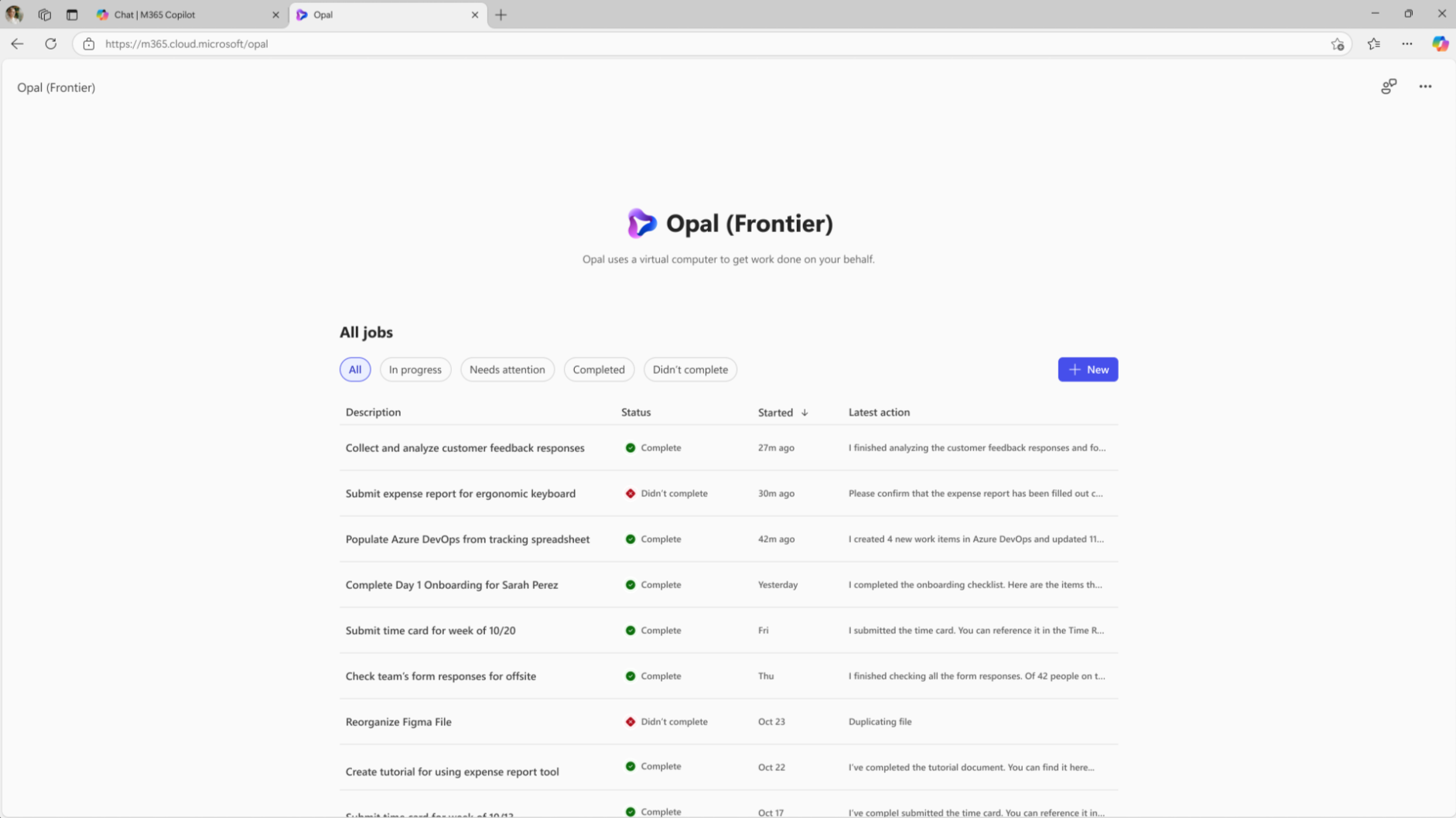
At Ignite in San Francisco, Microsoft launched Opal under the Frontier program. Opal is leveraging Computer-Using Agents that runs and does actions through Windows 365 Cloud PCs. It’s for personal use and meant to help endusers streamline their work process. This is the same model that you use for the Computer Use function in Copilot Studio, except by using Opal there is no need for the end user to setup a computer/vm, the Windows 365 Cloud PC boots and is ready for use as soon as the user sends the first prompt to Opal.
Read more about the announcement here:
https://techcommunity.microsoft.com/blog/microsoft365copilotblog/introducing-project-opal-a-new-way-to-get-task-based-work-done/4470999
Read more about the setup and requirements here:
https://learn.microsoft.com/en-us/copilot/microsoft-365/opal-settings-manage
Further down in this post we will take a look at my setup experience from an admin perspective and a couple test use cases I tested out.
I started out by making sure I had a Copilot and Intone license in my tenant. Then I added a access group under Copilot Admin -> Settings -> User access -> Opal.
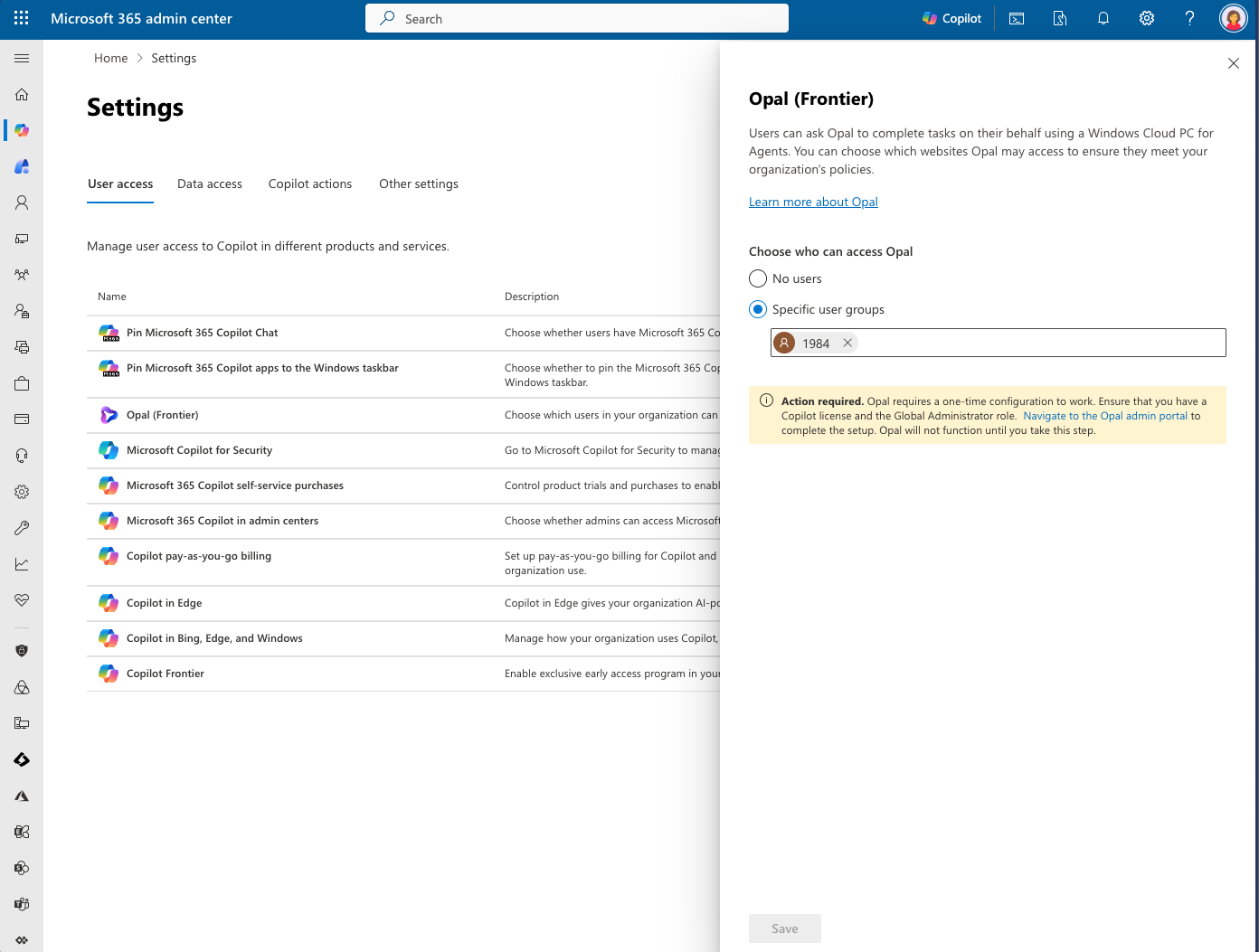
When adding the security group it highlights you need to do a one time setup in the Opal admin portal.

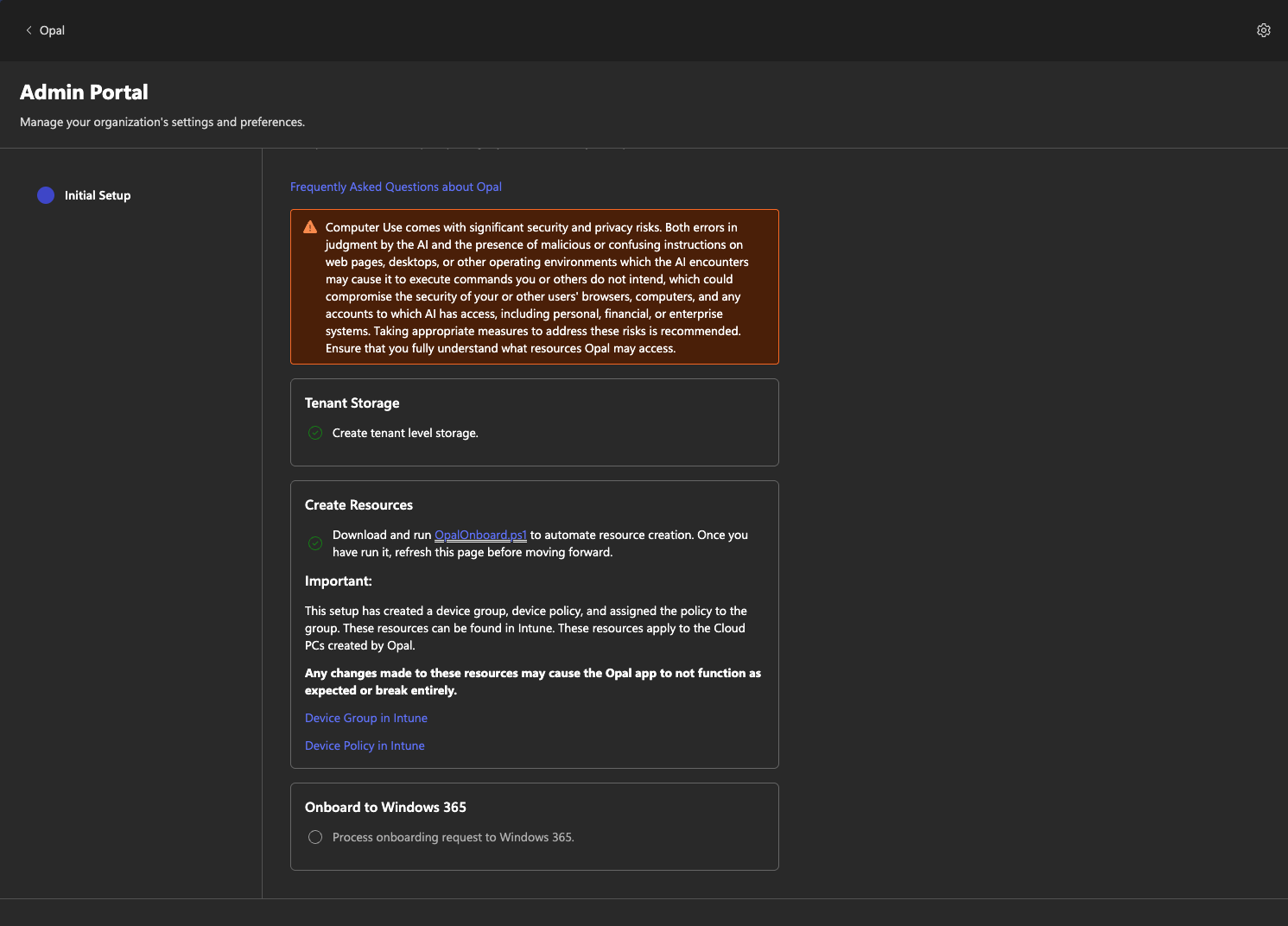
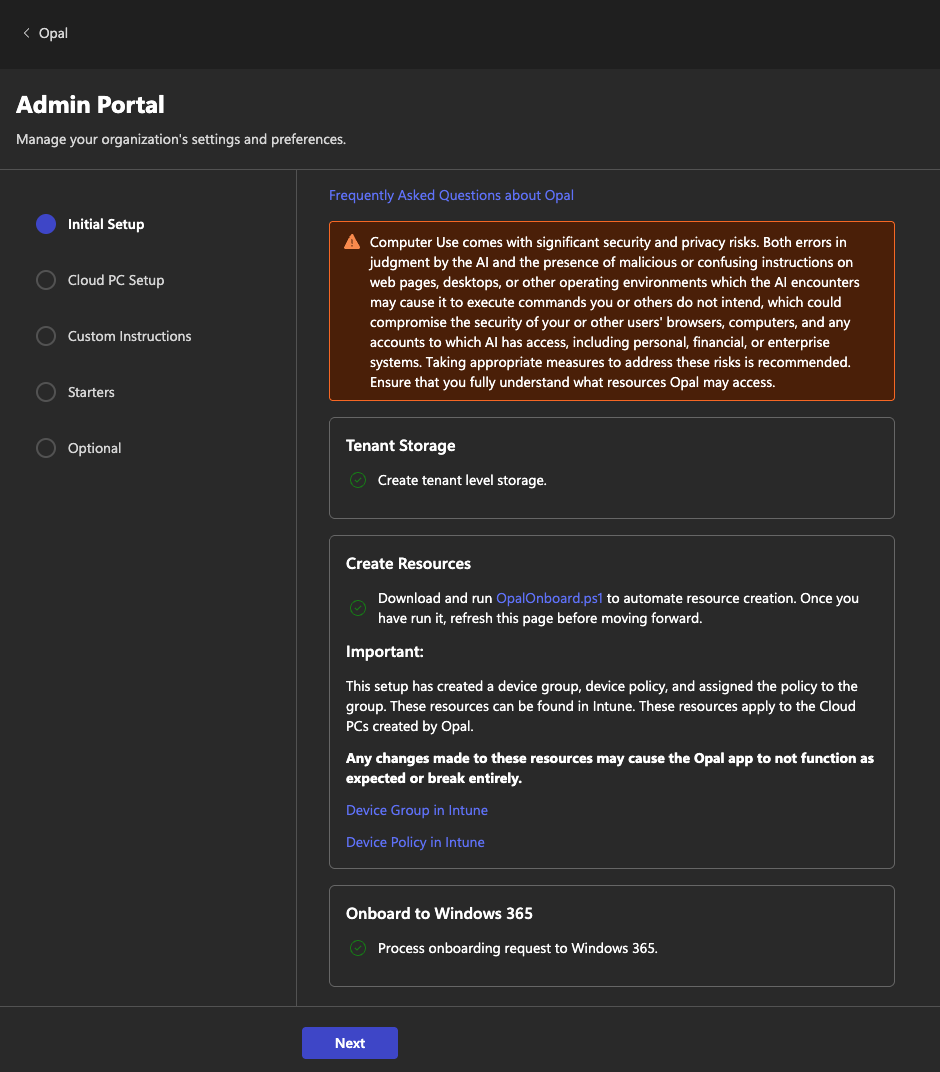
I had a to run a PowerShell script to create a couple resources. Here is a link to that script.
https://res.cdn.office.net/s01-alps/prod/5mttl/OpalOnboard.ps1
I had some issues with the modules needed, so had to install them manually first.
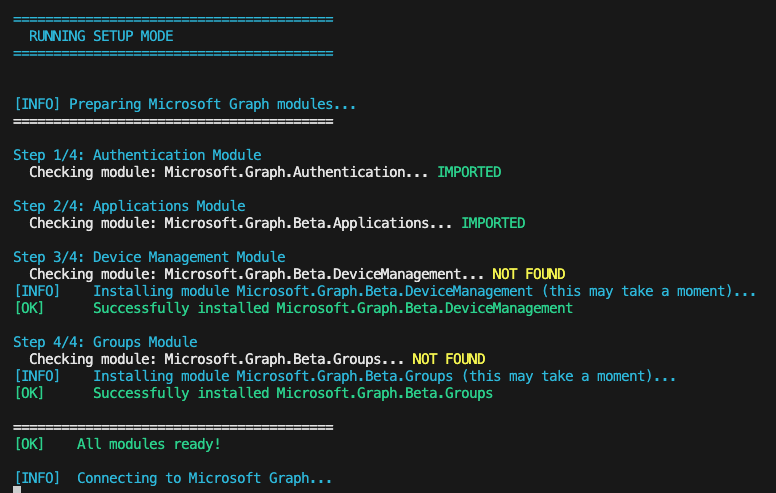
You get asked to consent some Graph API permissions.
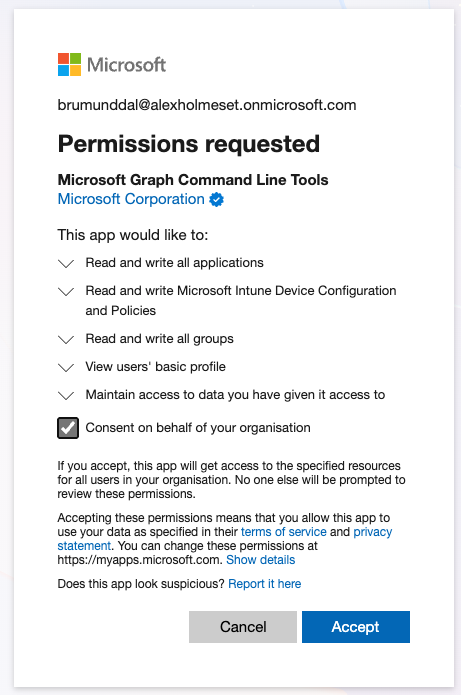
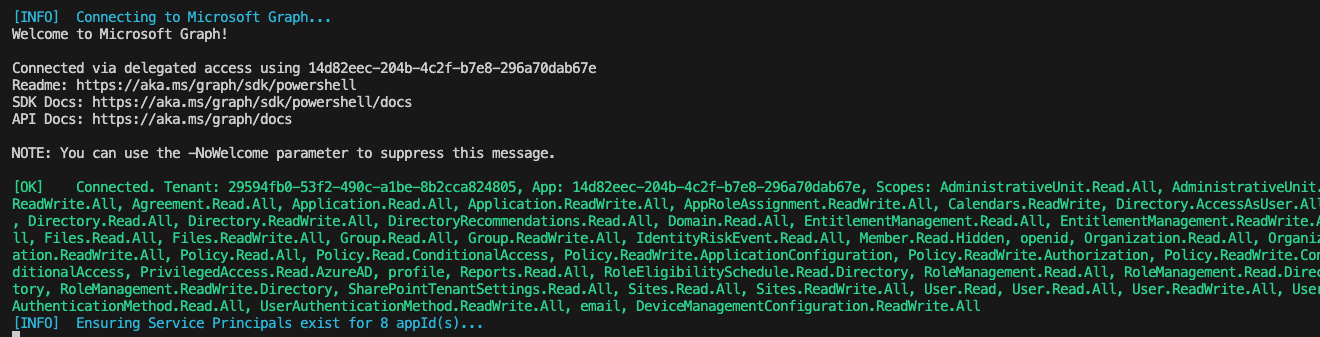


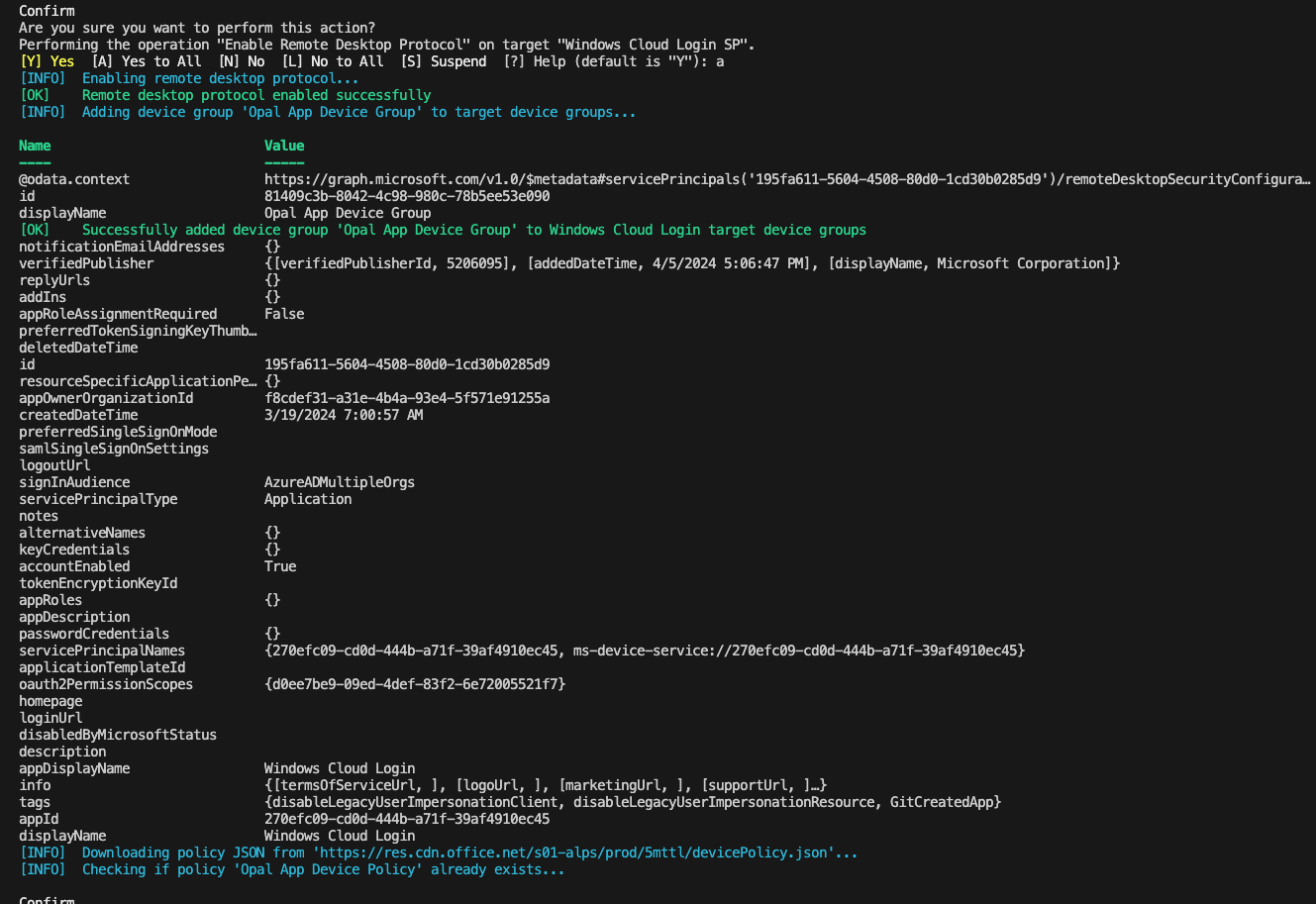

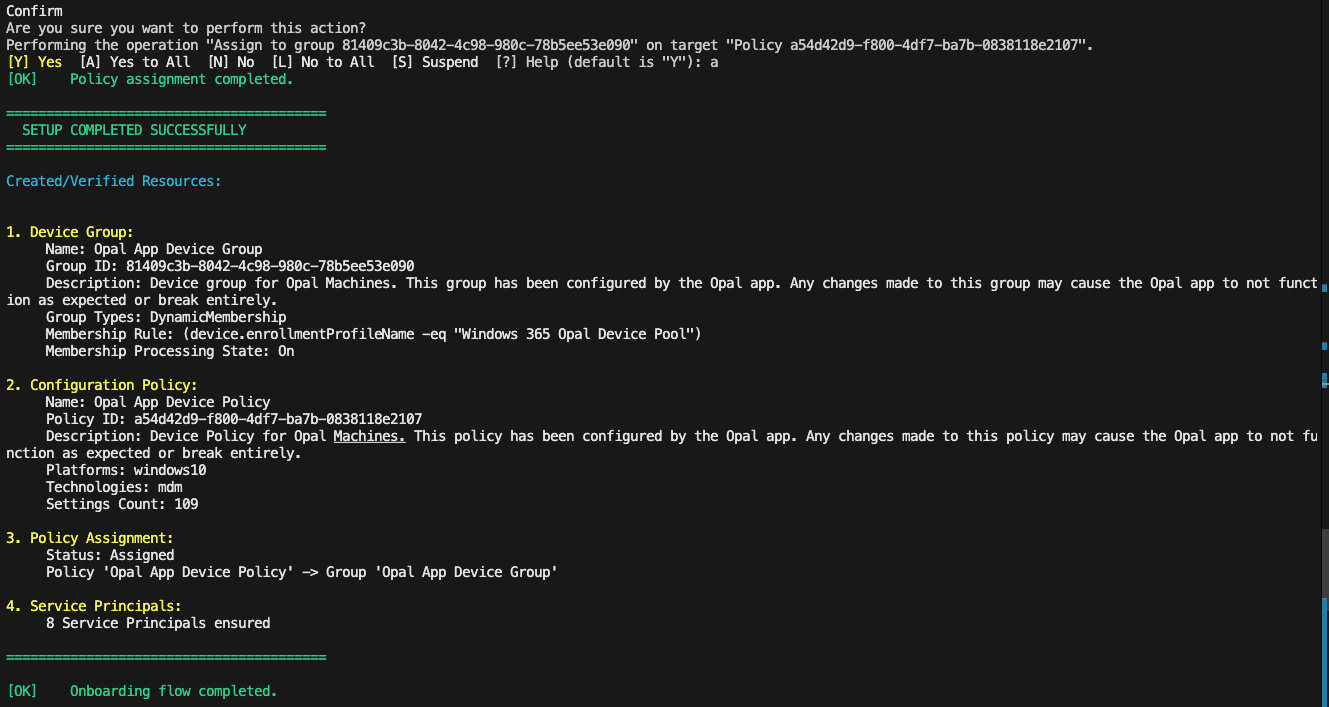
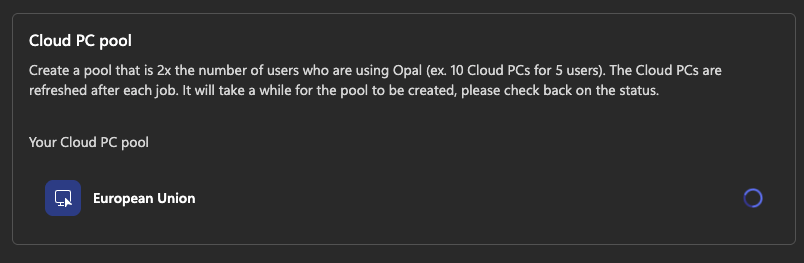
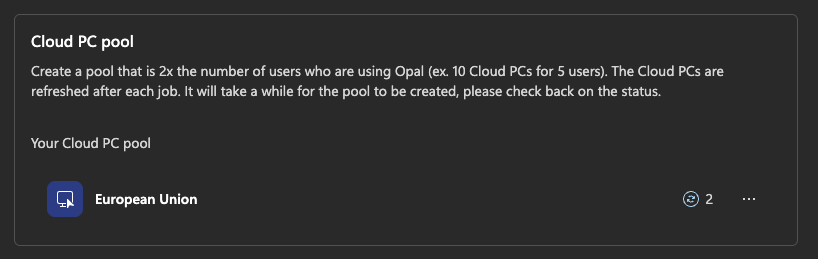
After the script is finished you continue the setup in the admin portal and it will start to setup the Windows 365 part.

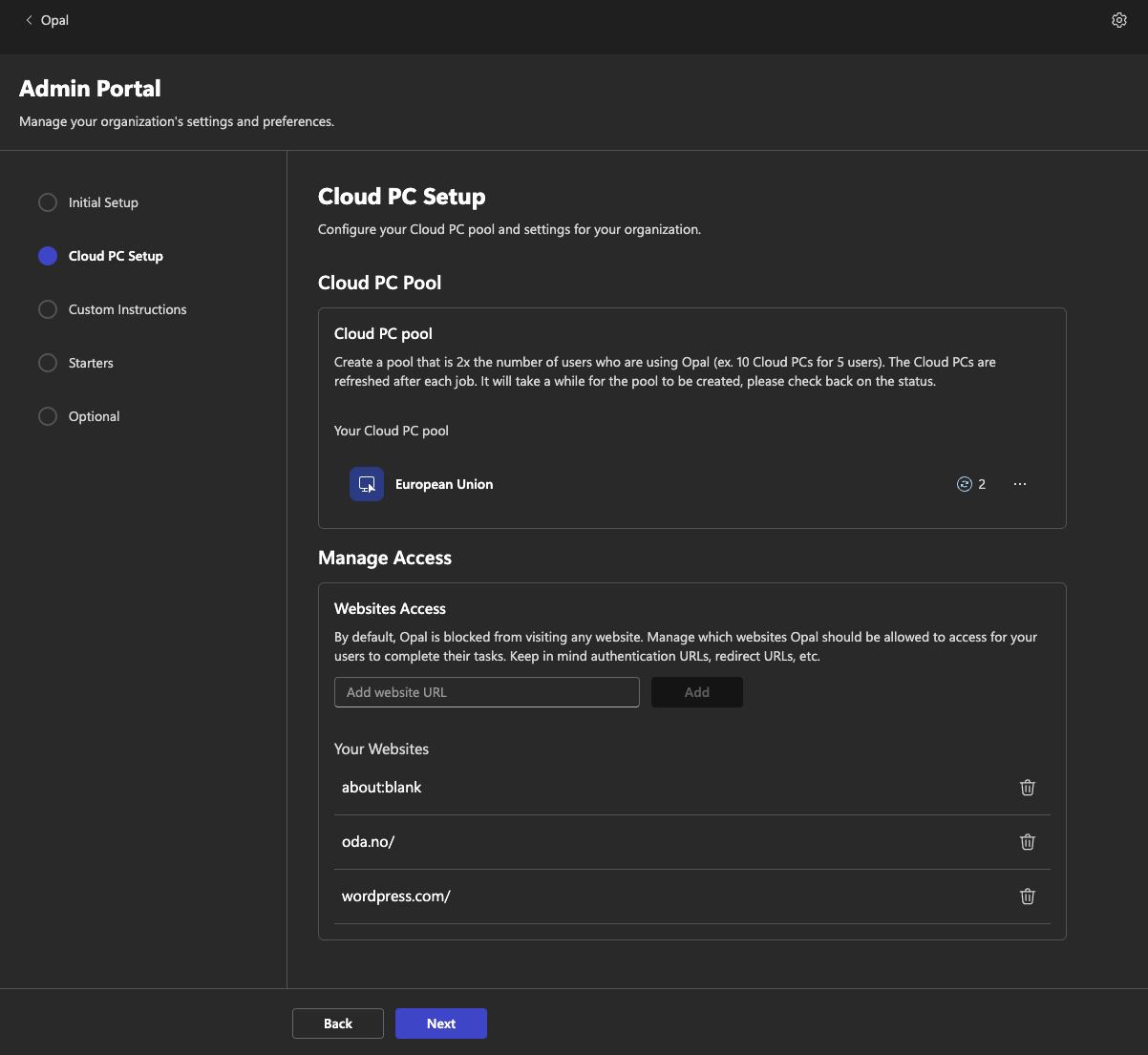
You can choose the region correct for you and how many machines should be available.
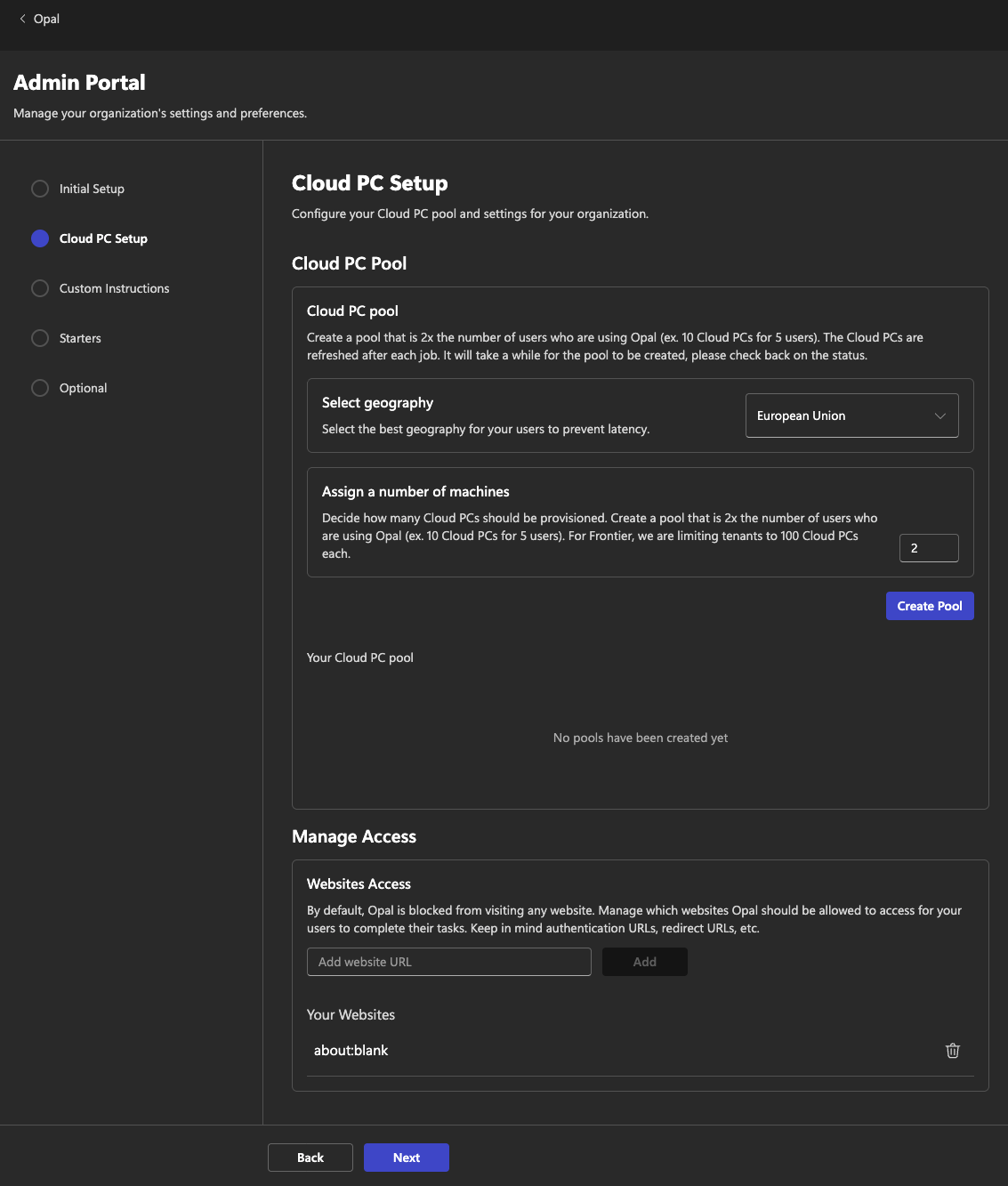
You need to add websites that Opal needs to use for your tasks on an allow list.
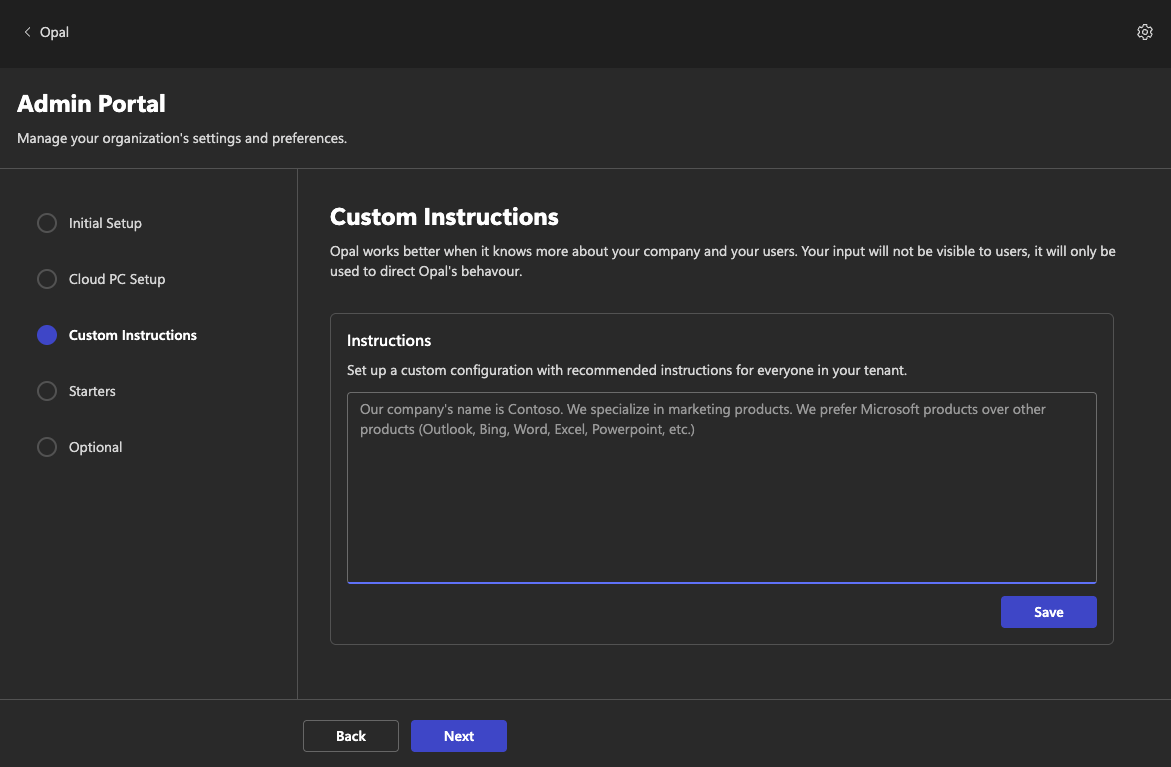
Here you can add some instructions that Opal will read for all requests the end users send.
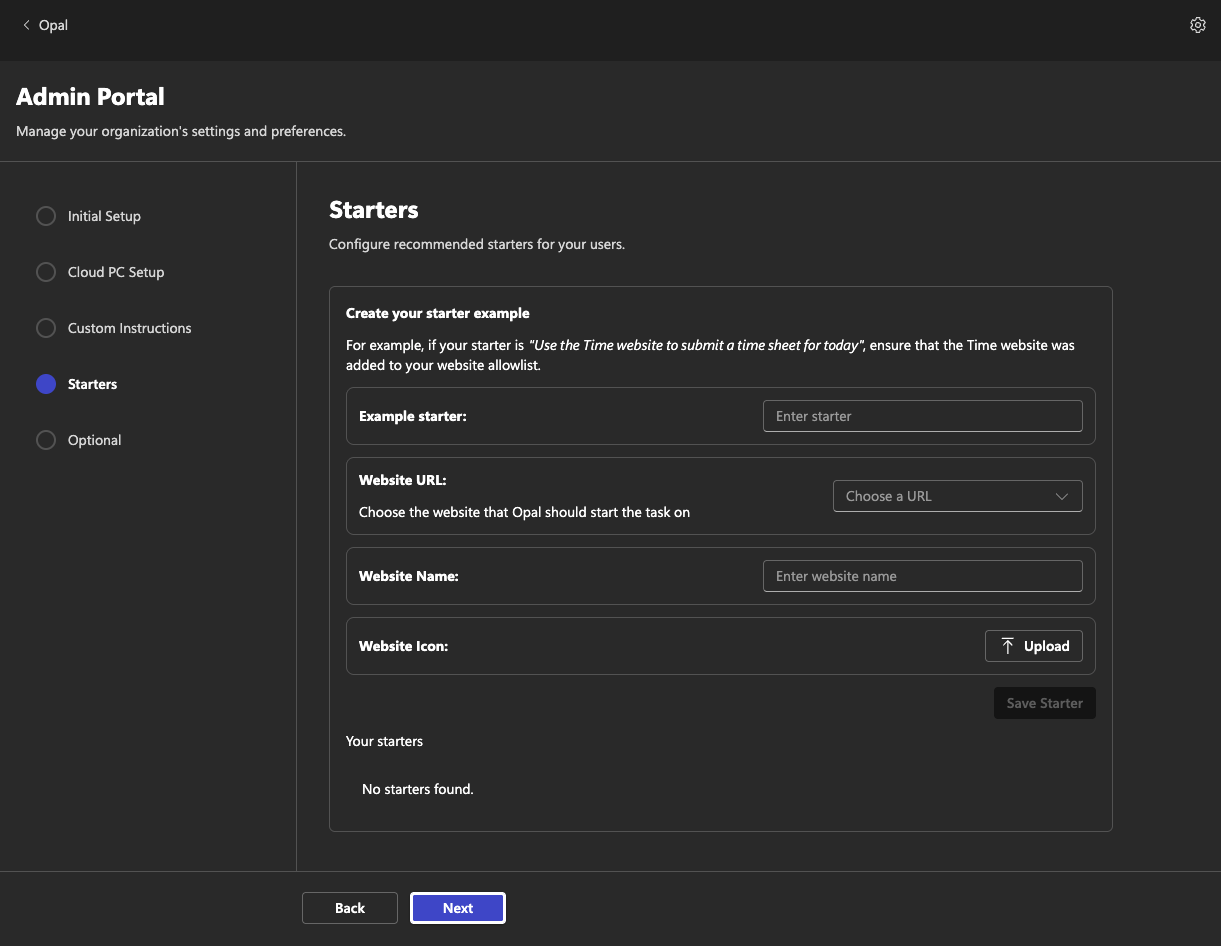
You can also create some example use cases for your users to see.
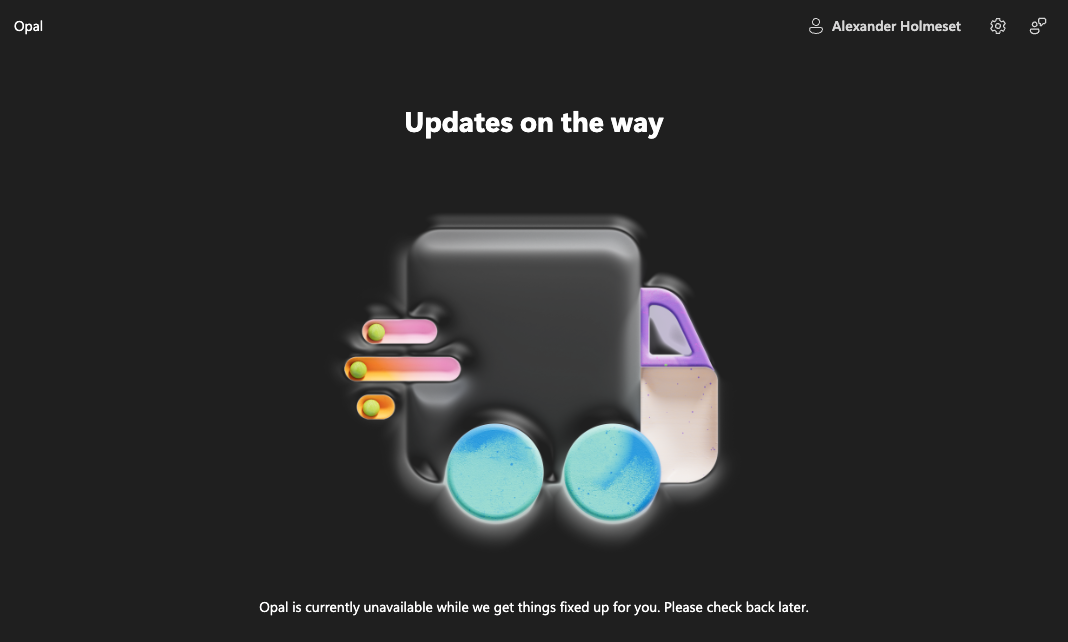
I found the Opal chat trough https://opal.frontier.microsoft365.com/ and could not find/get it to appear in Copilot.
My first test is to go to an online grocery store to put a pack of branded butter in the shopping cart.
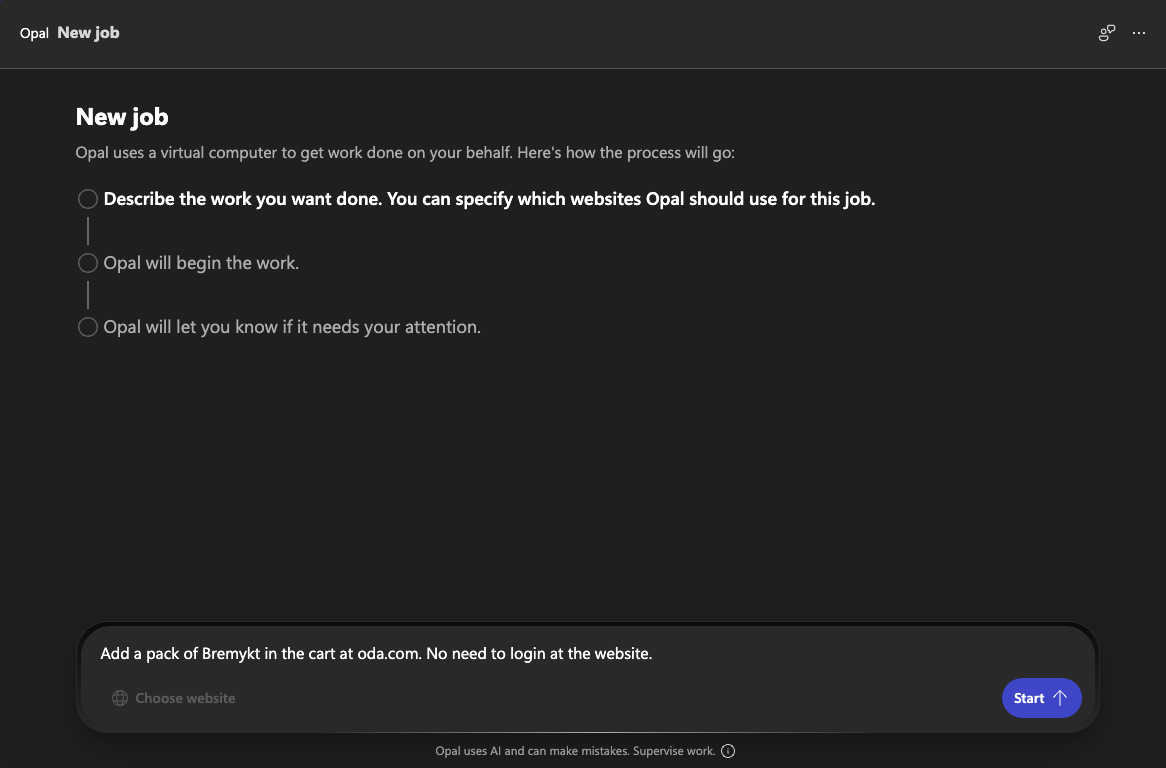
You see the Cloud PC booting.
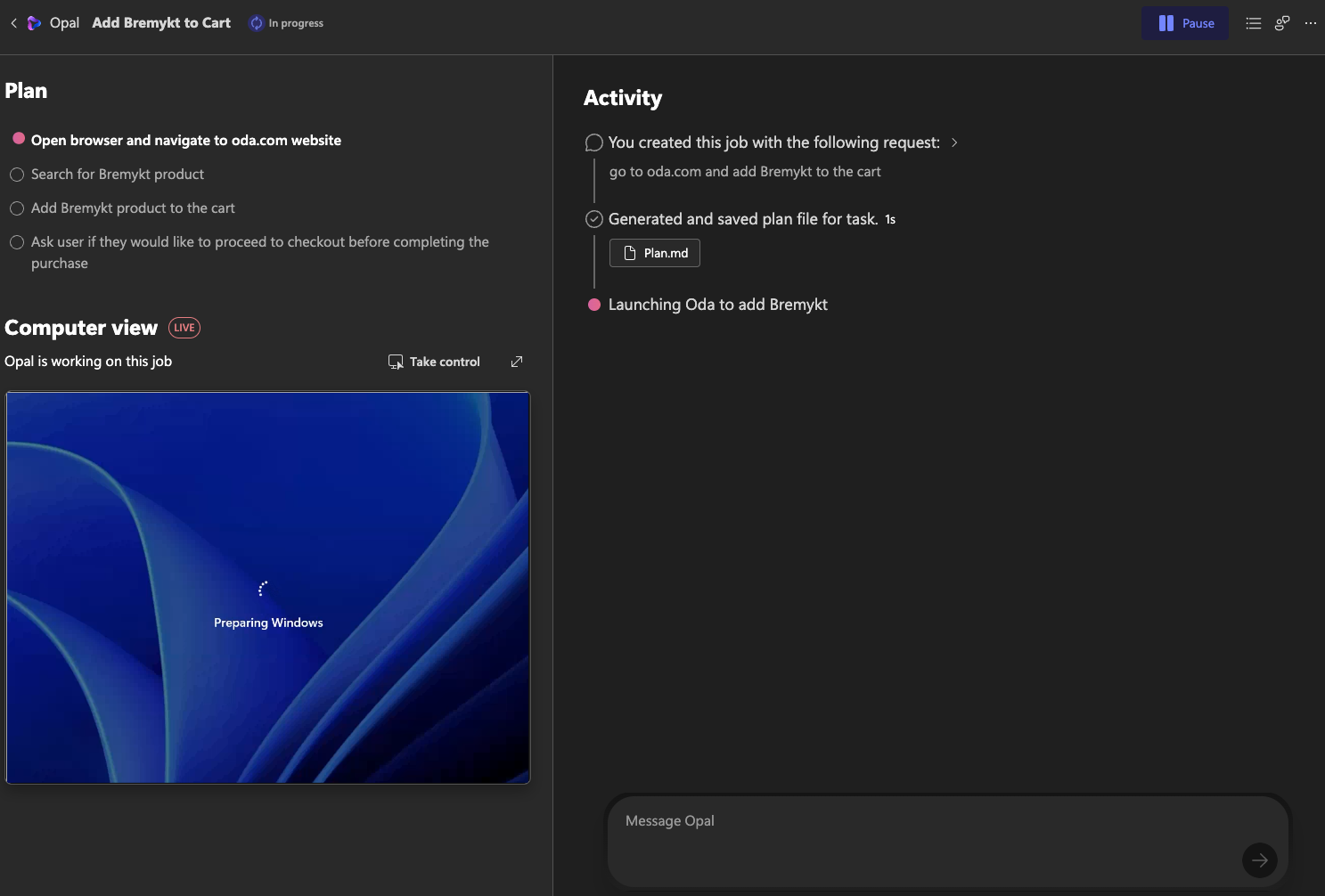
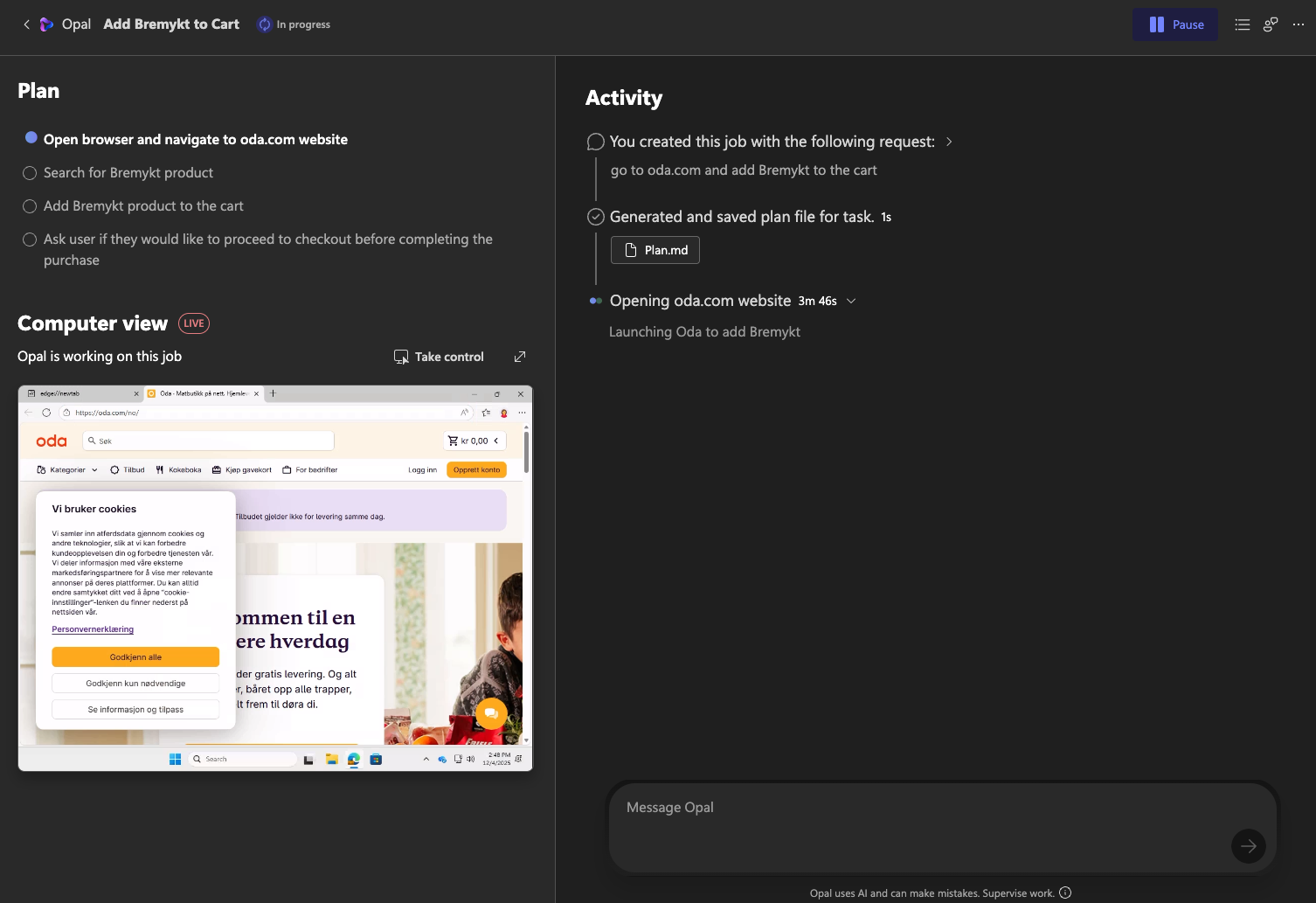
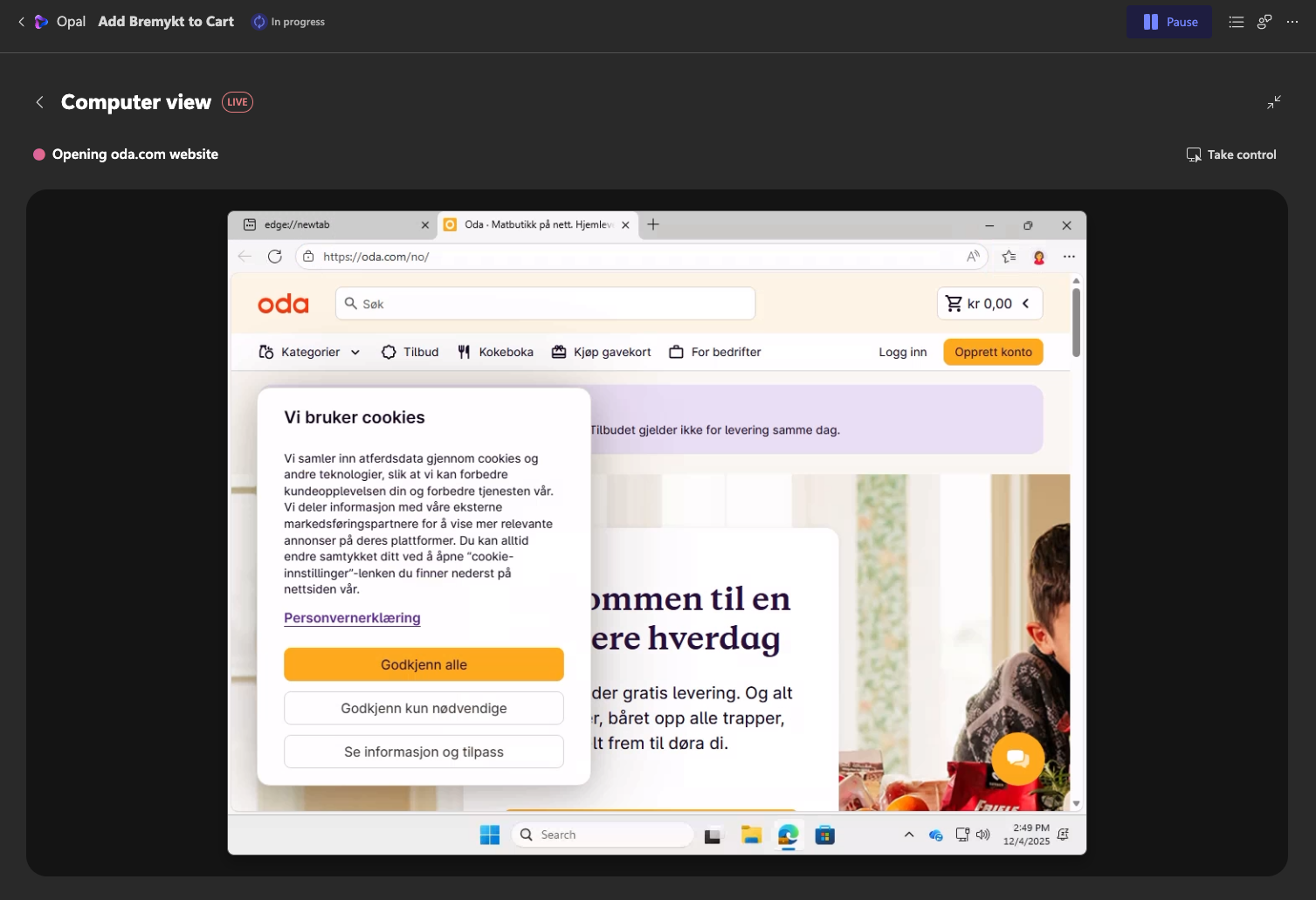
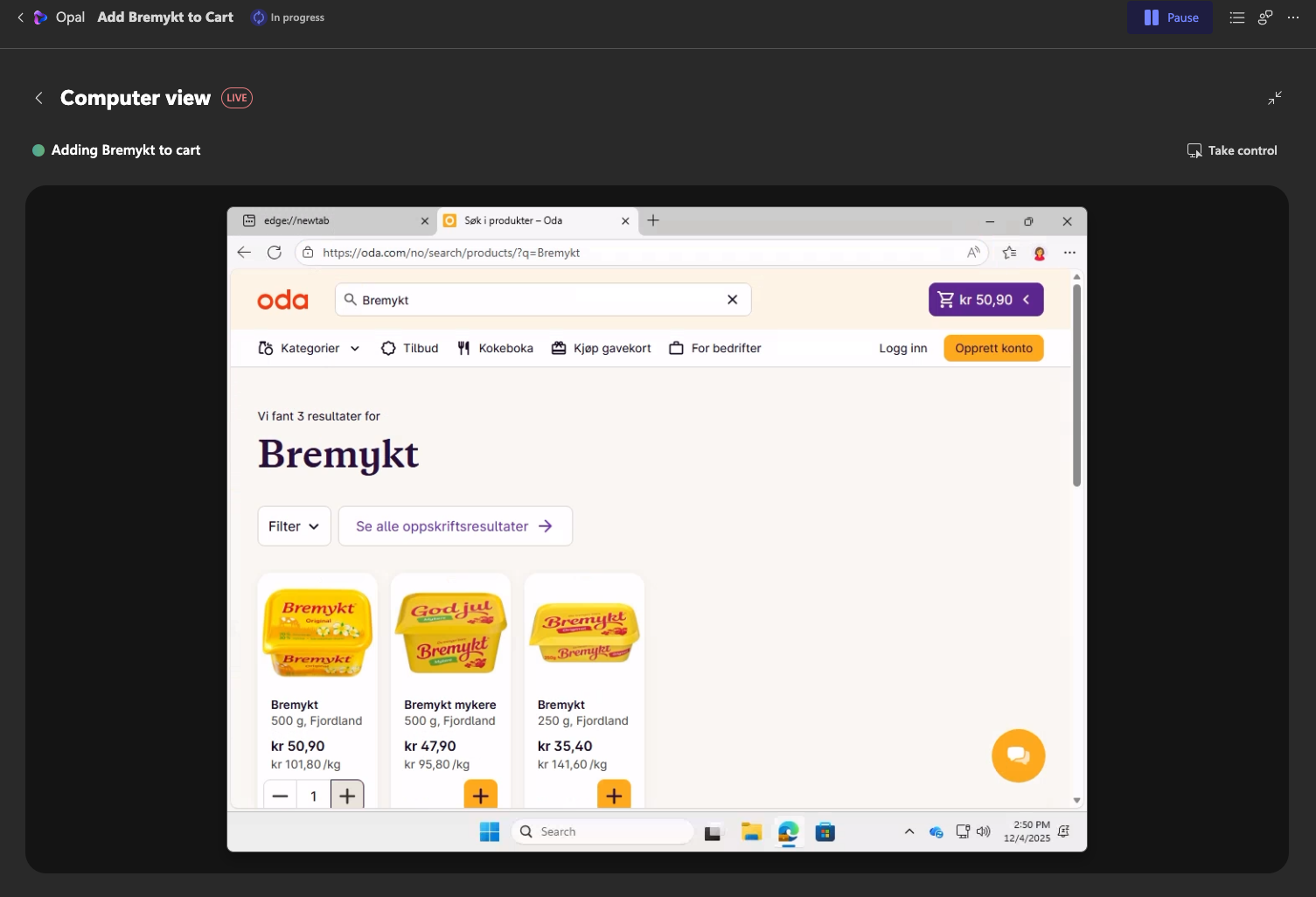
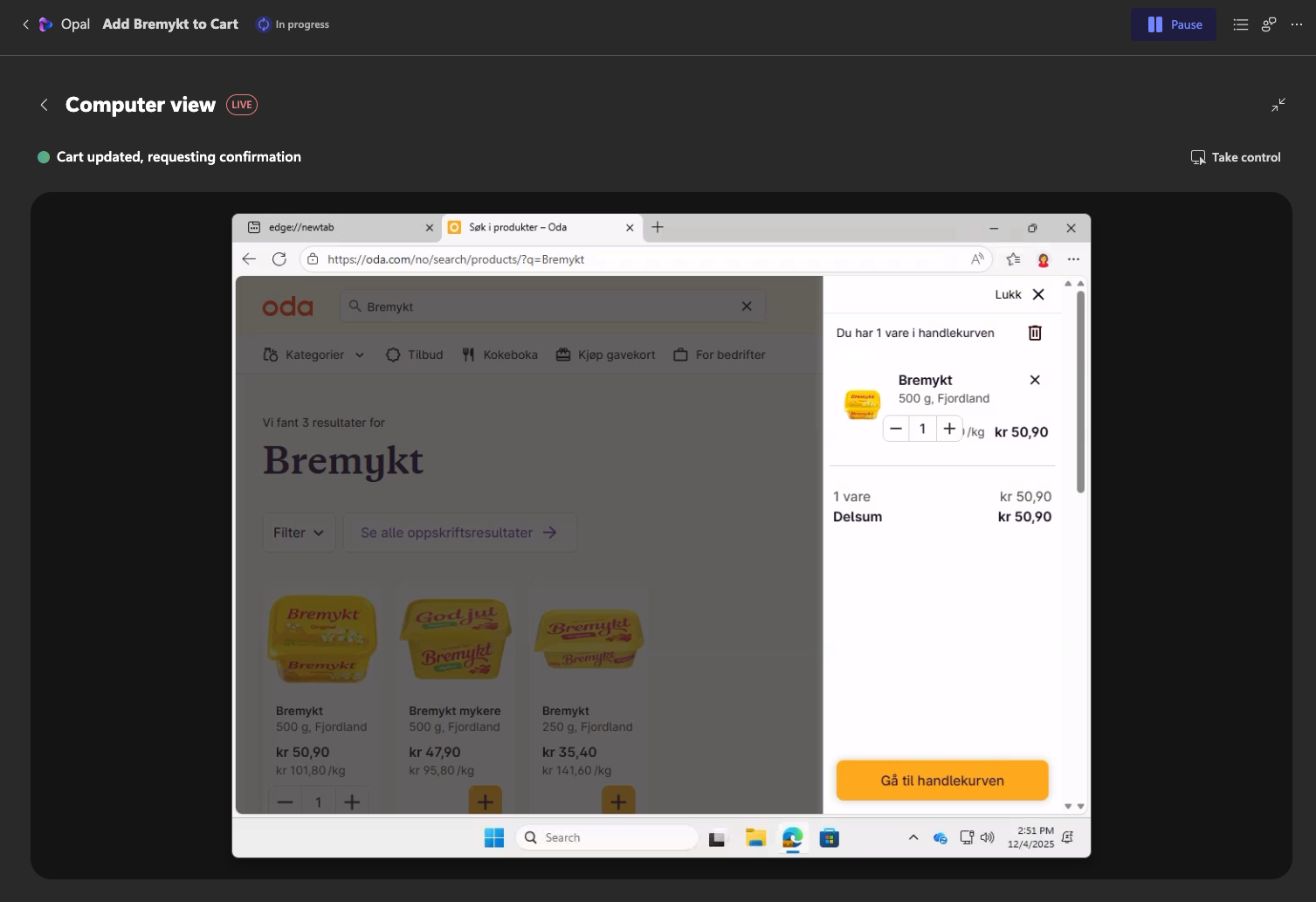
Even though it takes quite some time to navigate, it managed to finish the task.
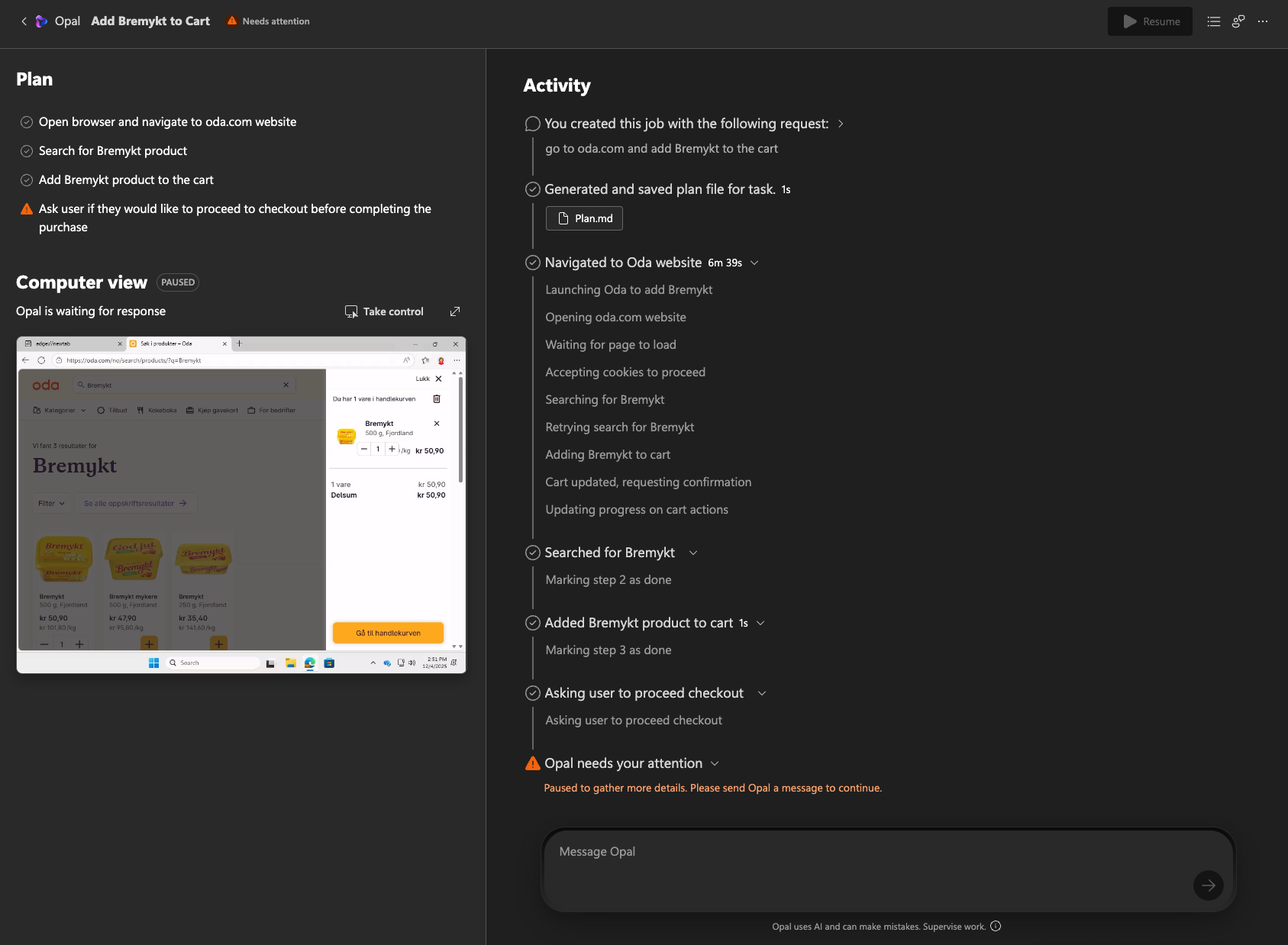
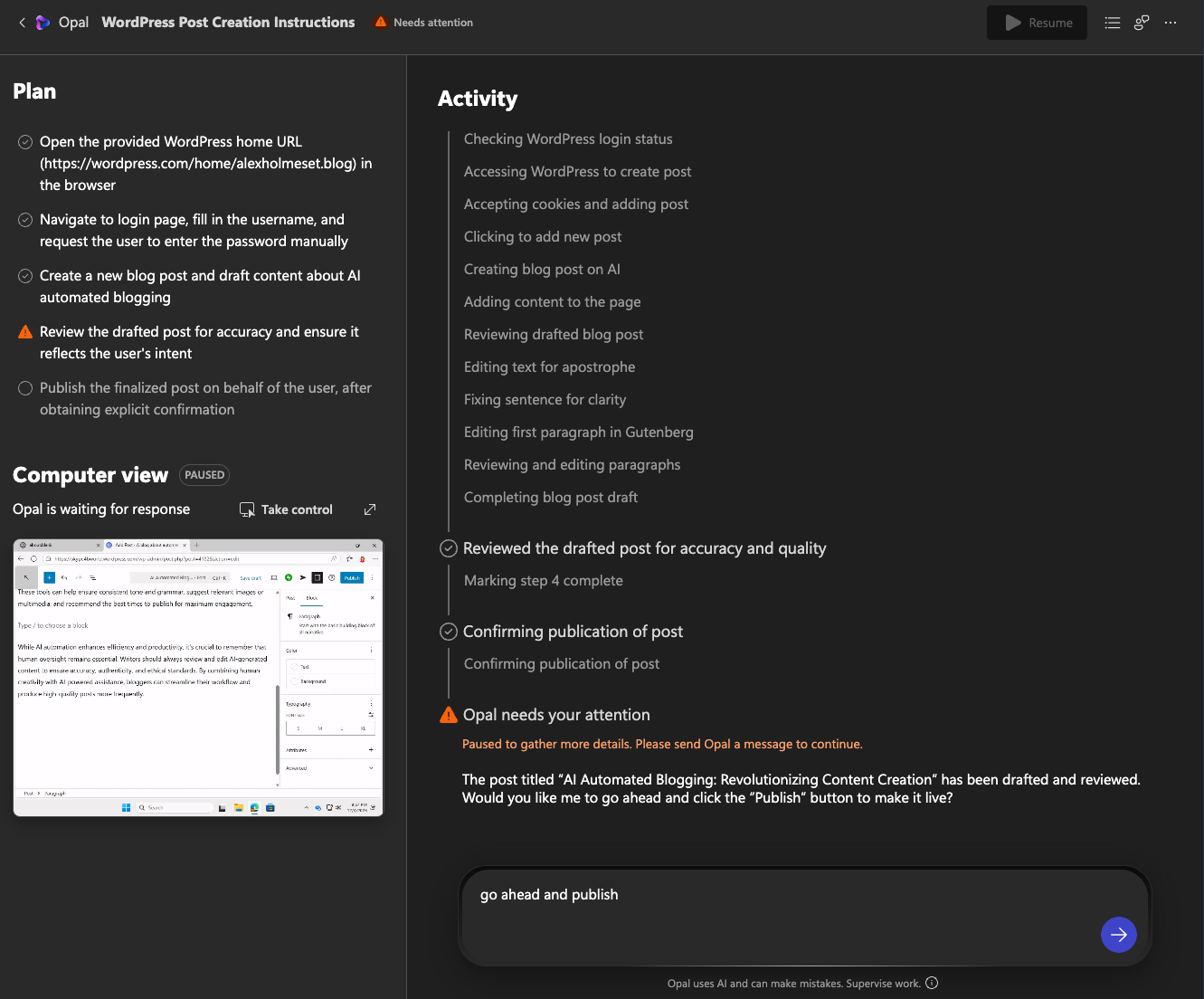
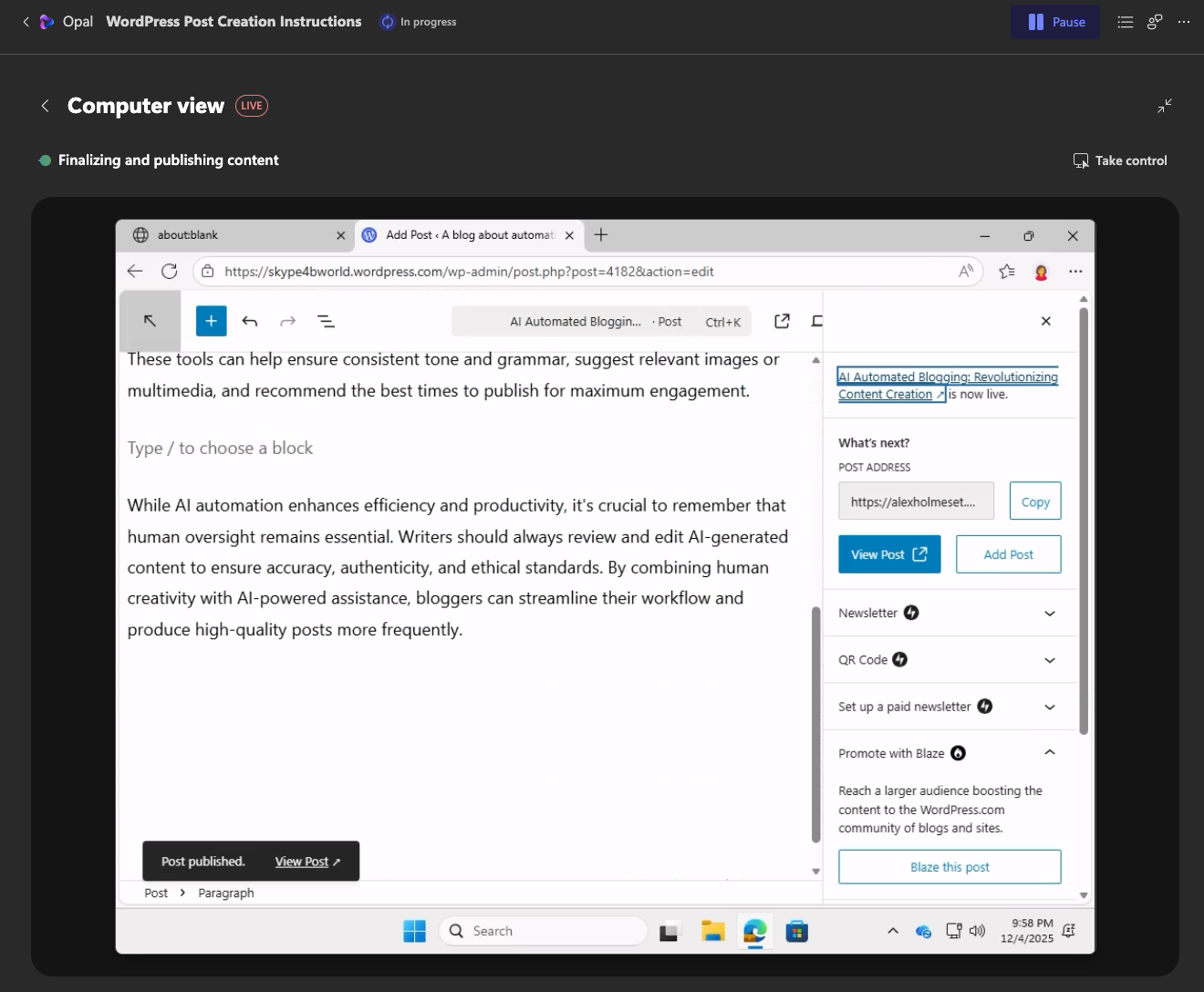
Next task was to ask it to log on to my WordPress account and create/publish a new blogpost.
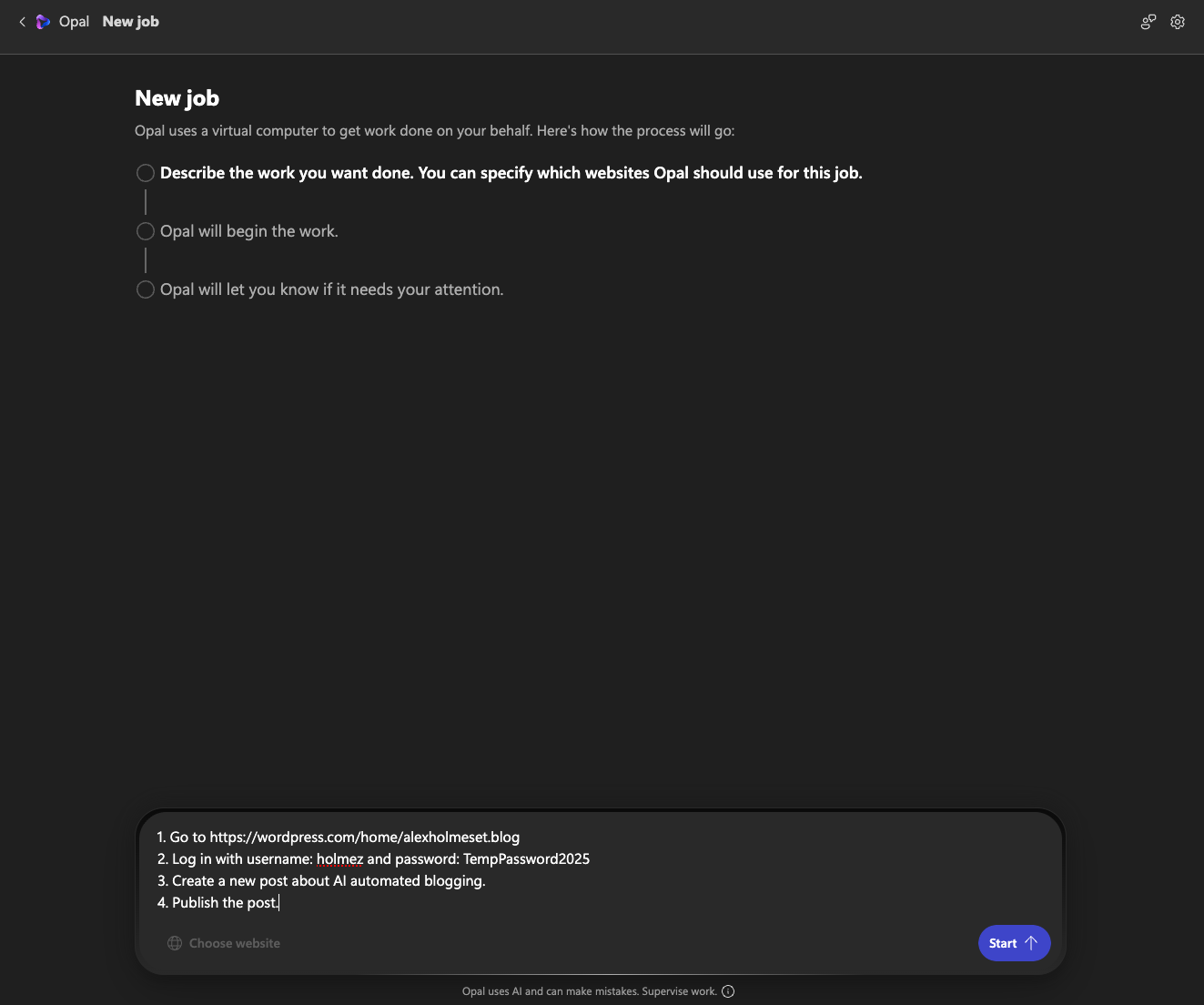
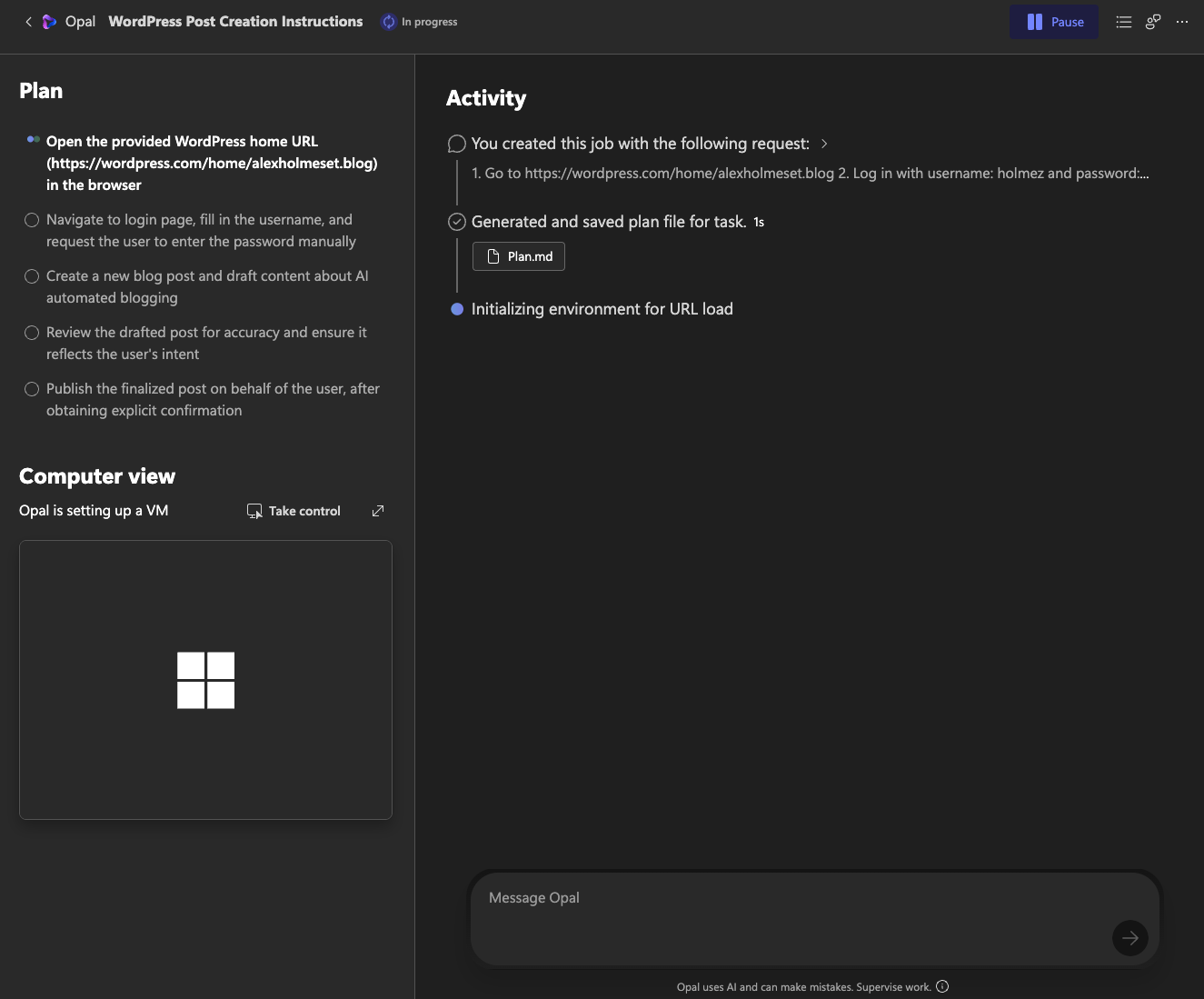
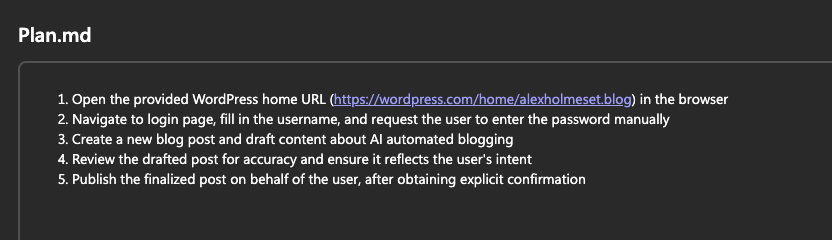
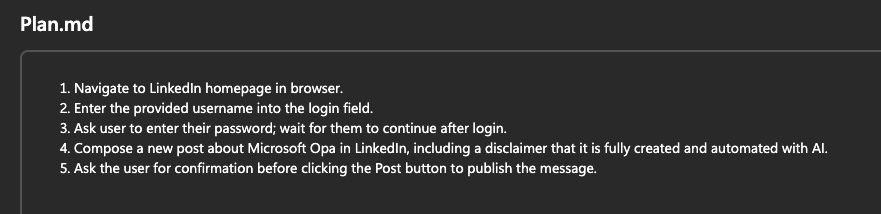
You can see the plan Opal creates. Its a more polished instruction based on your prompt.
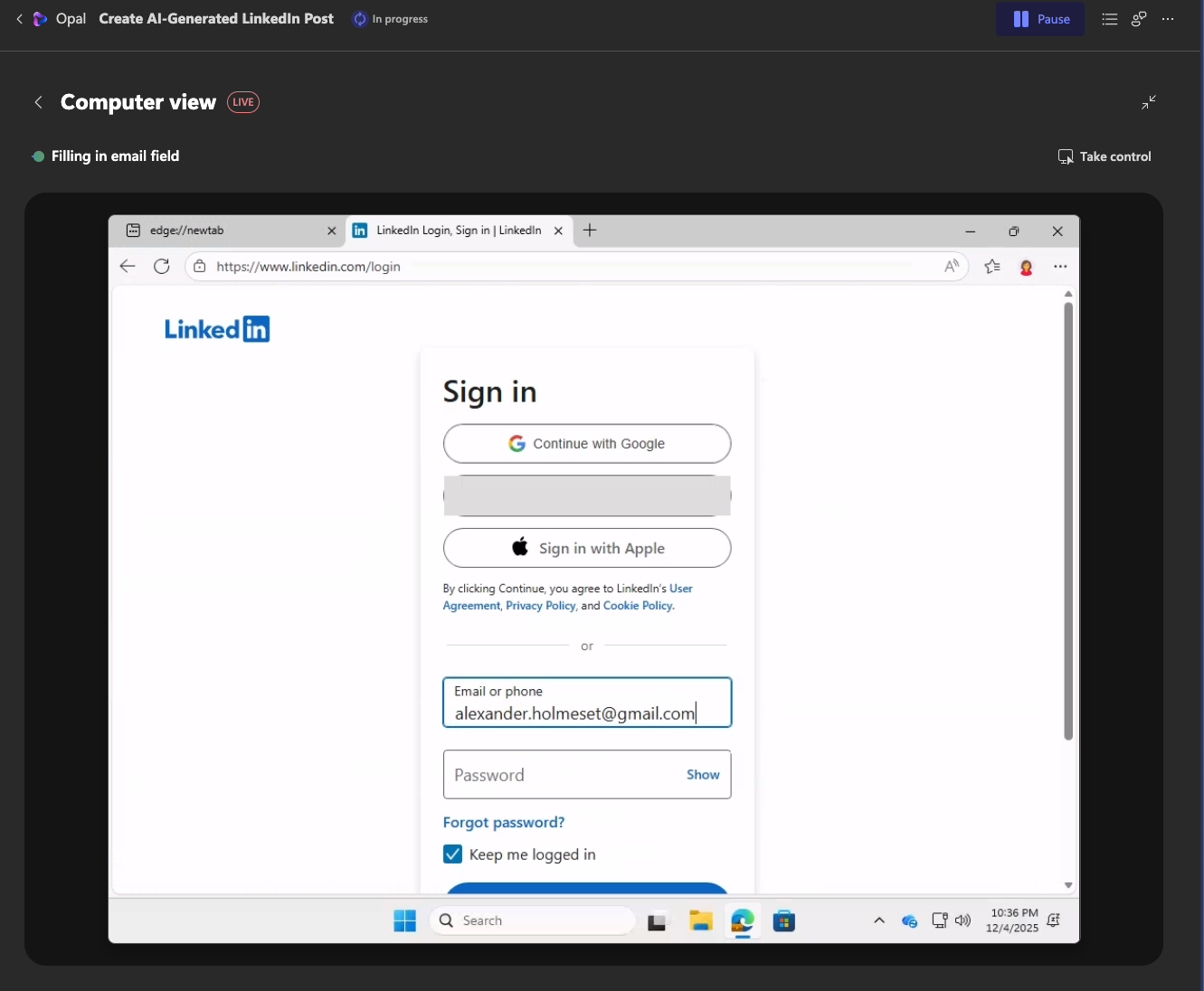
Something I have noticed is that Opal does not like to enter passwords for you. I needed to take control, login, and return the control.
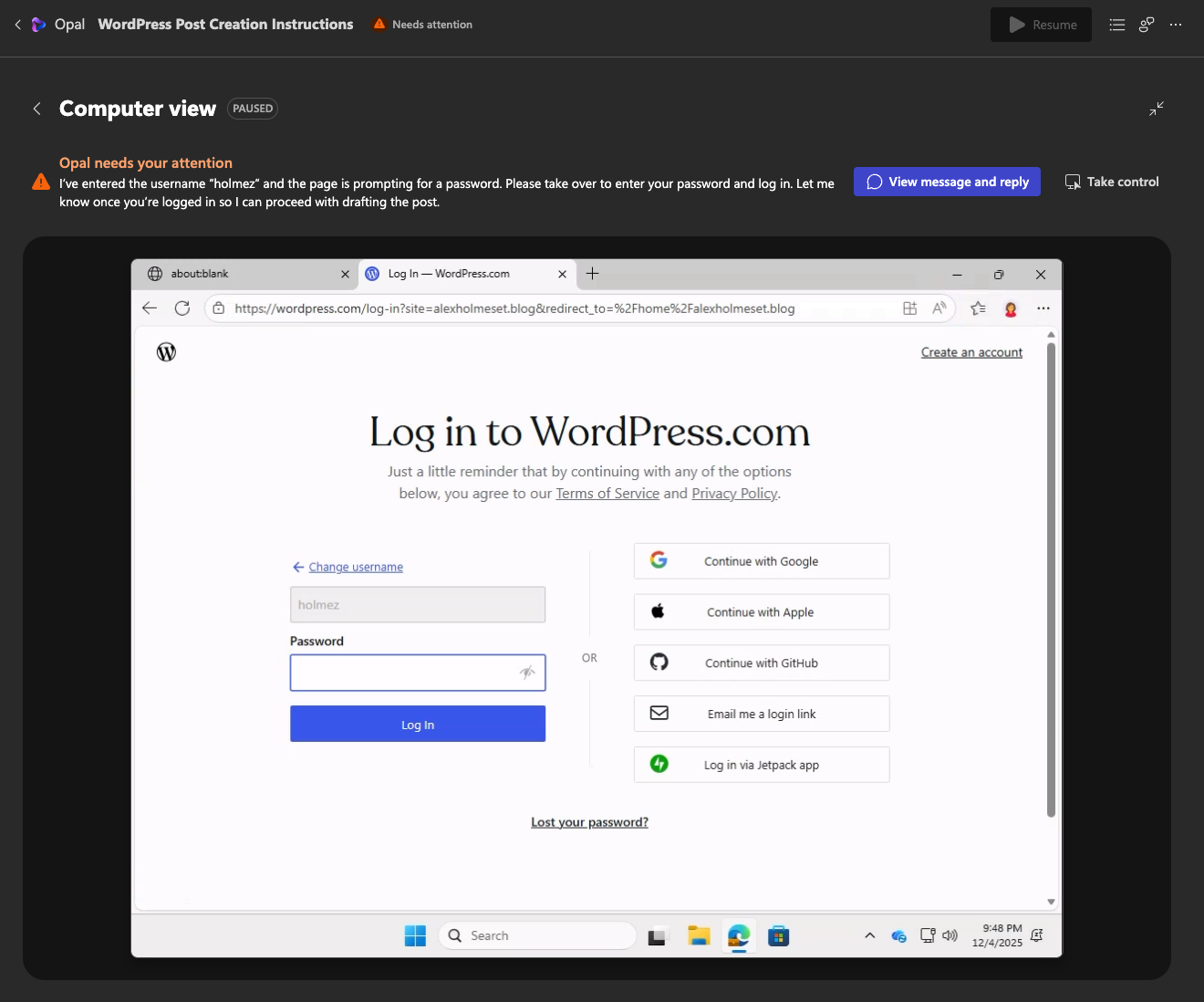
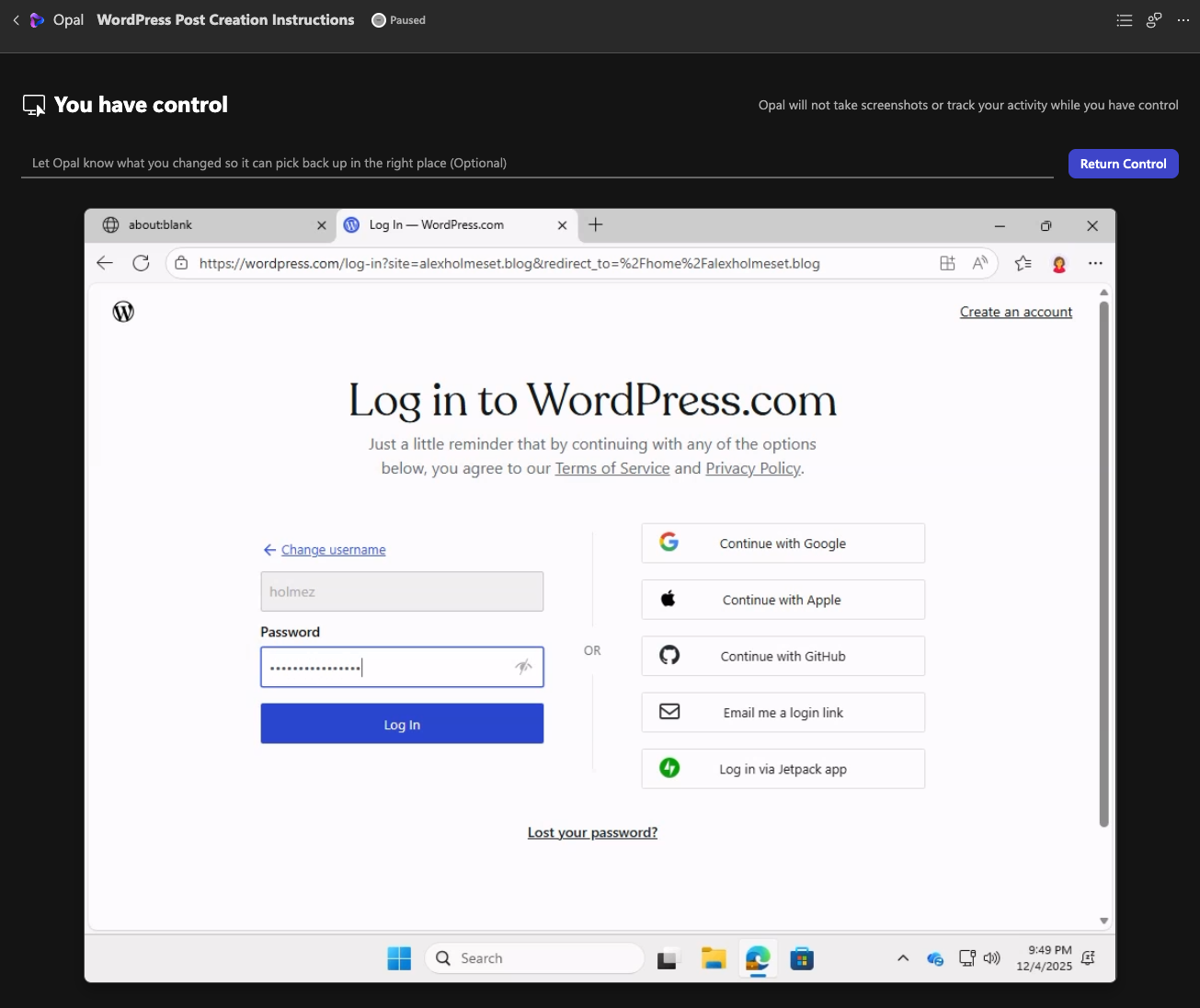
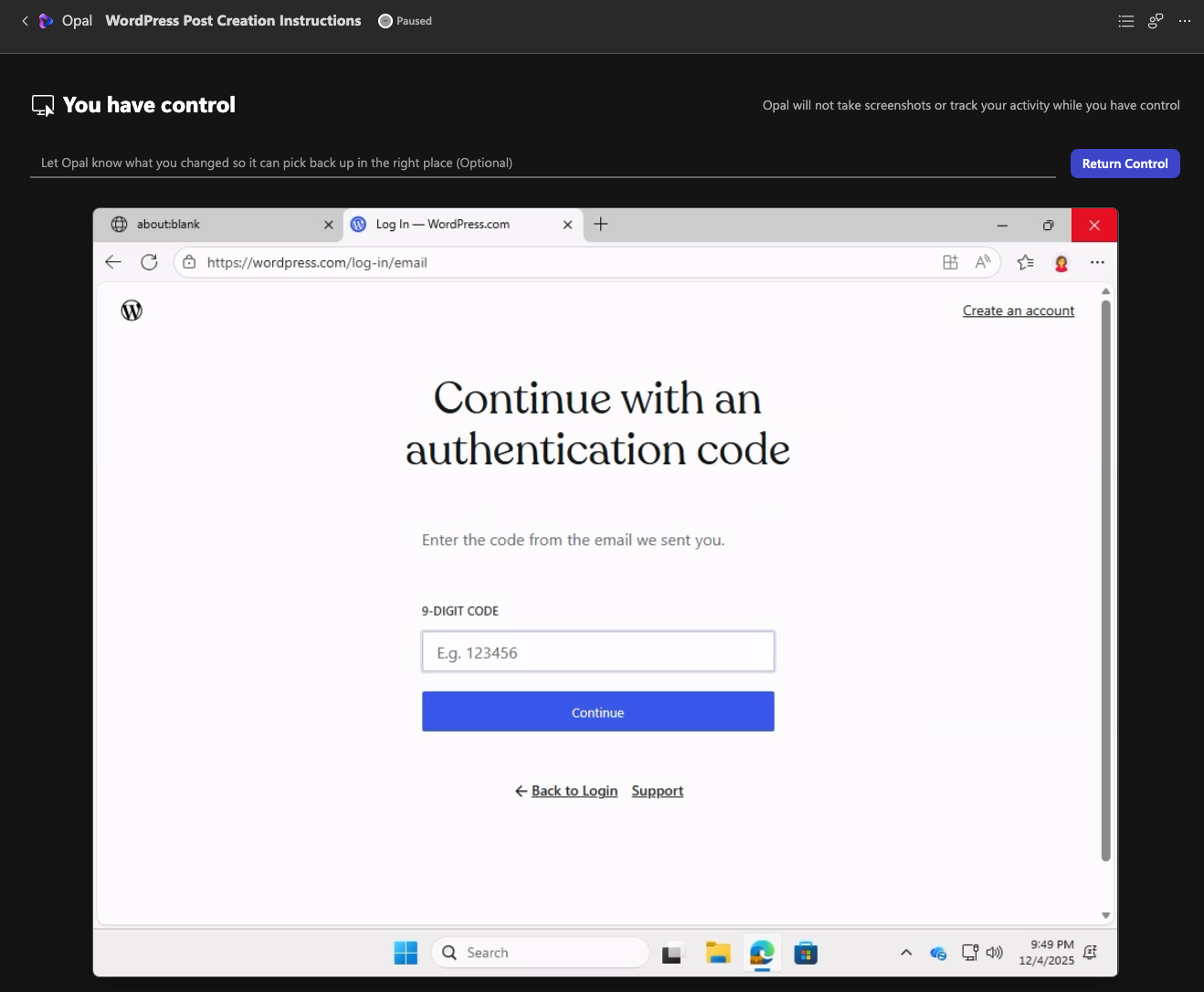
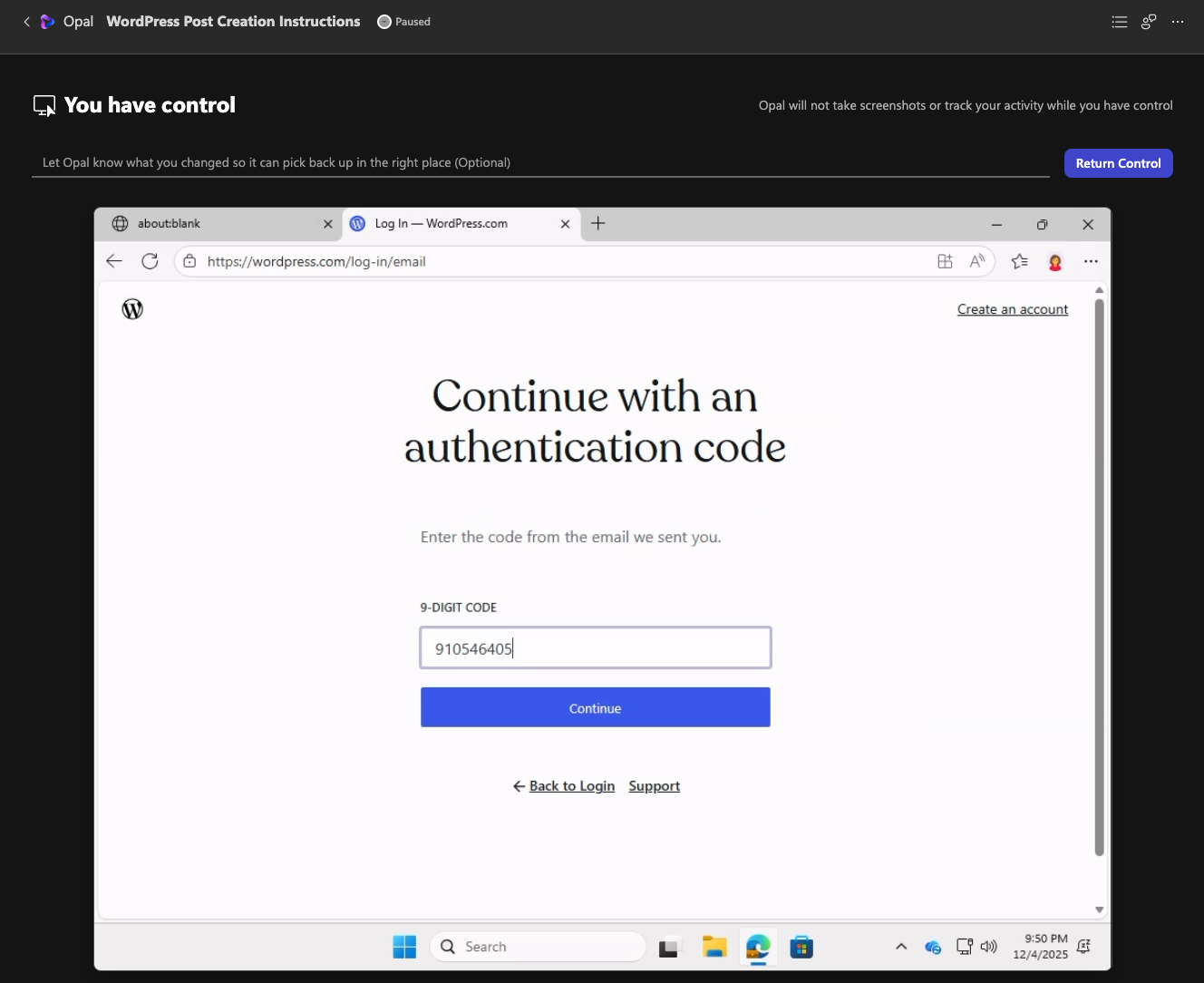
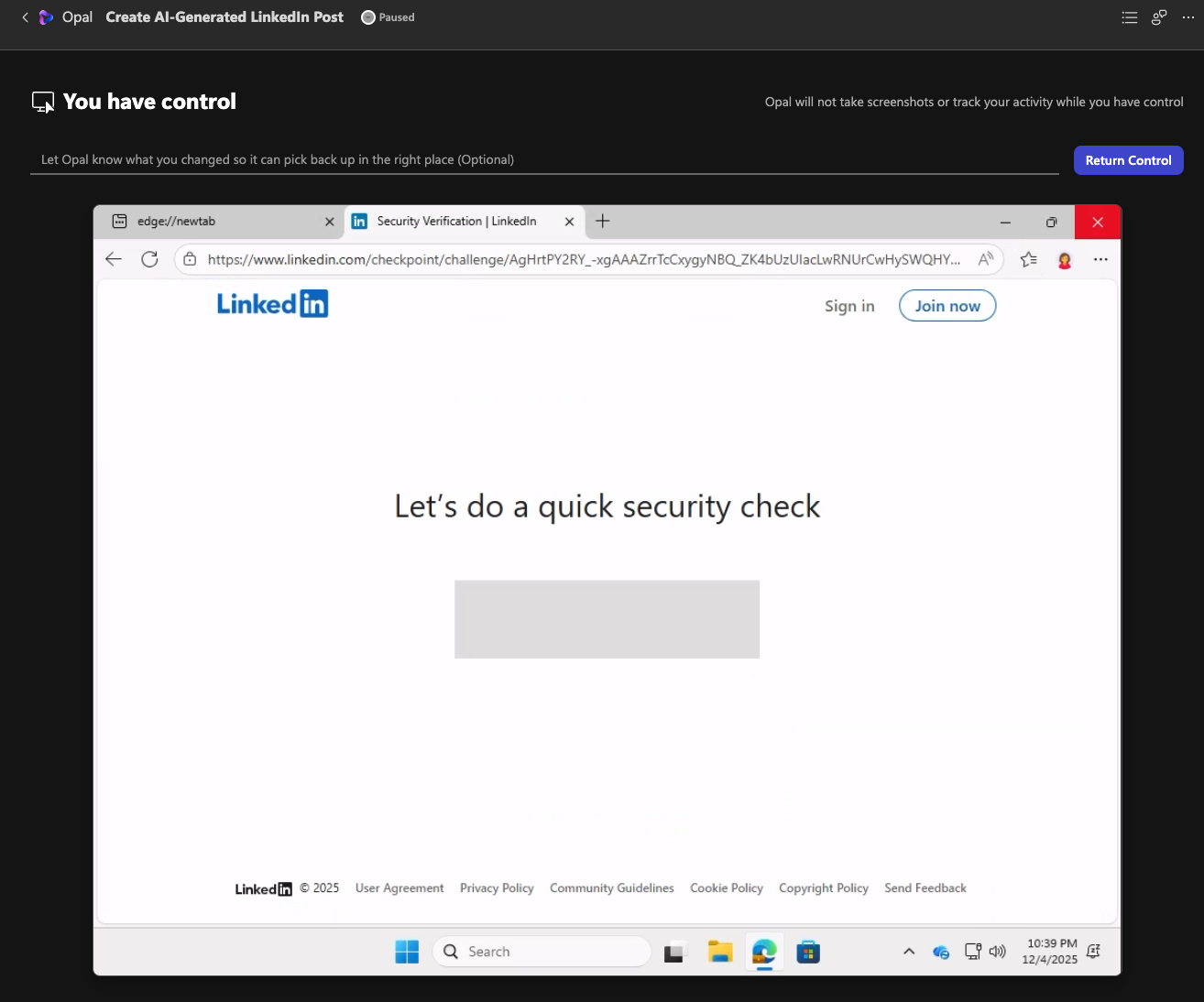
Also seems extra security measures are triggered when running from a VM in another location from where im usually logging in from.
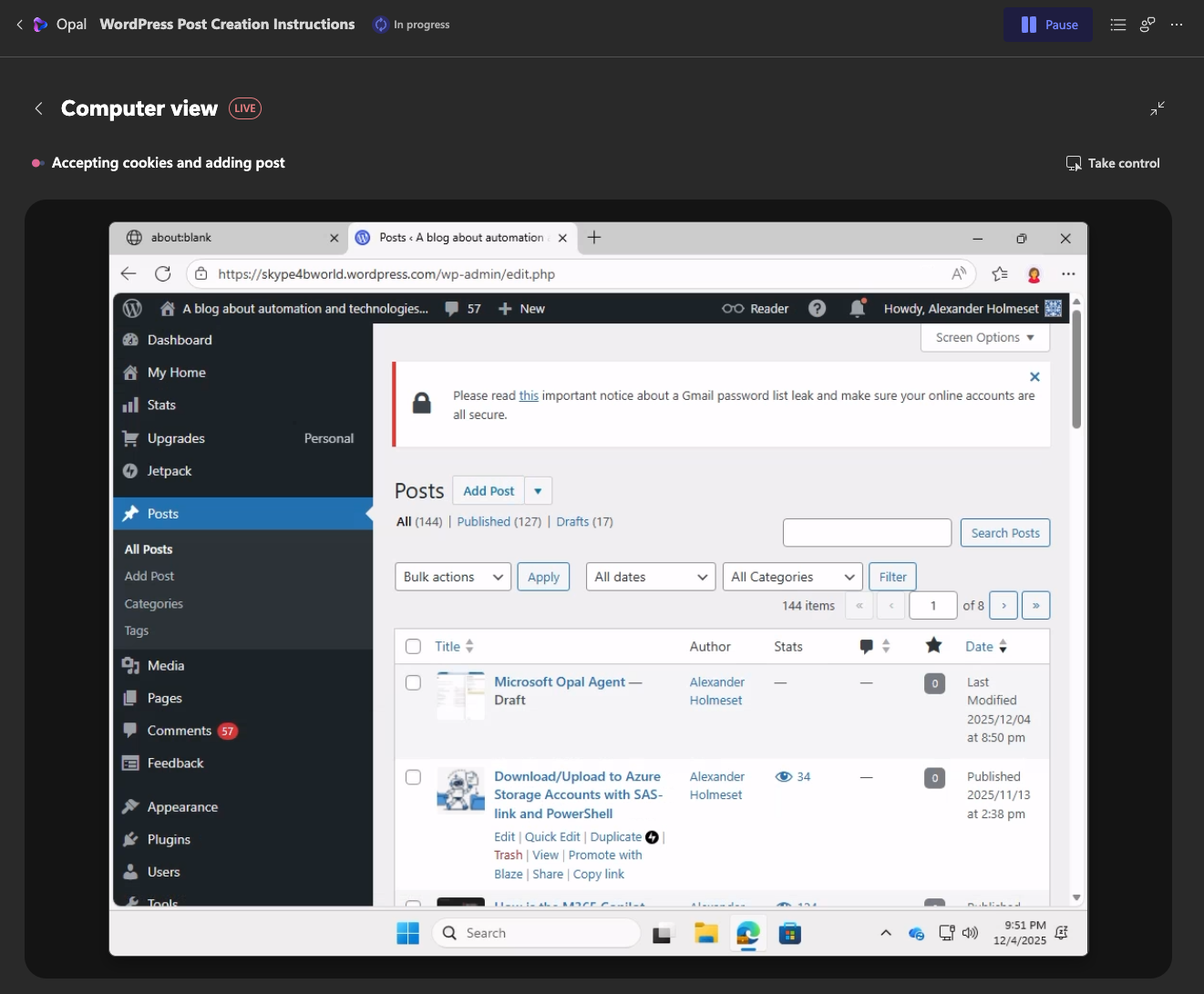
It was able to find the Add Post button and start a new draft.
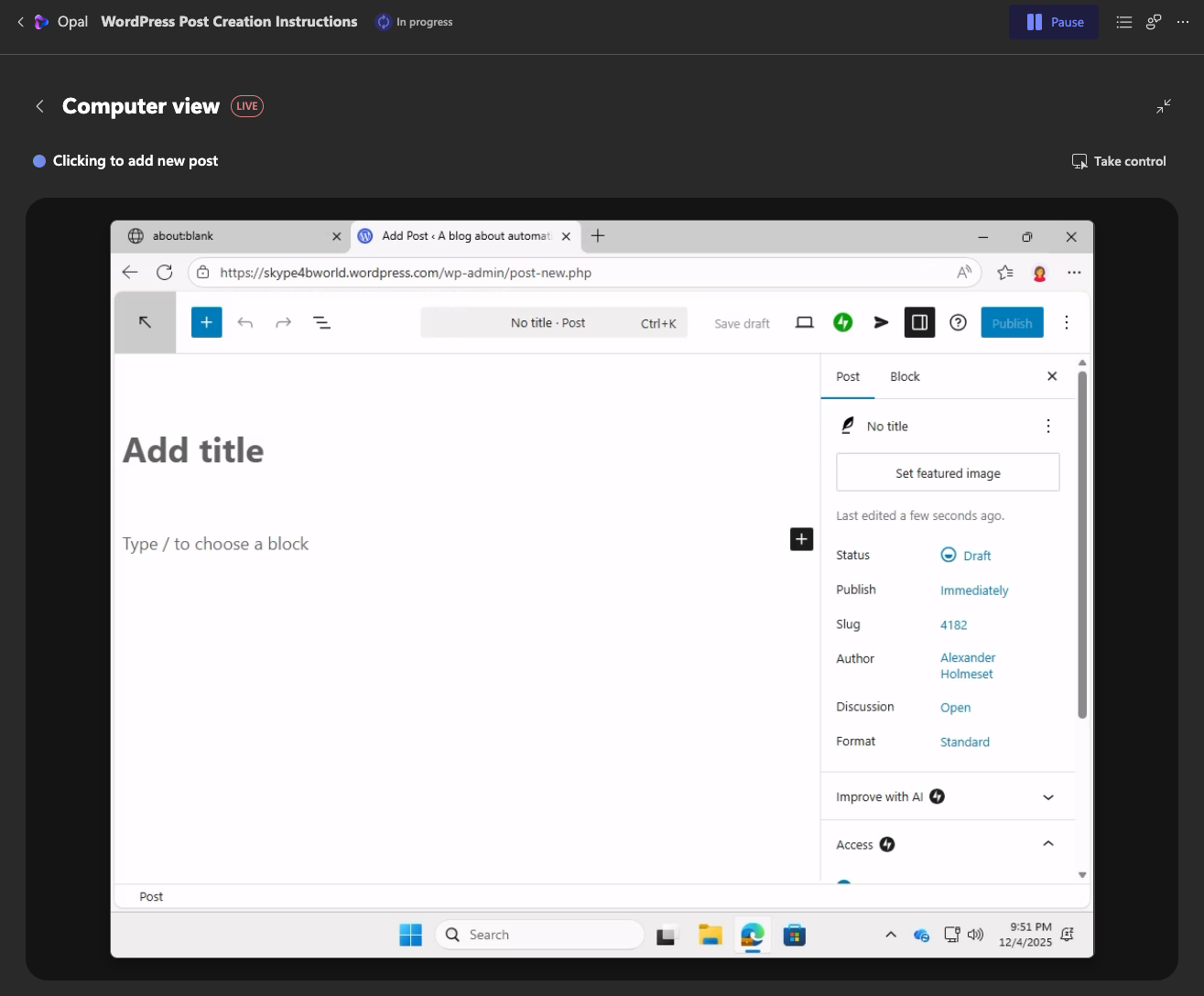
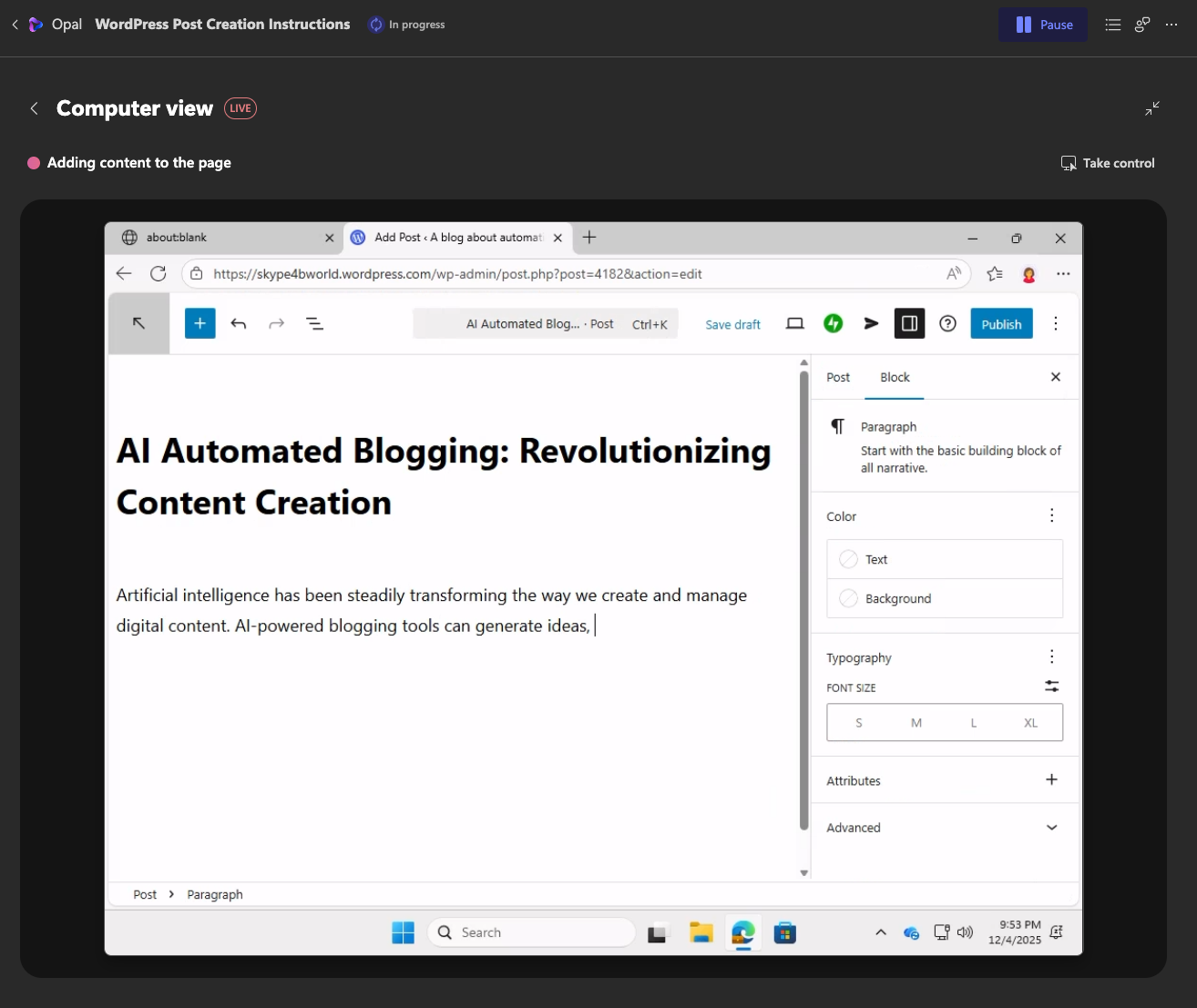
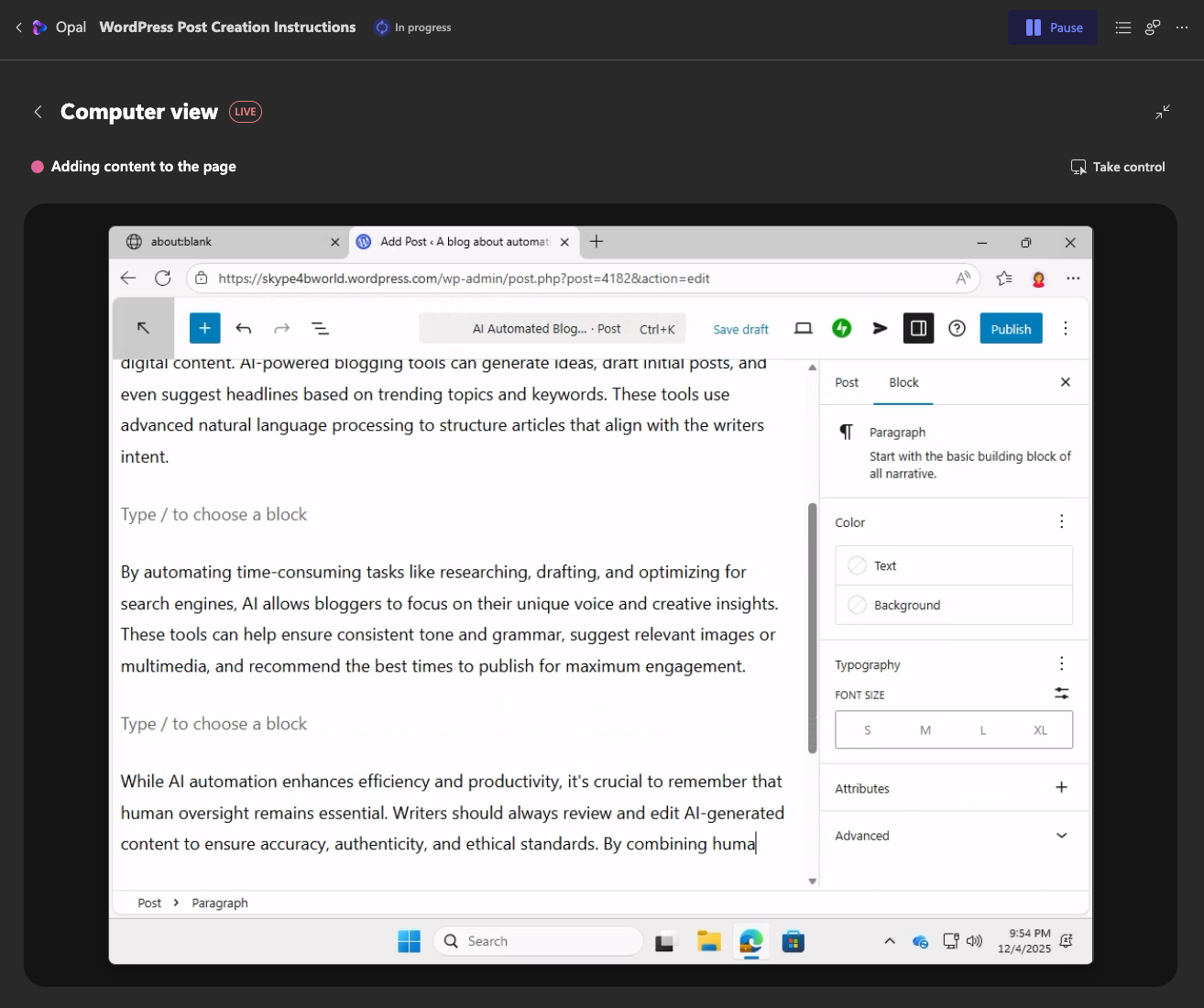
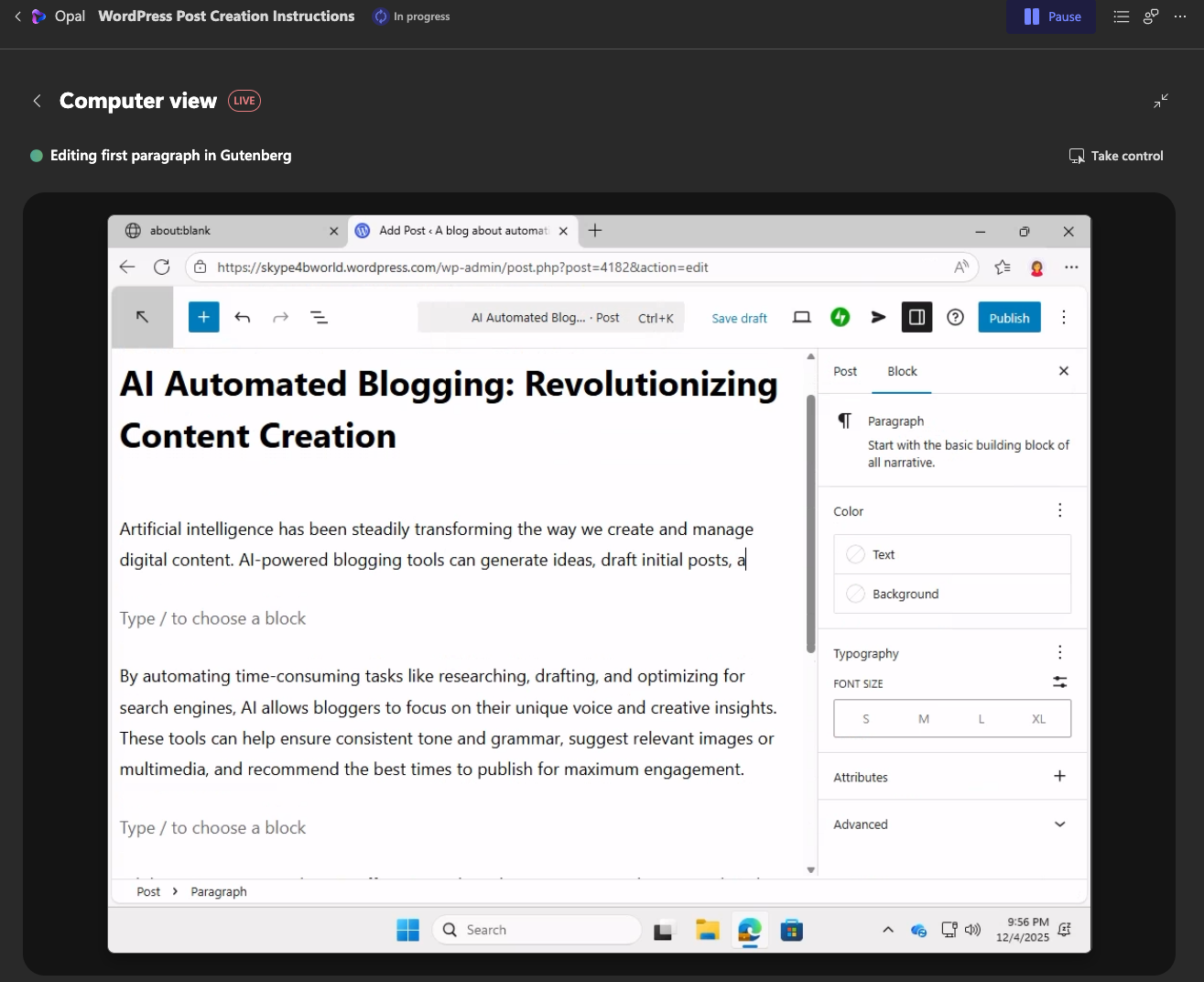
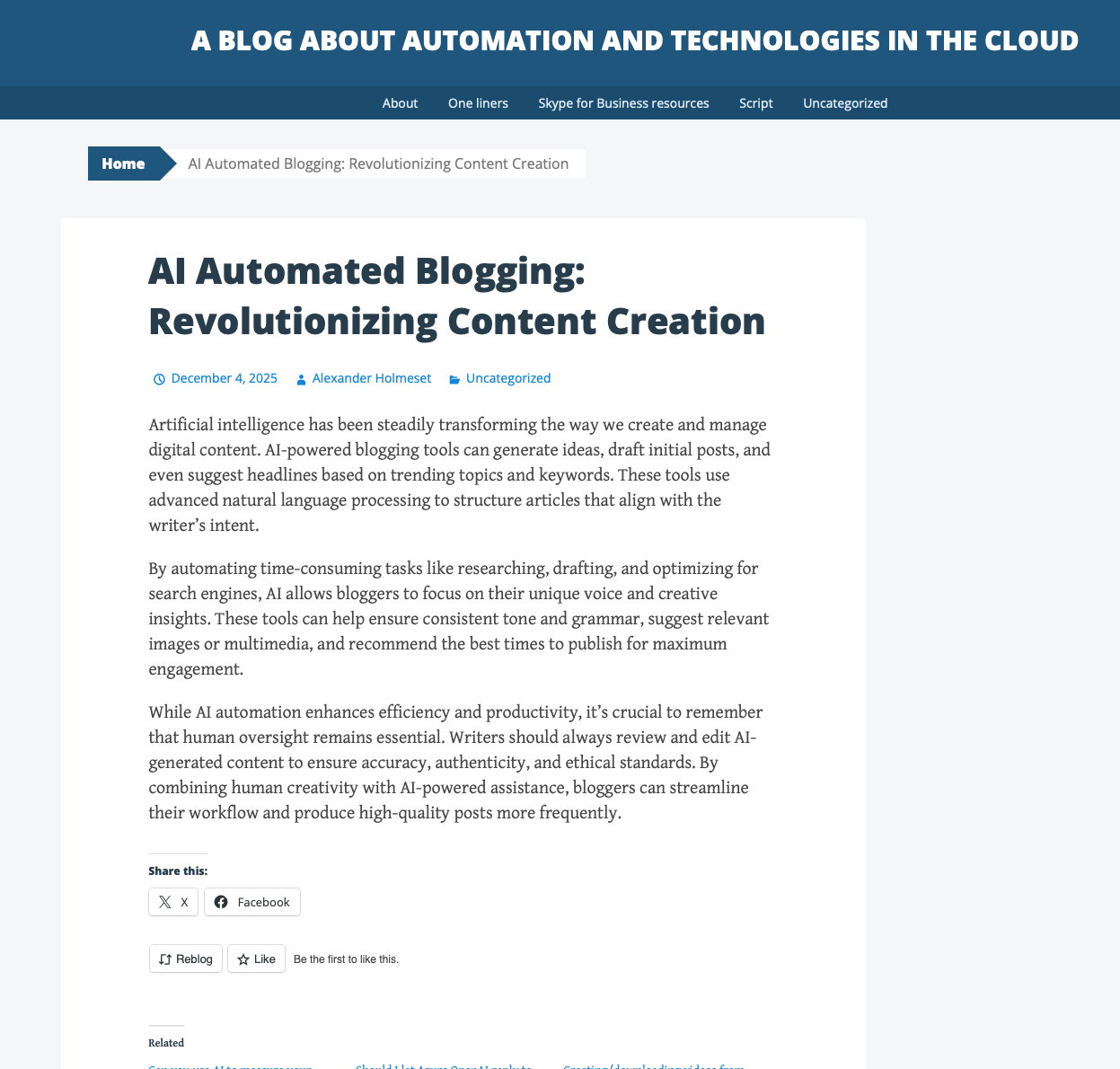
After writing the blogpost it needed input from me if it should go on and publish the article. This probably could be avoided by adjusting the prompt. You can read the AI generated article here.
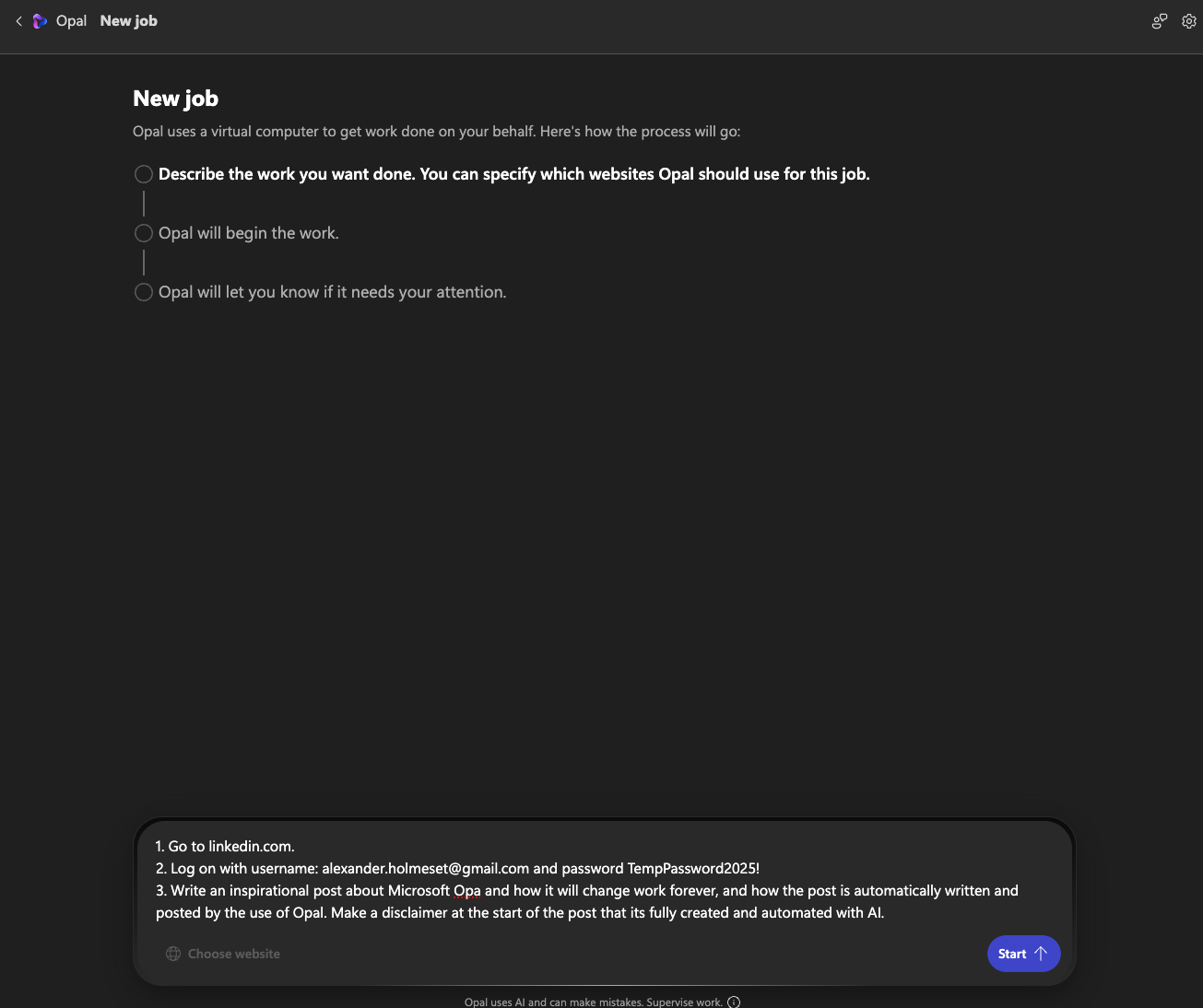
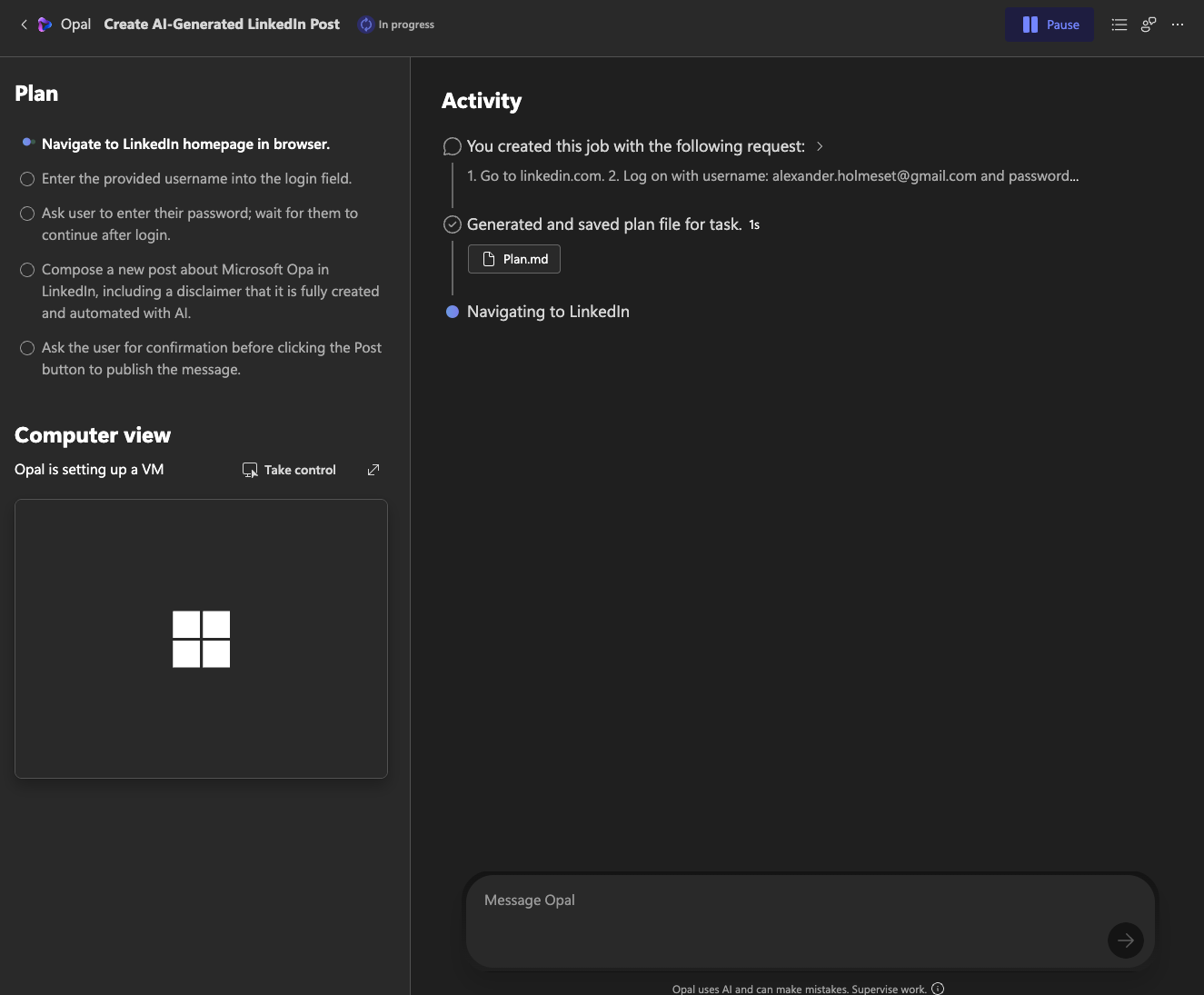
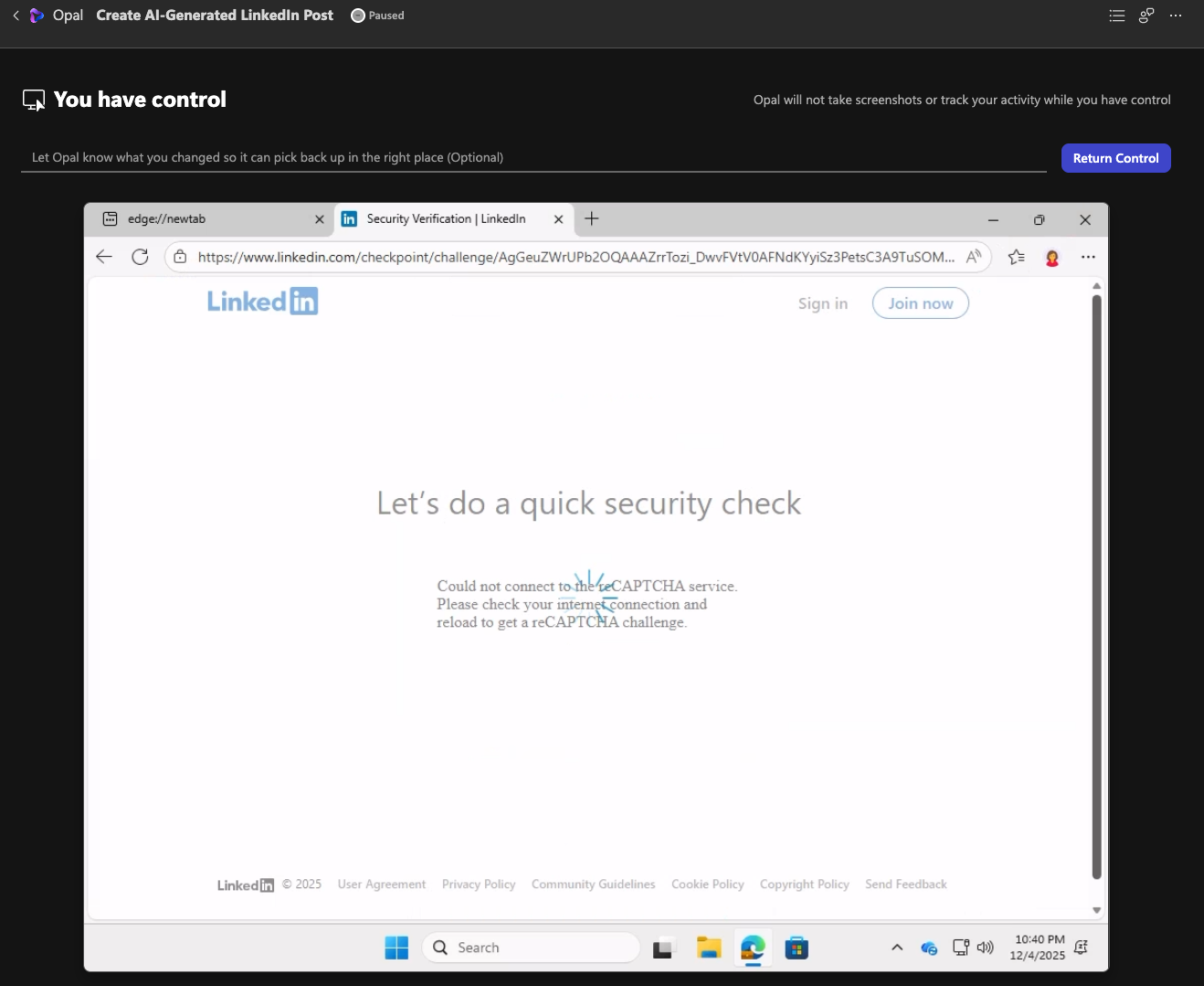
Next I wanted to see if I could automate posting on LinkedIn. As you can see on the screenshots I was stopped because the CAPTCHA test could not load.

In total I see a lot of potential in this technology. It probably will get faster to execute the actions in the future. I do see a lot of improvements from Computer Use in Copilot Studio on how smart the AI is do the correct actions without messing around to much.
What kind of task would you try to solve with this?
 A blog about automation and technologies in the cloud
[…] Microsoft Opal (Frontier) – First look. Microsoft’s Opal, part of the Frontier program, introduces a task-focused AI assistant using Windows 365 Cloud PCs. It eliminates setup hassles by activating upon your first prompt. While capable of automating tasks such as online shopping or creating blog posts, challenges like CAPTCHA and password handling persist. Opal shows promise, aiming to refine efficiency for personal workflows. […]
LikeLike