
My colleague (Simon Skotheimsvik) asked me if there was a way to use Graph API to set calendar permissions in Exchange Online. He had a script he used with customers to set the default calendar sharing permission for all users in an organization. It turns out it is possible, using the calendar/calendarpermissions/{id} endpoint. Here is a link to the documentation.
Here are the various permissions you can set(doc here):
| Member | Description |
|---|---|
| none | Calendar isn’t shared with the user. |
| freeBusyRead | User is a recipient who can view free/busy status of the owner on the calendar. |
| limitedRead | User is a recipient who can view free/busy status, and titles and locations of the events on the calendar. |
| read | User is a recipient who can view all the details of the events on the calendar, except for the owner’s private events. |
| write | User is a recipient who can view all the details (except for private events) and edit events on the calendar. |
| delegateWithoutPrivateEventAccess | User is a delegate who has write access but can’t view information of the owner’s private events on the calendar. |
| delegateWithPrivateEventAccess | User is a delegate who has write access and can view information of the owner’s private events on the calendar. |
| custom | User has custom permissions to the calendar. |
I have rewritten his script to use the Microsoft Graph PowerShell module, and I’m going to show you can set this up in Azure Automation with a managed identity, so it can run on a schedule to pick up new users.
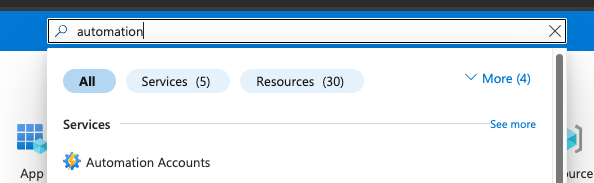
Go to portal.azure.com and find the Automation Account menu:
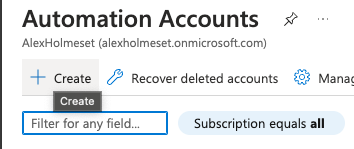
Click Create.
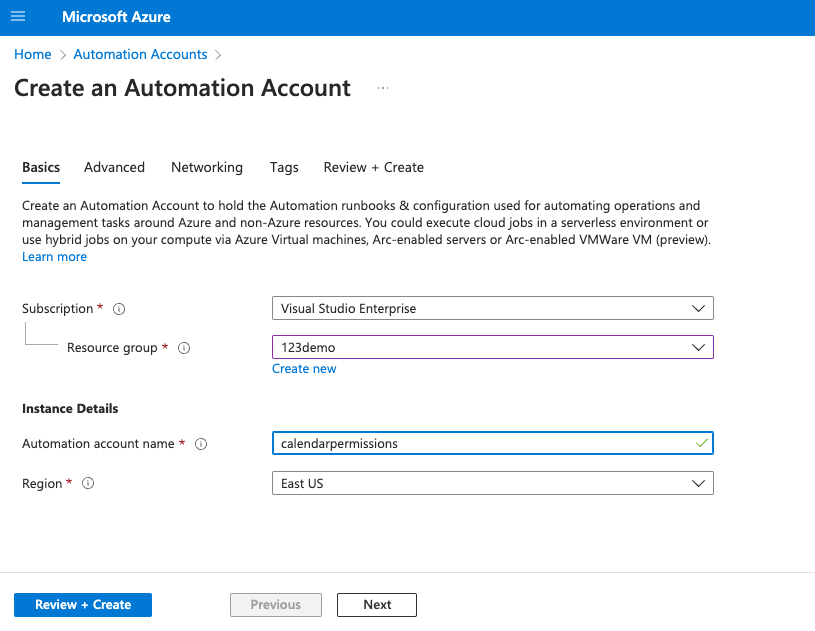
Fill in and click Review+Create.
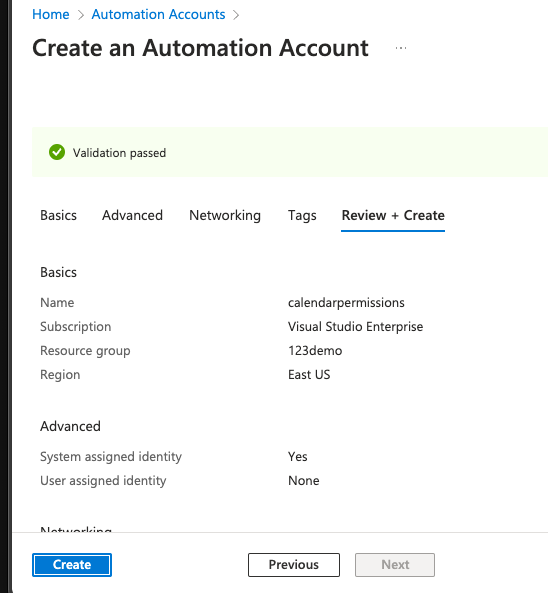
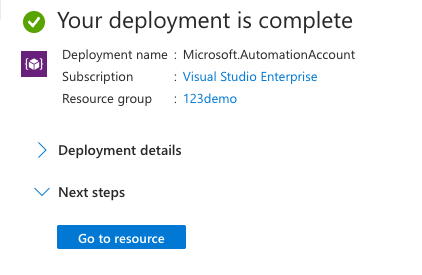
Click Create.
Click Got to Resource.
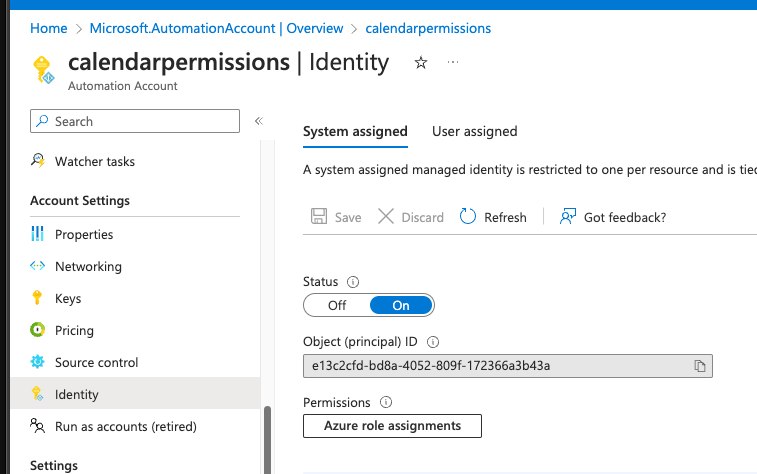
Verify that System assigned identity is On.
Run the following script to give the manage identity Calendars.ReadWrite and Users.Read.All.
| #Requires -Modules Microsoft.Graph.Authentication | |
| #Requires -Modules Microsoft.Graph.Applications | |
| # Install the module. (You need admin on the machine.) | |
| # Install-Module Microsoft.Graph | |
| # Set Static Variables | |
| $TenantID="enter here" | |
| $AutomationAccountDisplayname ="enter here" | |
| # Define dynamic variables | |
| $ServicePrincipalFilter = "displayName eq '$($AutomationAccountDisplayname)'" | |
| $GraphAPIAppName = "Microsoft Graph" | |
| $ApiServicePrincipalFilter = "displayName eq '$($GraphAPIAppName)'" | |
| # Scopes needed for the managed identity (Add other scopes if needed) | |
| $Scopes = @( | |
| "User.Read.All","Calendars.ReadWrite" | |
| ) | |
| # Connect to MG Graph - scopes must be consented the first time you run this. | |
| # Connect with Global Administrator | |
| Connect-MgGraph -Scopes "Application.Read.All","AppRoleAssignment.ReadWrite.All" -TenantId $TenantID -UseDeviceAuthentication | |
| # Get the service principal for your managed identity. | |
| $ServicePrincipal = Get-MgServicePrincipal -Filter $ServicePrincipalFilter | |
| # Get the service principal for Microsoft Graph. | |
| # Result should be AppId 00000003-0000-0000-c000-000000000000 | |
| $ApiServicePrincipal = Get-MgServicePrincipal -Filter "$ApiServicePrincipalFilter" | |
| # Apply permissions | |
| Foreach ($Scope in $Scopes) { | |
| Write-Host "`nGetting App Role '$Scope'" | |
| $AppRole = $ApiServicePrincipal.AppRoles | Where-Object {$_.Value -eq $Scope -and $_.AllowedMemberTypes -contains "Application"} | |
| if ($null -eq $AppRole) { Write-Error "Could not find the specified App Role on the Api Service Principal"; continue; } | |
| if ($AppRole -is [array]) { Write-Error "Multiple App Roles found that match the request"; continue; } | |
| Write-Host "Found App Role, Id '$($AppRole.Id)'" | |
| $ExistingRoleAssignment = Get-MgServicePrincipalAppRoleAssignment -ServicePrincipalId $ServicePrincipal.Id | Where-Object { $_.AppRoleId -eq $AppRole.Id } | |
| if ($null -eq $existingRoleAssignment) { | |
| New-MgServicePrincipalAppRoleAssignment -ServicePrincipalId $ServicePrincipal.Id -PrincipalId $ServicePrincipal.Id -ResourceId $ApiServicePrincipal.Id -AppRoleId $AppRole.Id | |
| } else { | |
| Write-Host "App Role has already been assigned, skipping" | |
| } | |
| } |
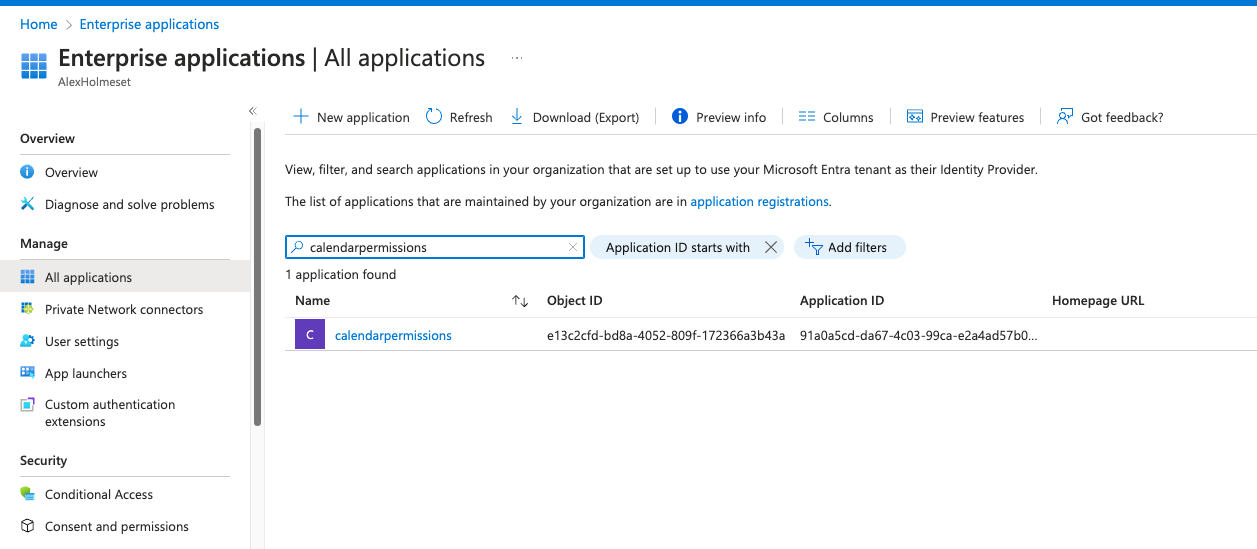
To confirm that the permissions have been given, go to the Enterprise Applications many, and open the one for the managed identity.
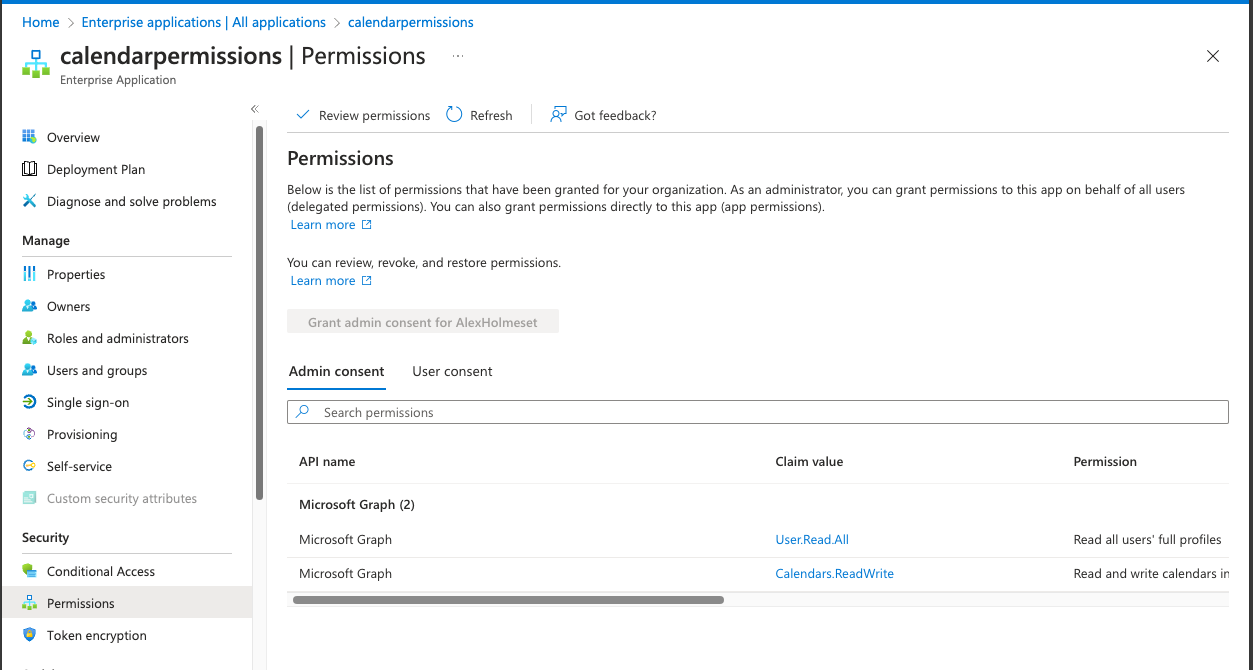
Go to Permissions and confirm the two Microsoft Graph permissions are there.
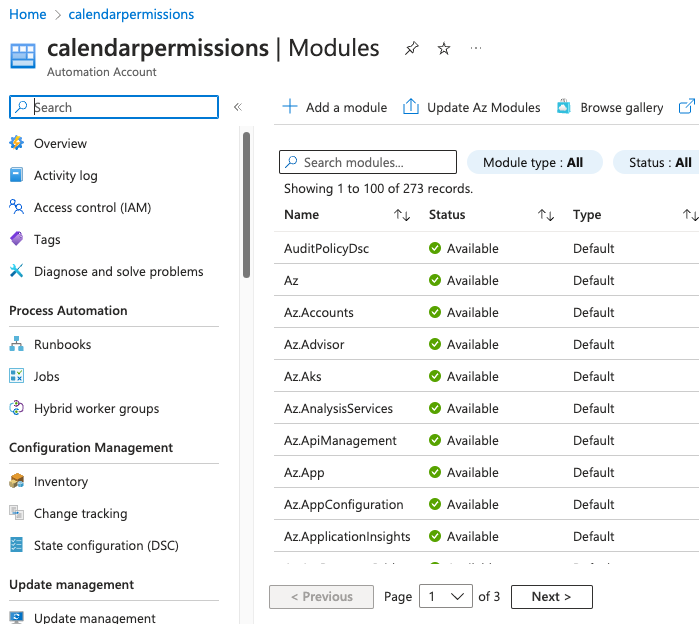
Now you got to the Automation Account and click the Modules menu and click Add a module.
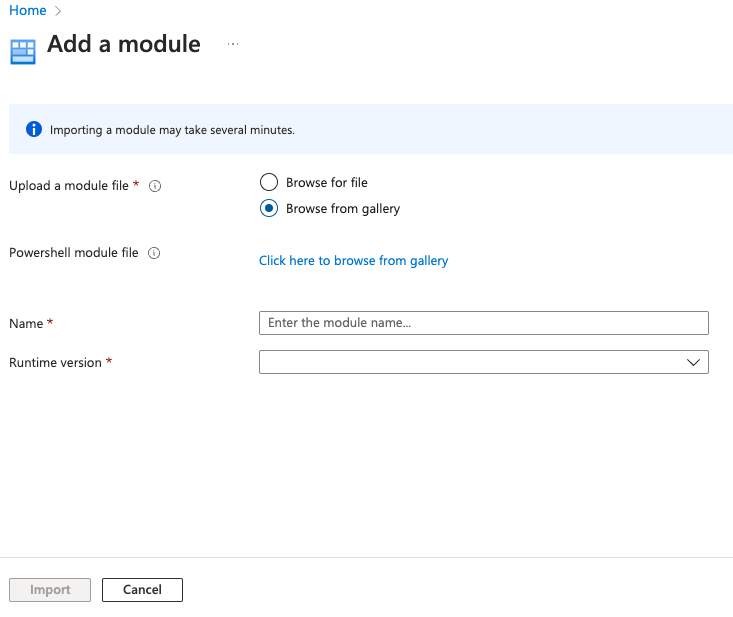
Select Browse from gallery and click “Click here to browse from gallery”.
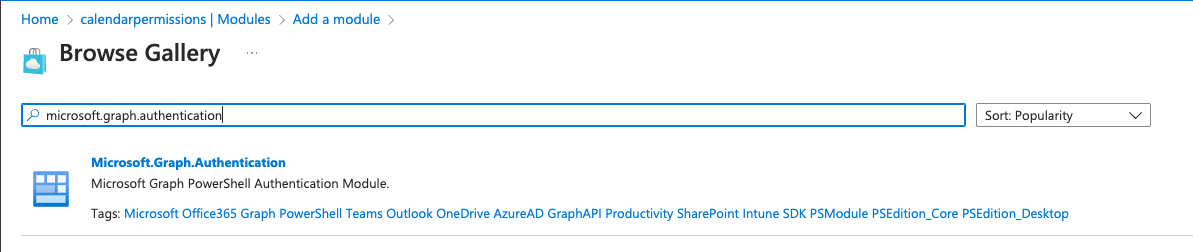
Search for Microsoft.Graph.Authentication and select it.
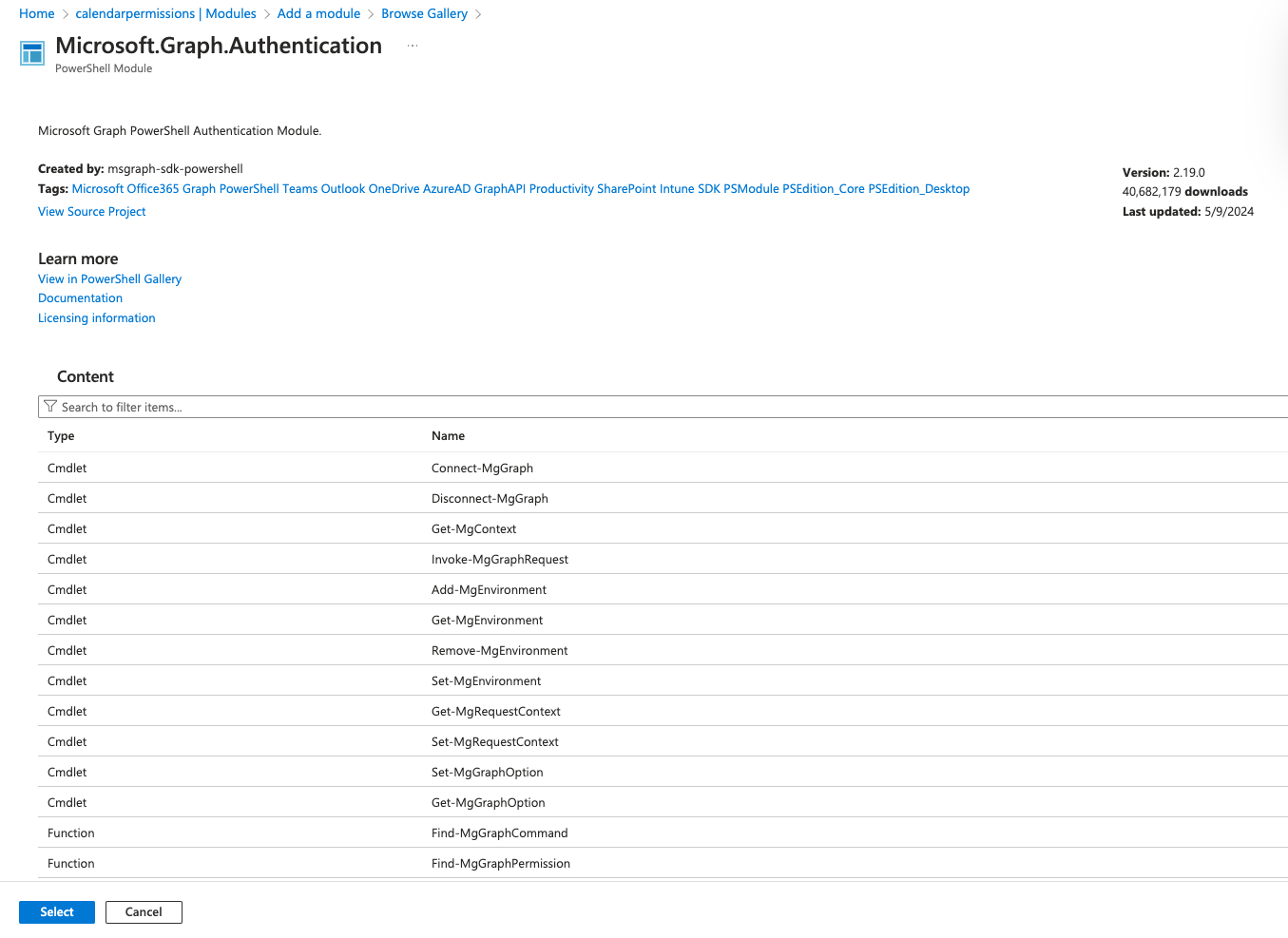
Click Select.
Select 7.2 as Runtime version and click Import.
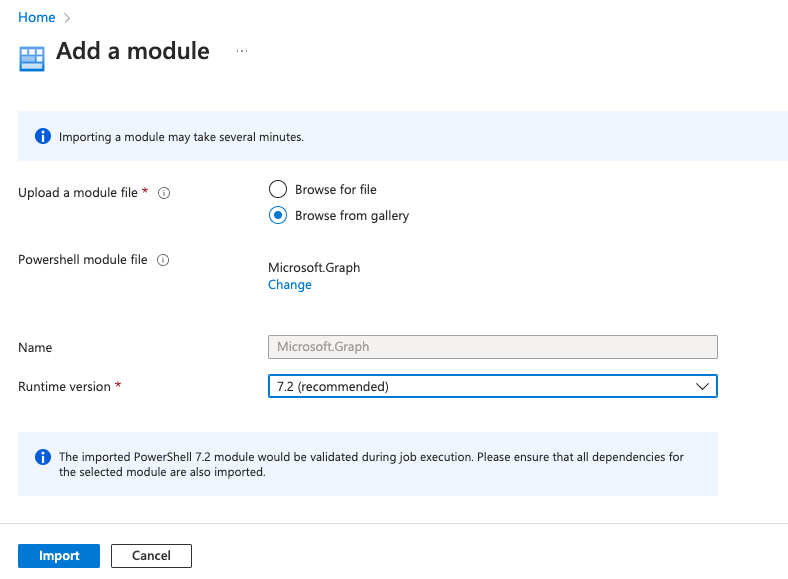
Repeat the same for Microsoft.Graph.Users and Microsoft.Graph.Calendar.
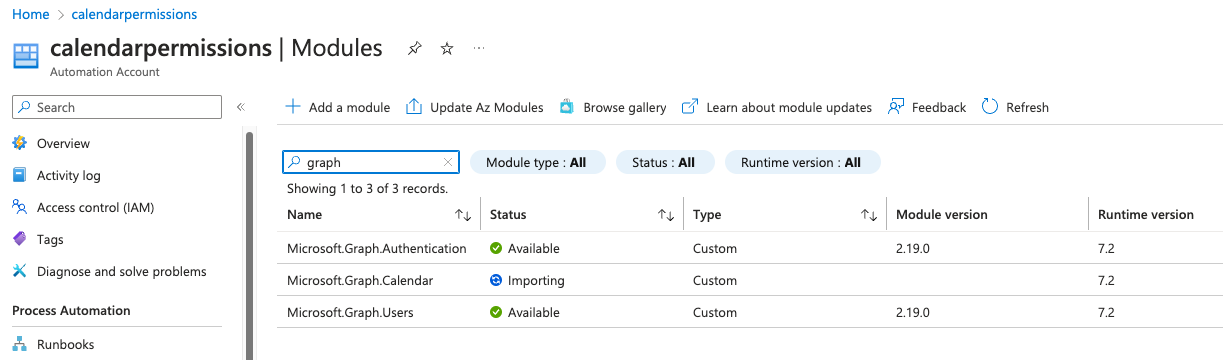
Go to Modules again in the Automation Account, and you can see its Importing. Wait until it says Available on all.
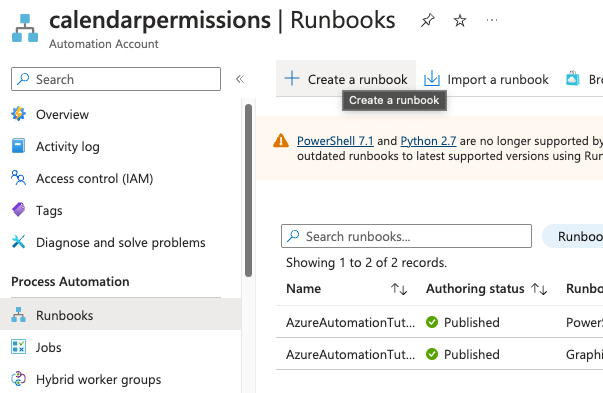
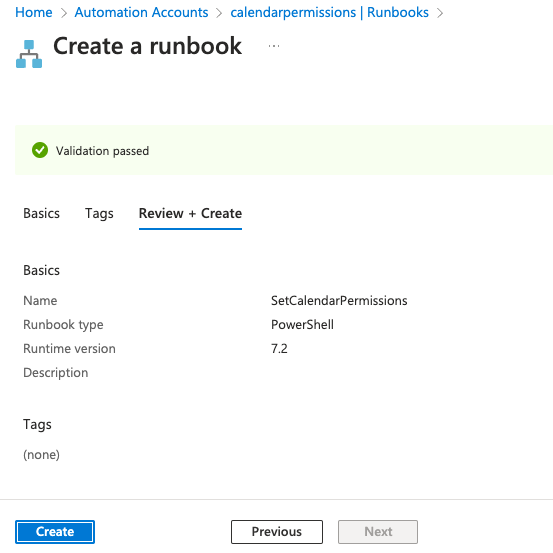
Go to Runbooks and click Create a runbook.
Set the following and click Review+Create.
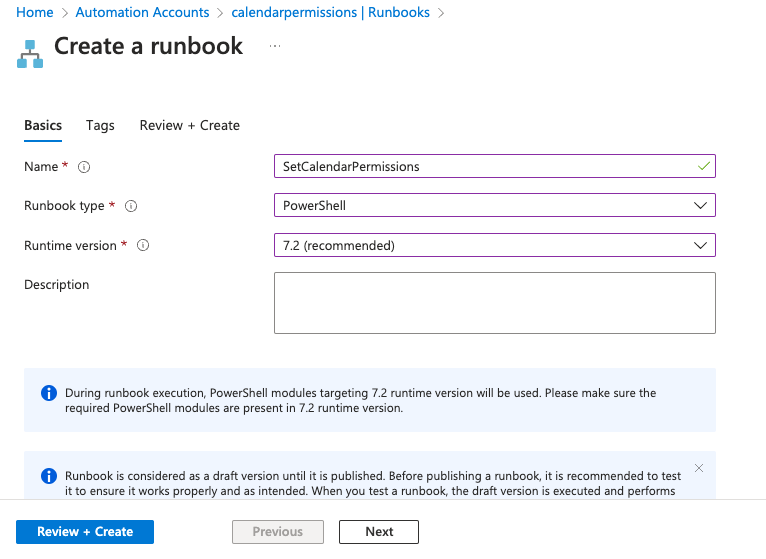
Click Create.
When you get into the editor, paste the script below and click Save, then Publish.
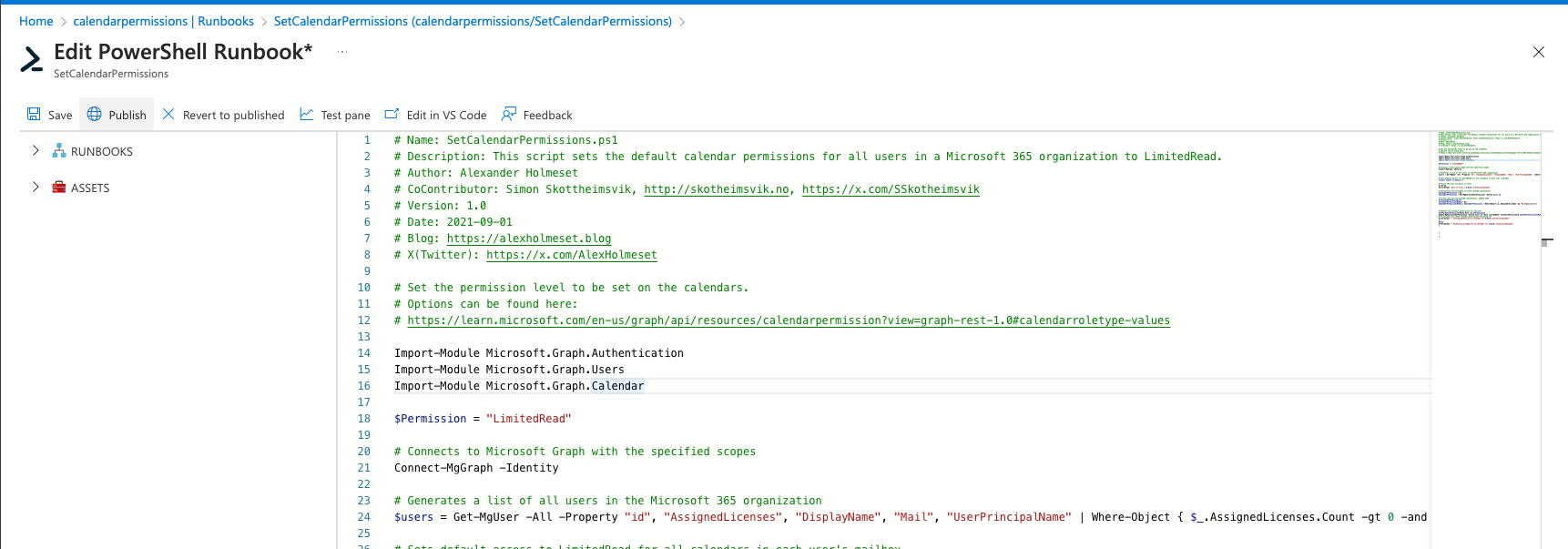
| # Name: SetCalendarPermissions.ps1 | |
| # Description: This script sets the default calendar permissions for all users in a Microsoft 365 organization to LimitedRead. | |
| # Author: Alexander Holmeset | |
| # CoContributor: Simon Skotheimsvik, http://skotheimsvik.no, https://x.com/SSkotheimsvik | |
| # Version: 1.0 | |
| # Date: 2021-09-01 | |
| # Blog: https://alexholmeset.blog | |
| # X(Twitter): https://x.com/AlexHolmeset | |
| # Set the permission level to be set on the calendars. | |
| # Options can be found here: | |
| # https://learn.microsoft.com/en-us/graph/api/resources/calendarpermission?view=graph-rest-1.0#calendarroletype-values | |
| $Permission = "LimitedRead" | |
| # Connects to Microsoft Graph with the specified scopes | |
| Connect-MgGraph -Identity | |
| # Generates a list of all users in the Microsoft 365 organization | |
| $users = Get-MgUser -All -Property "id", "AssignedLicenses", "DisplayName", "Mail", "UserPrincipalName" | Where-Object { $_.AssignedLicenses.Count -gt 0 -and $_.Mail -ne $null} | |
| # Sets default access to LimitedRead for all calendars in each user's mailbox | |
| foreach ($user in $users) { | |
| # Prints the user currently in focus | |
| write-up | |
| Write-Output "User in focus = $($user.userprincipalname)" | |
| # Initializes the variables to store calendar permissions | |
| $CalenderPermissions = @() | |
| $CalenderPermissions = Get-MgUserCalendarPermission -UserId $user.id | |
| # If the user has any calendar permissions, update them | |
| If($CalenderPermissions){ | |
| $CalenderPermissionsMyOrg = @() | |
| $CalenderPermissionsMyOrg = $CalenderPermissions | Where-Object {$_.EmailAddress.Name -eq "My Organization"} | |
| # Updates the calendar permissions for the user | |
| If($CalenderPermissionsMyOrg.Role -ne $Permission){ | |
| Update-MgUserCalendarPermission -UserId $user.id -Role $Permission -CalendarPermissionId $CalenderPermissionsMyOrg.id | |
| # Prints the user whose calendar permissions are being set | |
| Write-Output "- Setting permission on calendar for $($user.userprincipalname)" | |
| } | |
| Else{ | |
| Write-Output "- Permission already set on calendar for $($user.userprincipalname)" | |
| } | |
| } | |
| } |
Click Yes.
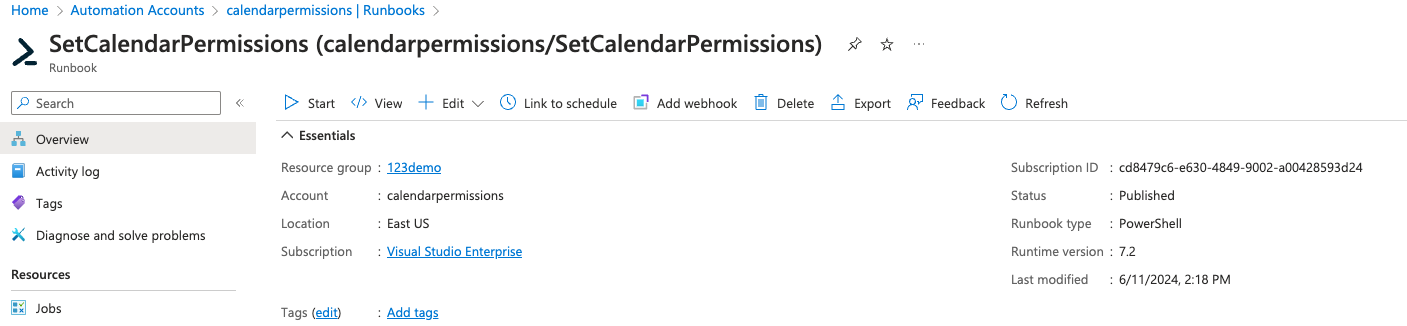
Click Refresh and Start.
Go to Output, and you should see something similar to this:
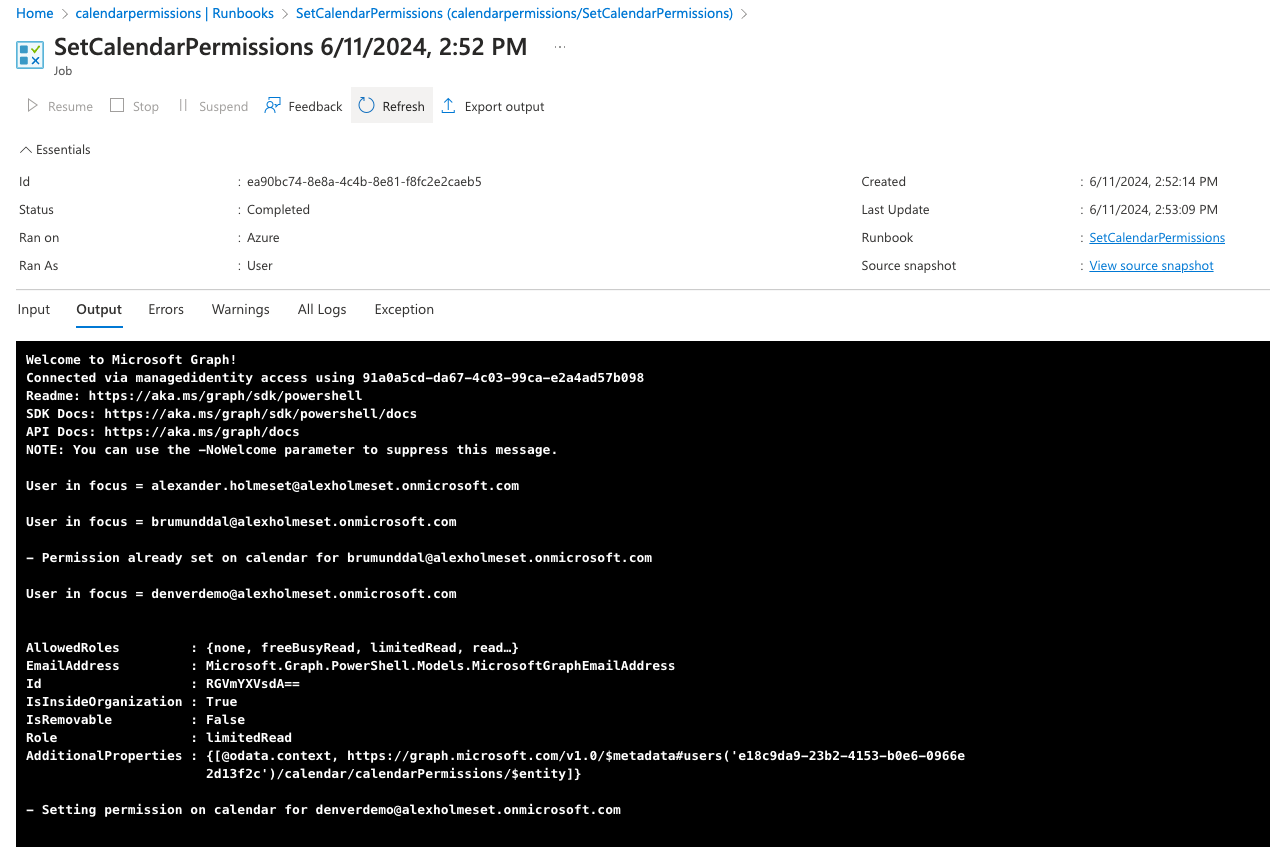
You can remove the output from the script as it creates unnecessary runtime, but useful to have to confirm things are working.
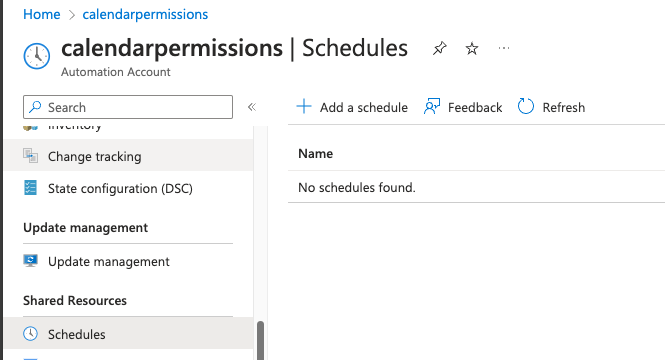
Go back to the Automation Account, go to the Schedules menu, and click Add a Schedule.
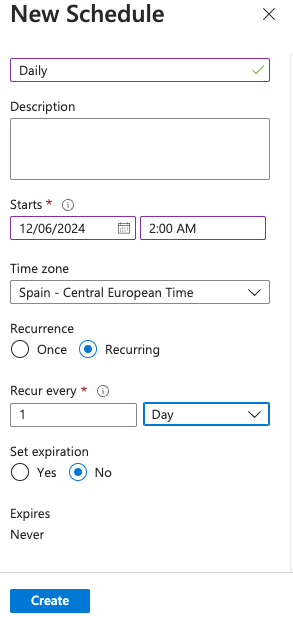
Setup at daily schedule and click create.
Open the runbook and go to Schedules and click Add a Schedule.
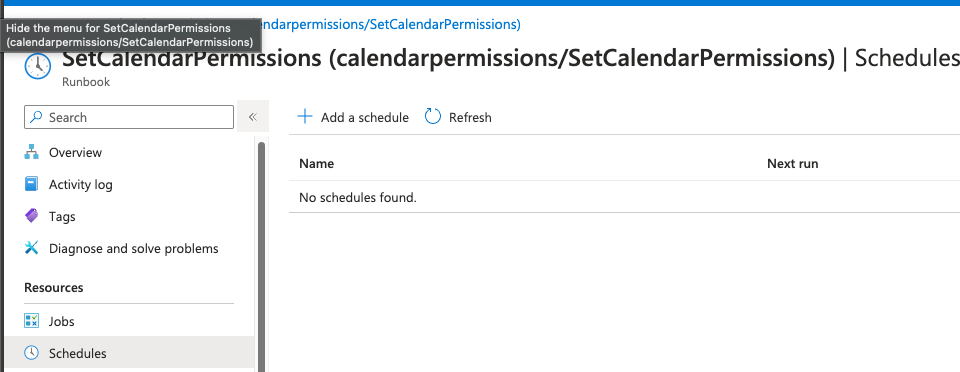
Click Link a schedule to your runbook.
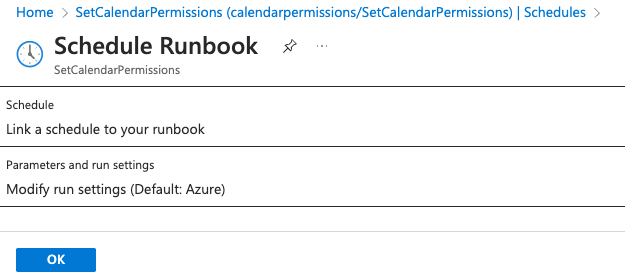
Click the daily schedule you created.
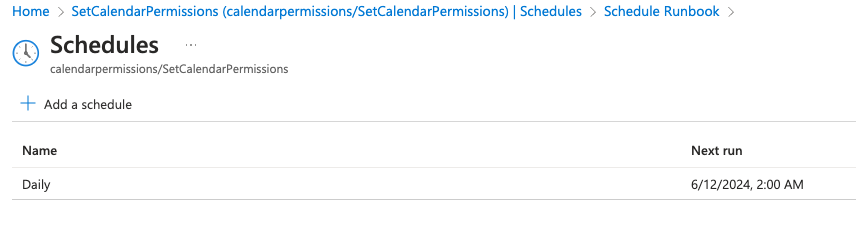
Click OK.
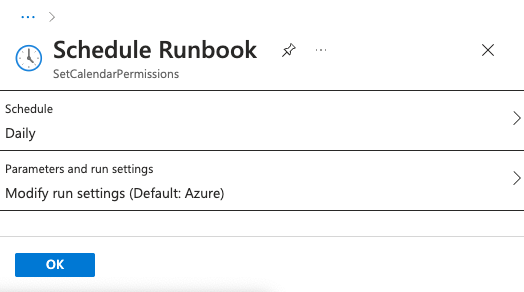
Thats its! Now you have a fully automated solution that checks if all users have your desired calendar permission and sets it if there’s a mismatch.
 A blog about automation and technologies in the cloud
I had this exact same question from my boss this week! Great write up, exactly what I needed. Here is some feedback:
LikeLike
1. Thanks for the heads up, havent tested the new one myself.
2. Fixed 🙂
3. Strange, i tested now, and it works for me. But for me it does not show that a user already have the setting. But could be since im playing around with the license for some other thing.
LikeLike
[…] Alexander has created a detailed blog post on how to set up the routine in Azure Automation. Take a look at his blog for these details: Set Default Calendar Permission for your Organization with Graph API! | A blog about automation and … […]
LikeLike