
The list price of Microsoft 365 Copilot is about 30$ a month. Many companies does not have the budget or at least don’t automatically assign licenses to all users. For example, if you have pretty large organisation and end up having 500 users with a Copilot license that is not using it, that is a yearly cost of about 180 000$! So what can we do about it?
Microsoft Graph API has a Copilot activity report endpoint, so it can check every licensed users last activity date with any of the Copilot services. By also doing a call against the user endpoint you can get the date a user got the license assigned too.

I have written a PowerShell script that can run in Azure Automation on a schedule, to automatically remove users from the Copilot license group if the user haven’t had any activity for example the last 50 days. I also added the option to send a email with a report of inactive users. Maybe you also want to modify it so the users get a heads-up/warning 10 days before if they don’t start to generate activity.
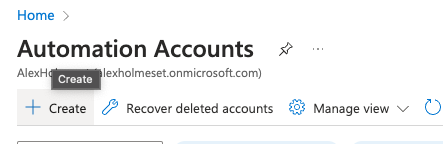
Start by going to the Azure Portal and create an Automation Account.

Click Create.
Fill out and click review+create.

Click Create.

Click Go to resource.

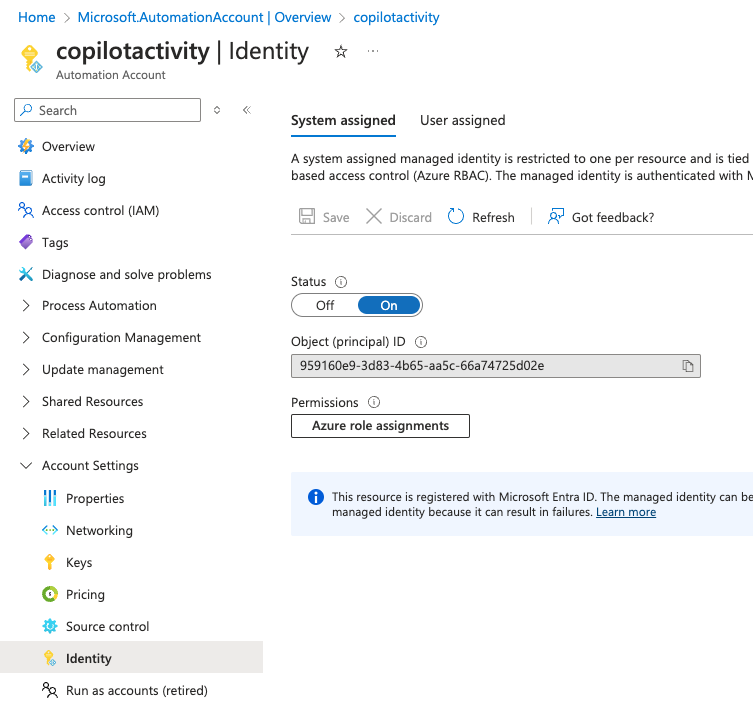
Go to Idenity and make sure System assigned is set to On.
Go to Modules and click add module.

You now need to add the following modules:
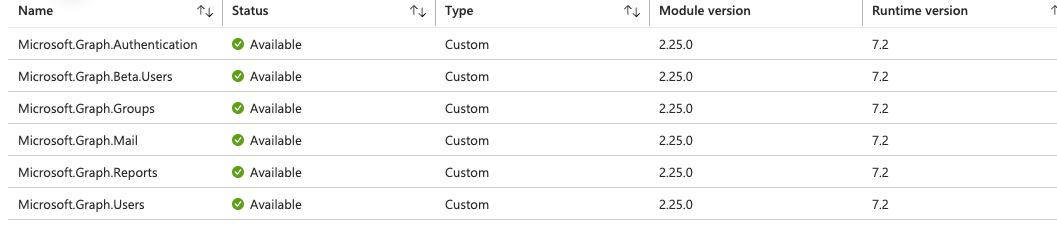
Select Browse from gallery then click “Click here to browse from gallery”. Select PowerShell 7.2 as the runtime version.

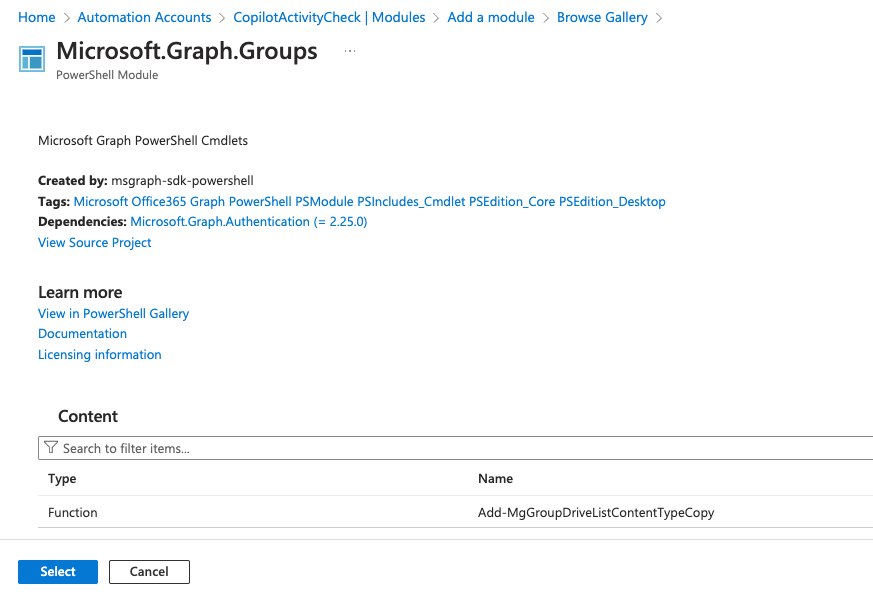
Click Import.

Before moving on you now need to give this Automation Account some Graph API rights. You can assign these by using the following script and run it in a PowerShell terminal.
| #Requires -Modules Microsoft.Graph | |
| # Install the module. (You need admin on the machine.) | |
| # Install-Module Microsoft.Graph | |
| # Set Static Variables | |
| $TenantID="Enter your Tenant ID" | |
| $LogicAppDisplayname = "CopilotActivityCheck" | |
| # Define dynamic variables | |
| $ServicePrincipalFilter = "displayName eq '$($LogicAppDisplayname)'" | |
| $GraphAPIAppName = "Microsoft Graph" | |
| $ApiServicePrincipalFilter = "displayName eq '$($GraphAPIAppName)'" | |
| # Scopes needed for the managed identity (Add other scopes if needed) | |
| $Scopes = @( | |
| "Reports.Read.All","Mail.Send","GroupMember.ReadWrite.All","User.Read.All" | |
| ) | |
| # Connect to MG Graph - scopes must be consented the first time you run this. | |
| # Connect with Global Administrator | |
| Connect-MgGraph -Scopes "Application.Read.All","AppRoleAssignment.ReadWrite.All" -TenantId $TenantID -UseDeviceAuthentication | |
| # Get the service principal for your managed identity. | |
| $ServicePrincipal = Get-MgServicePrincipal -Filter $ServicePrincipalFilter | |
| # Get the service principal for Microsoft Graph. | |
| # Result should be AppId 00000003-0000-0000-c000-000000000000 | |
| $ApiServicePrincipal = Get-MgServicePrincipal -Filter "$ApiServicePrincipalFilter" | |
| # Apply permissions | |
| Foreach ($Scope in $Scopes) { | |
| Write-Host "`nGetting App Role '$Scope'" | |
| $AppRole = $ApiServicePrincipal.AppRoles | Where-Object {$_.Value -eq $Scope -and $_.AllowedMemberTypes -contains "Application"} | |
| if ($null -eq $AppRole) { Write-Error "Could not find the specified App Role on the Api Service Principal"; continue; } | |
| if ($AppRole -is [array]) { Write-Error "Multiple App Roles found that match the request"; continue; } | |
| Write-Host "Found App Role, Id '$($AppRole.Id)'" | |
| $ExistingRoleAssignment = Get-MgServicePrincipalAppRoleAssignment -ServicePrincipalId $ServicePrincipal.Id | Where-Object { $_.AppRoleId -eq $AppRole.Id } | |
| if ($null -eq $existingRoleAssignment) { | |
| New-MgServicePrincipalAppRoleAssignment -ServicePrincipalId $ServicePrincipal.Id -PrincipalId $ServicePrincipal.Id -ResourceId $ApiServicePrincipal.Id -AppRoleId $AppRole.Id | |
| } else { | |
| Write-Host "App Role has already been assigned, skipping" | |
| } | |
| } |
After you have assigned the access rights to the managed identity of the Automation Account you can create a runbook.
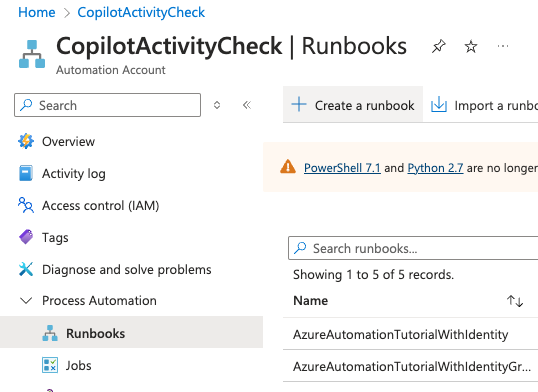
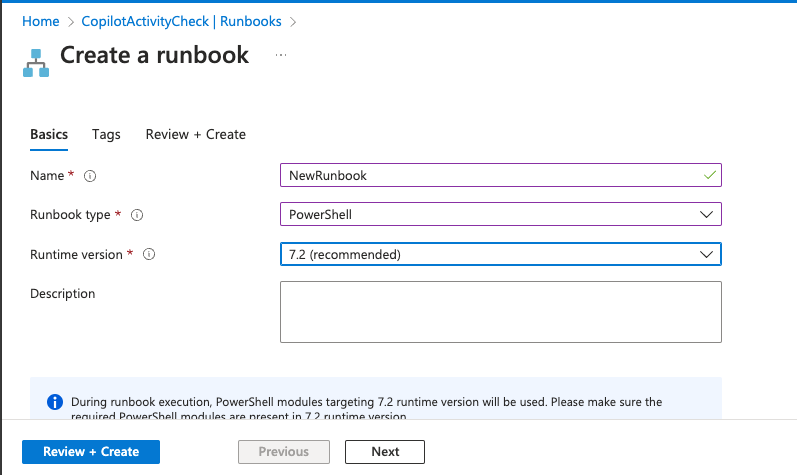
Choose PowerShell and Runtime 7.2. Click review+create.
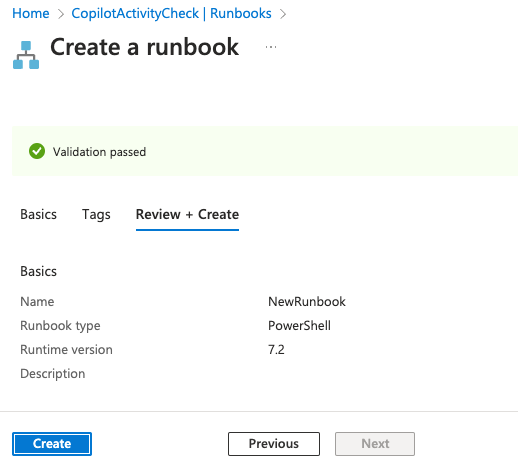
Click Create.
Copy/paste the PowerShell script below into the runbook editor and click save/publish. The solution is now ready to use, either by running manually or on a schedule! Its best to click “View RAW” at the bottom of the code when copying the script, as it seems that the code snippet viewer adds some strange formatting to URLs.

| #Threshold for the last activity | |
| $threshold = 50 | |
| $CopilotLicenseGroupID = "xxxxx-xxx-xxxx-xxx" | |
| # Connect to Microsoft Graph using the Tenant ID and Client Secret Credential | |
| Connect-MgGraph -identity | |
| $users = Invoke-MgGraphrequest -Method GET -Uri "https://graph.microsoft.com/beta/reports/getMicrosoft365CopilotUsageUserDetail(period='D90')" | |
| $count2 = 0 | |
| $today = Get-Date -Format "yyyy-MM-dd" | |
| $UsersNoActivity = @() | |
| foreach ($user in $users.value) { | |
| $count = 0 | |
| $tempuserdata = @() | |
| $tempuserdata = $user | Select-Object "displayName","userPrincipalName","lastactivitydate","microsoftTeamsCopilotLastActivityDate","wordCopilotLastActivityDate","powerPointCopilotLastActivityDate","oneNoteCopilotLastActivityDate","loopCopilotLastActivityDate","outlookCopilotLastActivityDate","excelCopilotLastActivityDate","copilotChatLastActivityDate","reportrefreshdate" | |
| $LicenseDate = @() | |
| $LicenseDate = (Get-MgBetaUser -UserId $tempuserdata.userPrincipalName).assignedplans | where-object{$_.serviceplanid -like "b95945de-b3bd-46db-8437-f2beb6ea2347"} | |
| $LicenseDate = $LicenseDate.AssignedDateTime | Get-Date -Format yyyy-MM-dd | |
| if ((New-TimeSpan -start $LicenseDate -End $today).days -ge $threshold) { | |
| If($tempuserdata.lastactivitydate) { | |
| if ((New-TimeSpan -start $tempuserdata.lastactivitydate -End $today).days -le $threshold) { | |
| $count++ | |
| } | |
| } | |
| else{$count2++} | |
| if($count -eq 0) { | |
| $tempuser= @() | |
| $tempuser = [PSCustomObject]@{ | |
| DisplayName = $tempuserdata.displayName | |
| UserPrincipalName = $tempuserdata.userPrincipalName | |
| LicenseDate = $LicenseDate | |
| Reportrefreshdate = $tempuserdata.reportrefreshdate | |
| LastActivityDate = $tempuserdata.lastactivitydate | |
| MicrosoftTeamsCopilotLastActivityDate = $tempuserdata.microsoftTeamsCopilotLastActivityDate | |
| WordCopilotLastActivityDate = $tempuserdata.wordCopilotLastActivityDate | |
| PowerPointCopilotLastActivityDate = $tempuserdata.powerPointCopilotLastActivityDate | |
| OneNoteCopilotLastActivityDate = $tempuserdata.oneNoteCopilotLastActivityDate | |
| LoopCopilotLastActivityDate = $tempuserdata.loopCopilotLastActivityDate | |
| OutlookCopilotLastActivityDate = $tempuserdata.outlookCopilotLastActivityDate | |
| ExcelCopilotLastActivityDate = $tempuserdata.excelCopilotLastActivityDate | |
| CopilotChatLastActivityDate = $tempuserdata.copilotChatLastActivityDate | |
| } | |
| $UsersNoActivity += $tempuser | |
| } | |
| } | |
| } | |
| $UsersNoActivity = $UsersNoActivity | |
| write-output $UsersNoActivity | |
| write-output $UsersNoActivity.count | |
| write-output "Number of licensedusers wihtout activity: $count2" | |
| <# | |
| $params = @{ | |
| message = @{ | |
| subject = "Copilot Inaktive brukere" | |
| body = @{ | |
| contentType = "TEXT" | |
| content = " | |
| $($UsersNoActivity | Out-String) | |
| " | |
| } | |
| toRecipients = @( | |
| @{ | |
| emailAddress = @{ | |
| address = "[email protected]" | |
| } | |
| } | |
| ) | |
| } | |
| saveToSentItems = "false" | |
| } | |
| #> | |
| # A UPN can also be used as -UserId. | |
| #Send-MgUserMail -UserId "[email protected]" -BodyParameter $params | |
| foreach($UserNoActivity in $UsersNoActivity){ | |
| $UserObjectID = @() | |
| $UserObjectID = (Get-MgUser -Filter "UserPrincipalName eq '$($UserNoActivity.UserPrincipalName)'").id | |
| Remove-MgGroupMemberByRef -GroupId $CopilotLicenseGroupID -MemberId $UserObjectID | |
| } |
 A blog about automation and technologies in the cloud
[…] to someone more engaged. My friend, MVP Alexander Holmeset, has developed and shared a solution to automatically unassign the license of inactive Copilot users. His routine can automatically remove users from the license group if their Copilot activity […]
LikeLike